Variant Component
R2026bAdd components with alternative designs
Variant Component block

Alternative Configurations of Variant Component Block:
Variant Assembly Component
Description
Use a Variant Component block to create multiple design alternatives for a component.
Add ports to the block to connect to other components. Define an interface for the ports, add properties associated with the port and port colors using stereotypes, and define parameters.

To add or connect System Composer™ components:
Add an architecture Variant Component block from the Modeling tab or the palette. You can also click and drag a box on the canvas, then select the Variant Component block. You can also create a variant component from a Component block or Reference Component block. Select the component and, on the toolstrip, click Modeling > Component > Add Variant Choice.
To add a port, select an edge of the component and choose a direction from the menu:
InputorOutputClick and drag the port to create a connection. Connect to another component. You can also create a new component to complete the connection.
To connect Variant Component blocks to architecture or composition model root ports, drag from the component ports to the containing model boundary. When you release the connection, a root port is created at the boundary.
Note
You can add a mask icon to your component to illustrate the system represented by your component. For more information, see Add Component Image.
To manage Variant Component choices:
By default, two variant choices are created when you create a Variant Component block. Select the Variant Component block and, on the toolstrip, click Modeling > Component > Label Mode Active Choice, then select the active choice.
To add an additional variant choice, select the Variant Component block and, on the toolstrip, click Modeling > Component > Add Variant Choice. When you add a variant choice, it automatically inherits the input and output ports of the Variant Component block along with the interface definitions for the ports.
Double-click into the Variant Component block to design the variants within it.
Use the Simulink Variant Manager (Simulink Variant Manager) to easily switch between variant choices in a complex model hierarchy. Select the Variant Component block and, on the toolstrip, click Modeling > Component > Open in Variant Manager.
Examples
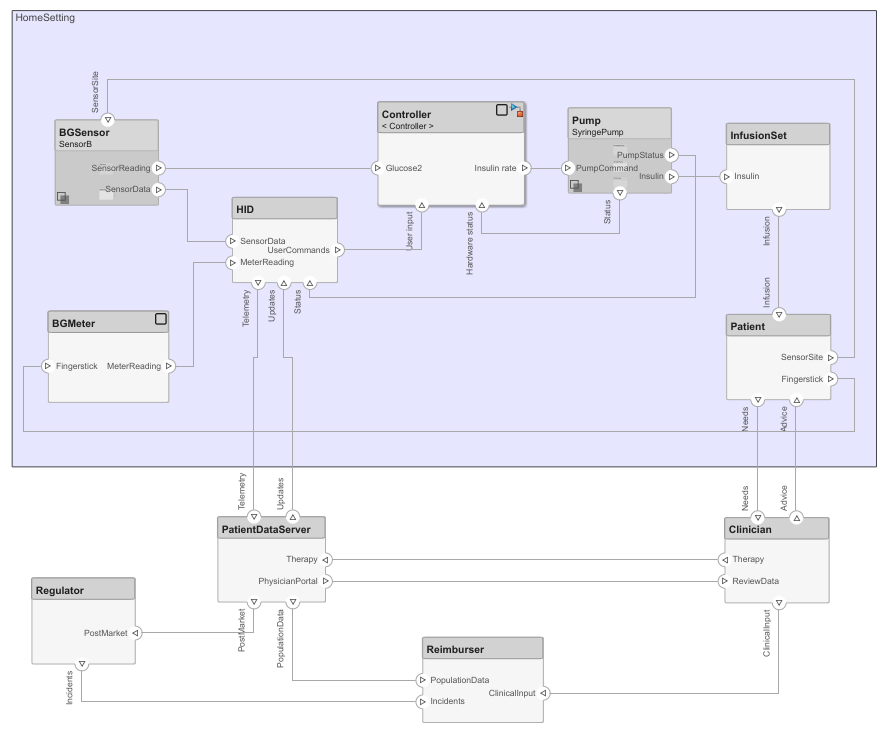
Design Insulin Infusion Pump Using Model-Based Systems Engineering
Design an insulin infusion pump with variant analysis using System Composer.
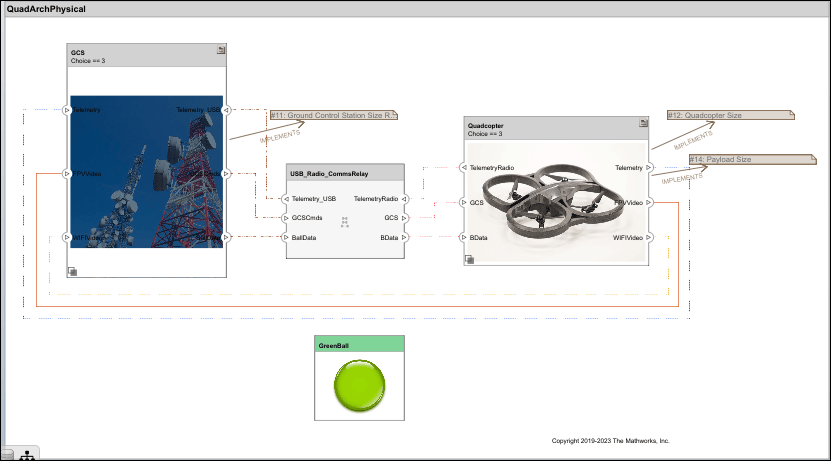
Calculate Endurance Using Quadcopter Architectural Design
Design quadcopter by calculating endurance using System Composer analysis.
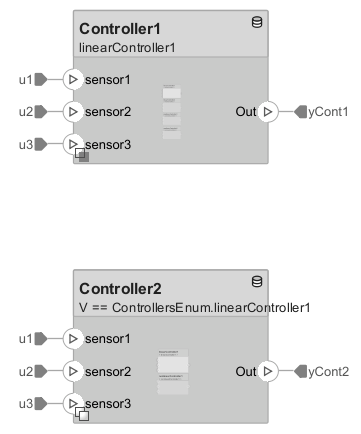
Add or Remove Variant Choices of Variant Assembly Component Blocks Using External File
A Variant Assembly Component block can use Model blocks, Subsystem Reference blocks, or both as its variant choices. The variant choices are maintained in a separate model and subsystem files that are on the MATLAB® path. You can add or remove the variant choices from the Variant Assembly Component block without modifying the model. You use an external source such as an enumeration class or a MATLAB function to manage the variant choices of the Variant Assembly Component block. Unlike when you use Variant Component blocks, you are not required to navigate inside the Variant Assembly Component block to add or remove the variant choices from the block. For more information, see Variant Assembly Component in Variant Component. This example explains how to manipulate Variant Choices of Variant Assembly Component Block in Label and Expression Modes.
Ports
Input
Output
Physical
Alternative Configurations
More About
Version History
Introduced in R2019aSee Also
Objects
Functions
addChoice|addVariantComponent|getActiveChoice|getChoices|getCondition|makeVariant|makeVariantAssembly|setActiveChoice|setCondition

