Main Content

importGeometry

R2026b

Import geometry from STL or STEP file

Description

gm = importGeometry(geometryfile) creates a geometry object from the specified STL or STEP geometry file. A geometry imported from an STL file can be 3-D or planar. A geometry imported from a STEP file must be 3-D.

example

gm = importGeometry(model,geometryfile) also includes the geometry in the model container.

importGeometry(model,___) creates a geometry object from the specified STL or STEP geometry file and includes the geometry in the model container.

example

___ = importGeometry(___,Name=Value) creates a geometry object using one or more name-value arguments. Use this syntax with any of the argument combinations from the previous syntaxes.

example

Examples

collapse all

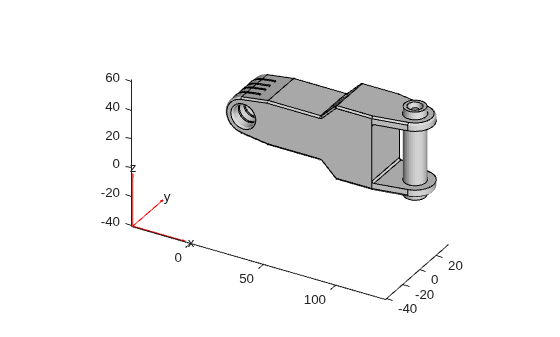
Create a geometry object from an STL geometry file.

gm = importGeometry("ForearmLink.stl");

Plot the geometry.

pdegplot(gm)

Figure contains an axes object. The axes object contains 6 objects of type quiver, text, patch, line.

Import a planar STL geometry and include it in a PDE model. When importing a planar geometry, importGeometry converts it to a 2-D geometry by mapping it to the xy-plane.

Create a PDEModel container.

model = createpde;

Import a geometry into the container.

importGeometry(model,"PlateHolePlanar.stl")
ans = 
  DiscreteGeometry with properties:

       NumCells: 0
       NumFaces: 1
       NumEdges: 5
    NumVertices: 5
       Vertices: [5×3 double]

Plot the geometry with the edge labels.

pdegplot(model,EdgeLabels="on")
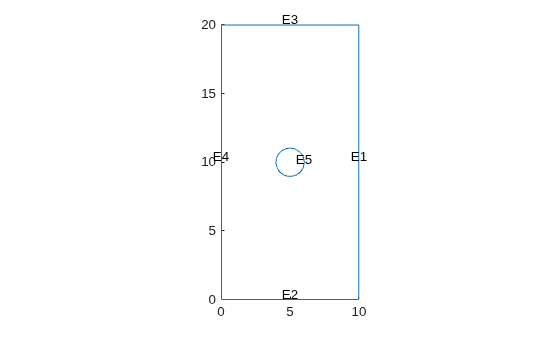
Figure contains an axes object. The axes object contains an object of type line.

Create a geometry object from a STEP geometry file.

gm = importGeometry("BlockWithHole.step");

Plot the geometry.

pdegplot(gm,FaceAlpha=0.3)
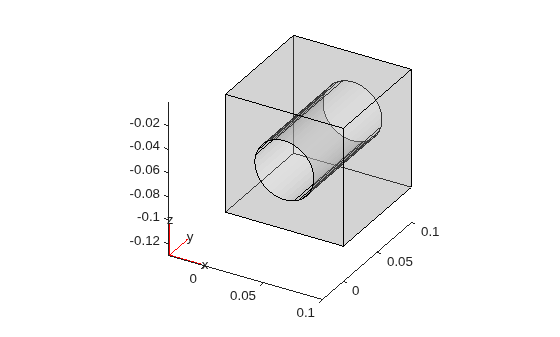
Figure contains an axes object. The axes object contains 6 objects of type quiver, text, patch, line.

Now import the same geometry while specifying the relative sag. You can use this parameter to control the accuracy of the geometry import.

gm = importGeometry("BlockWithHole.step",MaxRelativeDeviation=0.1);

Plot the geometry.

pdegplot(gm,FaceAlpha=0.3)
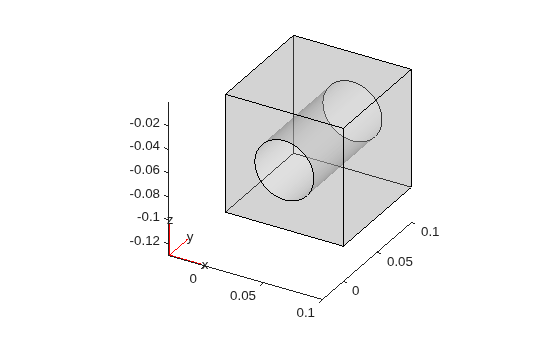
Figure contains an axes object. The axes object contains 6 objects of type quiver, text, patch, line.

Import a multidomain geometry from a STEP file as a single geometry with multiple cells and as a vector of single-domain geometries.

Import a geometry from a STEP file containing two hemispheres. By default, importGeometry imports the file as a single multidomain geometry.

gm = importGeometry("Hemispheres.step")
gm = 
  DiscreteGeometry with properties:

       NumCells: 2
       NumFaces: 7
       NumEdges: 4
    NumVertices: 4
       Vertices: [4×3 double]

Plot the geometry with cell labels to see the individual cells.

pdegplot(gm,CellLabels="on")
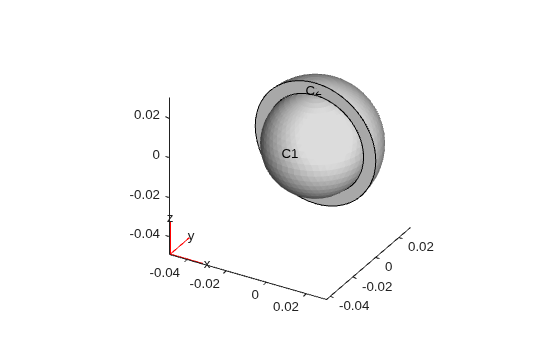
Figure contains an axes object. The axes object contains 6 objects of type quiver, text, patch, line.

Return a vector of single-domain geometries by setting VectorOutput to true.

gm = importGeometry("Hemispheres.step",VectorOutput=true);

Plot the geometries.

pdegplot(gm(1))
hold on
pdegplot(gm(2),FaceColor="red")
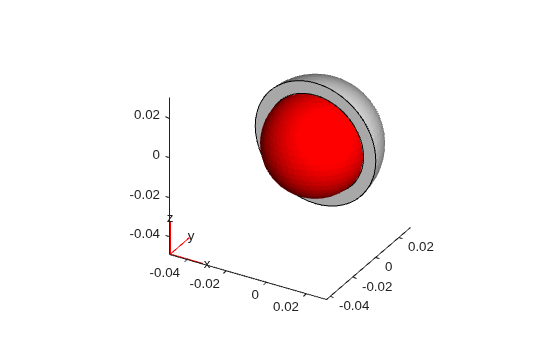
Figure contains an axes object. The axes object contains 8 objects of type quiver, text, patch, line.

Combine the single-domain geometries into one multidomain geometry by using the union function with KeepBoundaries set to true.

g = union(fegeometry(gm),KeepBoundaries=true);

Plot the result with cell labels.

figure
pdegplot(g,CellLabels="on")
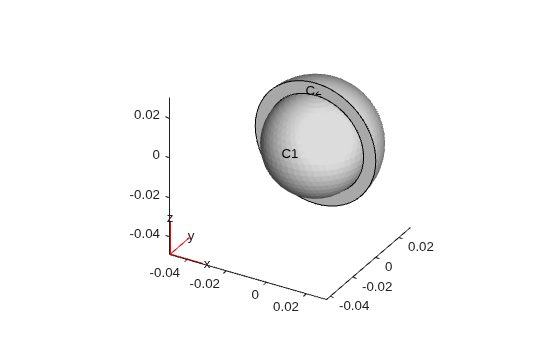
Figure contains an axes object. The axes object contains 6 objects of type quiver, text, patch, line.

Input Arguments

collapse all

Model container, specified as a PDEModel object.

Example: model = createpde(3)

Path to STL or STEP file, specified as a string scalar or a character vector ending with the file extension ".stl", ".stp", or ".step". You can also use the uppercase extensions ".STL", ".STP" or ".STEP", or any combinations of uppercase and lowercase letters in these extensions.

Tip

importGeometry does not let you import a multidomain geometry from an STL file if subdomains have any common points. You can import a 3-D multidomain geometry from a STEP file.

Example: "../geometries/Carburetor.stl"

Data Types: string | char

Name-Value Arguments

collapse all

Specify optional pairs of arguments as Name1=Value1,...,NameN=ValueN, where Name is the argument name and Value is the corresponding value. Name-value arguments must appear after other arguments, but the order of the pairs does not matter.

Example: gm = importGeometry("AngleBlock.step",MaxRelativeDeviation=5)

Indicator to allow import of self-intersecting geometry from an STL or STEP file, specified as true or false. You also can use 1 or 0 instead of true or false. By default, importGeometry does not check for self-intersections and lets you import such geometries. If you set AllowSelfIntersections to false or 0, importGeometry throws an error for a geometry with self-intersections.

Example: gm = importGeometry("GeometryWithSelfIntersectons.stl",AllowSelfIntersections=true)

Threshold for the dihedral angle between adjacent triangles to indicate the edge and create two separate faces, specified as a number between 10 and 90. Specify the FeatureAngle value in degrees.

If the angle between the triangles exceeds the threshold, the edge becomes a topological (feature) edge separating two faces. If it does not exceed the threshold, importGeometry does not create a topological edge with two separate faces, unless the edge can be created based on other criteria. Instead, importGeometry treats it as one face.

Example: gm = importGeometry("Geometry.stl",FeatureAngle=30)

Relative sag for importing a STEP geometry, specified as a number in the range [0.1,10]. This value controls the accuracy of the geometry import from a STEP file. A relative sag is the ratio between the local absolute sag and the local mesh edge length. The absolute sag is the maximal gap between the mesh and the geometry.

Example: gm = importGeometry("AngleBlock.step",MaxRelativeDeviation=5)

Data Types: double

Since R2026b

Indicator to return a vector of single-domain geometries, specified as false or true. You can use this argument when importing a multidomain geometry from a STEP-file. Setting VectorOutput to true lets you return a vector of single-domain geometries instead of returning one multidomain geometry. You can manipulate or modify each of the returned single-domain geometries separately. For example, you can translate, rotate, and scale the geometries, and then combine them by using the Boolean union, intersect, and subtract functions.

By default, importGeometry recognizes if a STEP file represents a multidomain geometry and imports it as one geometry with multiple cells. If the resulting geometry is invalid, importGeometry errors. Setting VectorOutput to true lets you return a vector of single-domain geometries instead. Typically, you can combine these geometries by using the union function, for example:

gv = importGeometry("geometry.step",VectorOutput=true);
gm = union(gv,KeepBoundaries=true)

If the resulting geometry is invalid, you can try these approaches:

  • Remove extraneous geometries from the vector before combining the geometries.

  • Slightly translate some or all of the geometries before combining them.

  • If internal boundaries are not essential for your task, call union with KeepBoundaries set to false.

Data Types: logical

Output Arguments

collapse all

Geometry, returned as a DiscreteGeometry object.

Tips

  • The STL format approximates the boundary of a CAD geometry by using a collection of triangles, and the importGeometry function reconstructs the faces and edges from this data. Reconstruction from STL data is not precise and can result in a loss of edges and, therefore, the merging of adjacent faces. Typically, lost edges are the edges between two adjacent faces meeting at a small angle, or smooth edges bounding blend surfaces. Usually, the loss of such edges does not affect the analysis workflow.

  • Because STL geometries are only approximations of the original CAD geometries, the areas and volumes of the STL and CAD geometries can differ.

Version History

Introduced in R2015a

expand all