Optimization Explorer
R2026bExplore multiple solver configurations and their solutions for an optimization problem
Since R2026a
Description
The Optimization Explorer app uses multiple solver configurations (solvers, options, and start points) to search for a global solution to an optimization problem. Using auto mode, you can repeatedly search for a global solution to an optimization problem, or search for the best combination of solver and options to solve an optimization problem. Using manual mode, you can create a set of solvers, initial conditions, and options to explore. By default, Optimization Explorer plots and stores the results. To explore further, you can run additional optimizations in the current session or a previous session.
Note
To use Optimization Explorer, you must first create an optimization problem.
You can provide an OptimizationProblem
object using MATLAB® commands, or define an OptimizationProblem object using the
problem-based Optimize
Live Editor task. You can also provide the inputs to an optimization solver, such as
fmincon or patternsearch, as variables in your
workspace. Providing an OptimizationProblem object gives Optimization
Explorer the most information about your problem, enabling the app to find the
solution most efficiently.
Open the Optimization Explorer App
MATLAB Toolstrip: On the Apps tab, under Math, Statistics and Optimization, click the app icon.
MATLAB command prompt: Enter
optimizationExplorer.
Examples
- Use Optimization Explorer App
- Optimize Simulink Model in Parallel with Optimization Explorer (Global Optimization Toolbox)
Parameters
Optimization Parameters
When you specify the problem as an OptimizationProblem object, Optimization Explorer has the most data and can,
therefore, choose the most appropriate solvers.
Create a Problem Object using the Problem-Based Optimization Workflow. Begin by calling
optimproblem,
and then add the objective function and constraints.
Alternatively, create a Problem Object using the problem-based version of the Optimize Live Editor task.
When you specify the problem using solver inputs, Optimization Explorer has less data than if you specify the problem using optimization variables, so the solution process can be less efficient. The solvers and their syntaxes are listed in these links:
ga(Global Optimization Toolbox)patternsearch(Global Optimization Toolbox)particleswarm(Global Optimization Toolbox)surrogateopt(Global Optimization Toolbox)
Create solver inputs at the command line. Typical inputs include:
Objective function — Create a function handle such as
@fun. See Writing Scalar Objective Functions.Nonlinear constraint function — Create a function handle such as
@nlcon. See Nonlinear Constraints.Initial point
x0— Create a row vector or other array. Seex0.Lower bound
lband upper boundub— Create a numeric vector or array. See Bound Constraints.Linear constraints — Create a numeric matrix
Aand corresponding vectorbfor inequality constraints, and create a numeric matrixAeqand corresponding vectorbeqfor equality constraints. See Linear Constraints.
Specify the initial point for the solver according to the following guidelines.
New Session:
x0indicates the number and shape of the optimization variables.Solver Inputs — Specify
x0as a real vector or array for solvers that requires an initial point, such asfmincon. The objective functionfunmust be able to evaluatefun(x0)and return a scalar value (or, for thelsqnonlinsolver, a vector value).Problem Object —
x0is not required because the problem object contains information about the number and shape of the variables.
Manual Mode: Solvers use any specified start points.
Solver Inputs for single-point objective — Specify
x0as an array with the number of elements is equal to the number of problem variables.Solver Inputs for multistart or population-based objective — Specify
x0as a matrix where each row represents one point and the number of columns is the number of problem variables. A population-based solver uses more than one point to evaluate the objective function, such asgaorparticleswarm.Problem Object for single-point objective — Specify
x0as a structure whose field names match the problem variable names. For example, if your problem has optimization variables"x"and"angle", the structurex0must include the fieldsx0.xandx0.angle, specified as real arrays.Problem Object for multistart or population-based objective — Specify
x0as a structure as for a single-point objective or as anOptimizationValuesvector. Optimization Explorer uses only theVariablesproperty of theOptimizationValuesobject, not anyObjectiveorConstraintsvalues.
Problem Attribute Parameters
Specify whether the optimization problem is convex.
Solvers use special techniques to optimize convex functions and, with convex
constraints, any local minimum is a global minimum. Select Yes only
if you are sure that your problem (including both the objective function and the
constraints) is convex.
Specify whether the optimization problem is nonsmooth.
A nonsmooth function has jumps or kinks, causing it to lack derivatives at some
points. Some solvers require derivatives and, therefore, cannot handle a nonsmooth
function. Select Yes only if you are sure that your objective
function is nonsmooth or the nonlinear constraints are nonsmooth.
Specify whether the objective function or nonlinear constraints come from a simulation.
A simulation computes an objective or nonlinear constraint function by numerically solving a differential equation, or by using complex code such as Simulink®. Simulations are typically expensive (time-consuming) and are often nonsmooth.
Note
Currently, parallel processing is not supported for problems that use a Simulink model. For a workaround, see Optimize Simulink Model in Parallel with Optimization Explorer (Global Optimization Toolbox).
Specify whether the objective function or nonlinear constraints are time-consuming to evaluate, or expensive.
An expensive function takes roughly five seconds or longer to evaluate. Some solvers
are well suited to expensive functions. Select Yes when your
objective function and nonlinear constraints combined typically take at least five
seconds to evaluate at one point.
Select Solver Parameters
Specify the operational mode for the Optimization Explorer app.
Automode causes the app to repeatedly run applicable solvers from a variety of start points or random seeds up to a stopping condition, such as a time limit you set. See Stopping Conditions.Manualmode causes the app to run the solver configurations you set manually. The available solvers depend on the problem type. For the list of potential solvers, seeSolver.
Specify one of the following as the solver to use:
patternsearch(Global Optimization Toolbox)ga(Global Optimization Toolbox)particleswarm(Global Optimization Toolbox)simulannealbnd(Global Optimization Toolbox)surrogateopt(Global Optimization Toolbox)multistart
fminconmultistart
fminsearchmultistart
fminuncmultistart
lsqnonlinmultistart
patternsearch
The multistart solvers allow you to run multiple instances of the same solver and options using different start points.
Note
The multistart solvers do not run the MultiStart (Global Optimization Toolbox) solver. Instead, they run the named solver multiple times using
randomly selected start points within the problem bounds. Optimization Explorer
creates uniformly random start points, and uses artificial bounds of ±1000 for
unbounded components.
Run Parameters
Specify whether to use parallel processing (true) or serial
processing (false). To run in parallel, you must have Parallel Computing Toolbox™.
When processing in parallel, the app generally allocates one configuration per parallel worker, simultaneously processing several configurations at once. Parallel processing is usually faster than serial processing.
Note
Currently, parallel processing is not supported for problems that use a Simulink model. For a workaround, see Optimize Simulink Model in Parallel with Optimization Explorer (Global Optimization Toolbox).
Specify how to start Optimization Explorer. The effect of this parameter depends on
the Mode
setting.
Automode — When you selectRunorRun next, the app chooses the solver configurations to run until it reaches a stopping condition.Manualmode — When you selectRun, the app runs the scheduled configurations. When you selectRun next, the app runs only the next scheduled configuration. You can see the scheduled configurations in the Solver Configurations panel.
Review Results Parameters
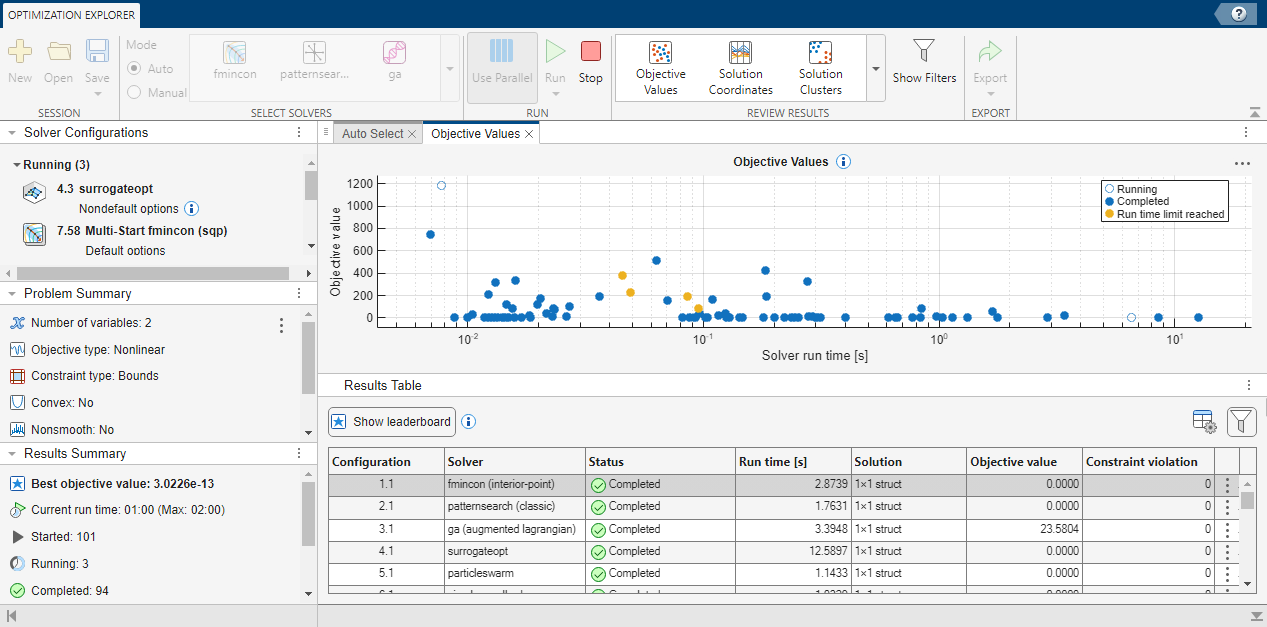
Display a scatter plot (the default plot) of the objective function values against solver run time.
The time axis is log-scaled. The objective function axis is unscaled (linear).
To view details of a plotted point, click a point to activate data tips. Click the point again to hide the data tips.
The display is affected by the filter and leaderboard settings.
Display a parallel coordinates plot of solutions, similar to parallelplot. To see the results more easily when the plot has different
coordinate scales, select Rescale values to have each coordinate
value lie in the interval [0,1].
Plotted points and lines are colored by the objective function value, as shown in the accompanying color bar.
To view details of a plotted solution, click a point to activate data tips. Click the point again to hide the data tips.
The display is affected by the filter and leaderboard settings.
Display a scatter plot or t-SNE plot of solution clusters, depending on the number
of dimensions of the solution points. For solutions with one or two dimensions, the app
displays a scatter plot. For solutions with three or
more dimensions, the app displays a t-SNE plot of solution clusters, as returned by
tsne (Statistics and Machine Learning Toolbox).
Plotted markers are colored by the objective function value, as shown in the accompanying color bar.
To view details of a plotted solution, click a point to activate data tips. Click the point again to hide the data tips.
The display is affected by the filter and leaderboard settings.
Display a spider plot of solutions along five axes of these quantities for each solution:
Objective value — Objective function value
Run time [s] — Run time in seconds
Constraint violation — Infeasibility (maximum constraint violation)
Function evaluations — Number of function evaluations
Optimality — First-Order Optimality Measure (applies only to Optimization Toolbox™ solvers)
Note the following:
Plotted points and lines are colored by the objective function value, as shown in the accompanying color bar.
To view details of a plotted solution, click a point to activate data tips. Click the point again to hide the data tips.
The display is affected by the filter and leaderboard settings.
Display a box plot of objective function values by solver algorithm, as returned by
boxchart.
To view details of a plotted solution, hover your cursor over the point of interest. Click the point to have the data tip remain. Hover or click on other points of interest to have them display simultaneously. Click a black anchor point to hide the data tip.
The display is affected by the filter and leaderboard settings.
Toggle the display of the Results Filters panel. The options in this panel allow you to filter the results that appear in the plots and the Results Table, specifically the:
Selected solvers
Selected status (Completed, Run time limit reached, or Stopped)
Results that fall within the specified range for Run time, Objective value, or Constraint violation
The Results Filters panel shows the number of currently visible results and the total number of results.

The Results Table shows the same information. To remove the
filters, click the  button.
Show the top results sorted by objective value. The leaderboard contains up to 10
results. To cancel the leaderboard, click the button.
The leaderboard is not available when another filter is active.
Export Parameters
Specify how to export results to the workspace.
Export Results Tableexports a table of results as currently filtered.Export Functionexports a function that reproduces the results of the selected row in the Results Table. To run this function, you generally need the original optimization problem as an input, or the solver inputs you originally used to create the session. If you used solver inputs, the exported function requires you to pass in all solver inputs, even those that were unused. Pass empty brackets ([]) for each unused input in the exported function.
Programmatic Use
Limitations
Supported Problem Types
Optimization Explorer currently solves only explicitly nonlinear problems that are not quadratic. Specifically, Optimization Explorer does not support:
Linear programming problems
Quadratic programming problems
Cone programming problems
Multiobjective problems
Mixed-integer linear programming problems
Linear programming, convex quadratic programming, and cone programming problems have
unique optimal objective function values, so Optimization Explorer is not the right tool for
solving these problems. For linear programming problems, the linprog
sensitivity
output gives more information than Optimization Explorer about the effects of changing the
problem parameters.
Session Folders Are Not Protected
When you save an Optimization Explorer session using Save or
Save as, the resulting folder is not protected from change. If
any file in the session folder is changed, either in name or in its contents, then you might
not be able to reopen the session. In other words, to be able to use a session folder to
restart an Optimization Explorer session, do not change anything in the folder.
Tips
As a best practice, run a solver on your problem once before running the solver in Optimization Explorer. This procedure ensures that a solver can run your problem without error.
When you run additional solver configurations, the app retains the current results and adds the new results to the Results Table and plots.
The options for displaying plots and filtering results are active during a run, as is the Stop button on the toolstrip. However, the effects of these options might seem delayed because they occur only after a solver iteration is complete.
To view the value of a solution in the Results Table, double-click the table entry.

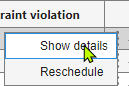
To view the details of an entry in the Results Table, click the three vertical dots on the right side of the table and select Show details.
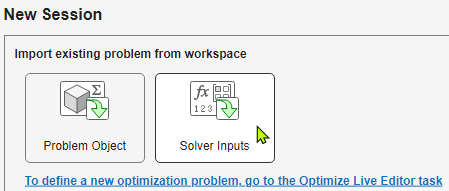
To improve efficiency when your objective or nonlinear constraint functions return gradient information or compute in a vectorized manner, set up your problem using Solver Inputs along with Advanced settings.

Currently,
fmincon,fminunc, andlsqnonlincan use gradient information, andga,particleswarm,patternsearch, andsurrogateoptcan run in a vectorized manner.
Algorithms
Version History
Introduced in R2026a
See Also
Optimize | fmincon | fminsearch | fminunc | ga (Global Optimization Toolbox) | lsqnonlin | particleswarm (Global Optimization Toolbox) | patternsearch (Global Optimization Toolbox) | simulannealbnd (Global Optimization Toolbox) | surrogateopt (Global Optimization Toolbox)

