Angle
R2026bDescription
An Angle object labels an interactive angle in a
Viewer object. The properties of the object control the appearance and
behavior of the angle annotation.
Interactive viewer-based ROIs enable you to draw, edit, and
measure regions of interest on images and volumes displayed using imageshow
and volshow. Interactive ROIs support dragging, resizing, event callbacks,
and measurement labels. Use interactive viewer-based ROIs to manually annotate an image, build
annotation workflows in apps, or respond to user interactions with ROI shapes. For a comparison
of interactive viewer-based ROIs with other ROIs, see Choose Approach to Annotate ROIs in Images.
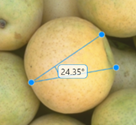
Creation
You can create an Angle object in these ways. For more information, see
Create Interactive Viewer-Based ROIs.
Interactively draw an angle in a 2-D
Viewerobject. From the viewer toolbar, select the draw annotations icon , then select the measure angle icon
 . Click to place the vertex of the angle, then
select two endpoints that define the rays of the angle. To export the angle to the
workspace as an
. Click to place the vertex of the angle, then
select two endpoints that define the rays of the angle. To export the angle to the
workspace as an Angleobject, right-click the ROI and select Export annotation to workspace.Use the
uidrawfunction to interactively draw the ROI in a specified viewer and create the ROI object.Use the
images.ui.graphics.roi.Anglefunction described here. After you create the ROI, you can display it by adding the object to theAnnotationsproperty of aViewerobject.
Description
a = images.ui.graphics.roi.Angle creates an
Angle object with default property values. Use
a to query and modify properties of the
Angle object after you create it.
a = images.ui.graphics.roi.Angle(Name=Value) sets one or more
writable properties using
name-value arguments.
Example:
images.ui.graphics.roi.Angle(Position=[500 150; 390 230; 520 200])
creates an Angle object whose vertex is at the
xyz-coordinates (390, 230, 1) and whose endpoints are at the
coordinates (500, 150, 1) and (520, 200, 1).
Properties
Shape and Position
Position of the ROI, specified as a 3-by-3 or 3-by-2 numeric matrix. Each row defines the coordinates of one of the points that create the angle, with the second row defining the coordinates of the vertex.
3-by-3 matrix — Specify each row as a set of xyz-coordinates in the form [
x y z].3-by-2 matrix — Specify each row as a set of xy-coordinates in the form [
x
                              y
]. The object sets the z-coordinate of each point to1.
The object always stores this property value as a 3-by-3 matrix.
This property is read-only.
Measured angle of the ROI, in degrees, represented as a numeric scalar.
Color and Styling
ROI color, specified as an RGB triplet, a hexadecimal color code, a color name, or a short color name.
These are the RGB triplets for the default colors used in 2-D and 3-D
Viewer scenes.
| RGB Triplet | Appearance | Default Use |
|---|---|---|
[0 0.5610 1] |
| This is the default color when creating an ROI in a 2-D
Viewer object from the toolbar or by using the
uidraw function. |
[0.8660 0.3290 0] |
| This is the default color when creating an ROI in a 3-D
Viewer object from the toolbar or by using
uidraw. This color is also the default when you
create an ROI in any Viewer object by using an object
constructor function such as
images.ui.graphics.roi.Circle. |


For a custom color, specify an RGB triplet or a hexadecimal color code.
An RGB triplet is a three-element row vector whose elements specify the intensities of the red, green, and blue components of the color. The intensities must be in the range
[0,1], for example,[0.4 0.6 0.7].A hexadecimal color code is a string scalar or character vector that starts with a hash symbol (
#) followed by three or six hexadecimal digits, which can range from0toF. The values are not case sensitive. Therefore, the color codes"#FF8800","#ff8800","#F80", and"#f80"are equivalent.
Alternatively, you can specify some common colors by name. This table lists the named color options, the equivalent RGB triplets, and the hexadecimal color codes.
| Color Name | Short Name | RGB Triplet | Hexadecimal Color Code | Appearance |
|---|---|---|---|---|
"red" | "r" | [1 0 0] | "#FF0000" |
|
"green" | "g" | [0 1 0] | "#00FF00" |
|
"blue" | "b" | [0 0 1] | "#0000FF" |
|
"cyan"
| "c" | [0 1 1] | "#00FFFF" |
|
"magenta" | "m" | [1 0 1] | "#FF00FF" |
|
"yellow" | "y" | [1 1 0] | "#FFFF00" |
|
"black" | "k" | [0 0 0] | "#000000" |
|
"white" | "w" | [1 1 1] | "#FFFFFF" |
|








This table lists the default color palettes for plots in the light and dark themes.
| Palette | Palette Colors |
|---|---|
Before R2025a: Most plots use these colors by default. |
|
|
|


You can get the RGB triplets and hexadecimal color codes for these palettes using the
orderedcolors and rgb2hex
functions. For example, get the RGB triplets for the "gem" palette
and convert them to hexadecimal color
codes.
RGB = orderedcolors("gem");
H = rgb2hex(RGB);
Example: Color="r"
Example: Color="green"
Example: Color=[0 0.4470 0.7410]
Example: Color="#00FFFF"
ROI visibility, specified as "on" or "off", or as
. A value of "on" is equivalent to
true, and "off" is equivalent to
false. The value is stored as an on/off logical value of type
OnOffSwitchState.
| Value | Description |
|---|---|
"on" | Display the ROI. |
"off" | Hide the ROI without deleting it. You can still access the properties of an invisible ROI. |
ROI label, specified as a string scalar or character vector. By default, the label shows the measured angle, in degrees.
To display a custom label, specify the label to display as a string scalar
or character vector. To display no label, specify the
Label value as "".
Interactivity
Interactivity of the ROI, specified as one of the values in this table.
| Value | Description |
|---|---|
"all" | You can fully interact with the ROI. Reshape the ROI by changing the position of individual drag points on the boundary of the ROI, or translate (move) the entire ROI. |
"none" | You cannot interact with the ROI or access the context menu. No drag points are visible. |
"reshape" | You can reshape the ROI by changing the position of individual drag points on the boundary of the ROI. |
"translate" | You can translate the entire ROI within the drawing area. No drag points are visible, and you cannot reshape the ROI. |
"click" | You can click the ROI, but you cannot translate the ROI
interactively. After you click the ROI, the parent
Viewer broadcasts the
AnnotationMoved event.
|
Identifiers
Tag to associate with the ROI, specified as a character vector or string scalar. This property has no effect on the display, and the viewer does not use this property. You can use this property to track annotations for app building.
Data to associate with the ROI, specified as any MATLAB data. For example, you can specify a scalar, vector, matrix, cell array, string, character array, table, or structure. This property has no effect on the display, and the viewer does not use this property. You can use this property to append metadata to the ROI for app building.
Object Functions
createMask | Create binary mask image from ROI |
Examples
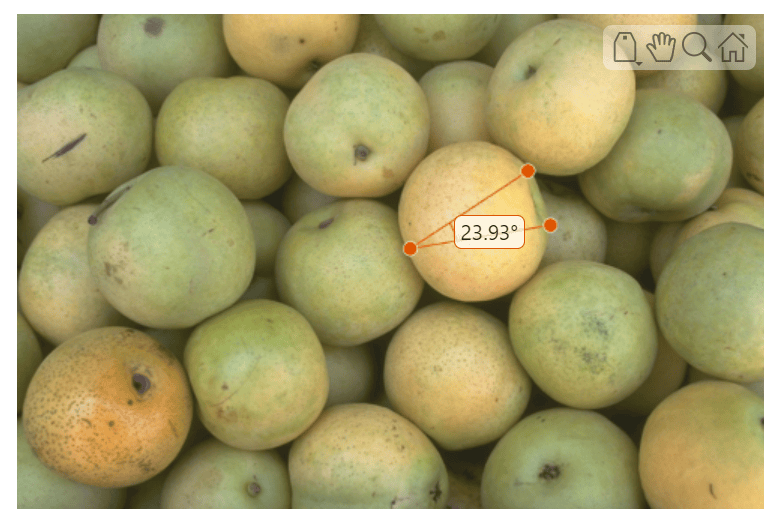
Display an image in a Viewer object. The viewer v is the parent of the image object created by imageshow.
img = imageshow("pears.png");
v = img.Parent;
Define the xy-coordinates of the vertex and two endpoints, and then create an angle ROI on the image.
vertexXY = [385 230];
pt1XY = [500 154];
pt2XY = [522 207];

a = images.ui.graphics.roi.Angle(Position=[pt1XY; vertexXY; pt2XY]);
Display the ROI by adding it to the Annotations property of the Viewer object.
v.Annotations = [v.Annotations; a];
Tips
The ROI supports this interactivity, including keyboard shortcuts.
Behavior Interaction Add annotation From the viewer toolbar, select the draw annotations icon
, then select the measure angle icon
. Click to place the vertex of the
angle, then click to place the two endpoints that define the rays of
the angle.Make drawn line snap at 15-degree angles Hold Shift while drawing.
Hold Shift while resizing the ROI to snap the size of the angle in 15-degree increments.
Cancel drawing annotation Press Esc. Resize (reshape) annotation Drag the vertex or endpoints.
Move annotation Hold Ctrl and drag the ROI. Edit annotation label Right-click the ROI. From the context menu, select Edit label. When the label text highlights, type new text for the label. To finish editing, click outside the label. Remove annotation Right-click the ROI and choose Remove annotation from the context menu. Select Remove all annotations to remove all annotations in the viewer.
Version History
Introduced in R2026a

