filterAnalyzer
R2026bDescription
The filterAnalyzer object analyzes the responses of input filters
using the Filter Analyzer
app.
Creation
Syntax
Description
filterAnalyzer opens the Filter Analyzer
app.
filterAnalyzer(
specifies additional options using one or more name-value arguments. For example, you
can specify filter names, sample rates, or analysis options.filt1,...,filtn,Name=Value)
filterAnalyzer( opens a
Filter Analyzer session stored in the specified MAT file
filename)filename. If Filter Analyzer is already open, this
syntax replaces the current app session with the new session.
filterAnalyzer( appends
the filters stored in the specified MAT file filename,"append")filename to the
current Filter Analyzer session. If Filter Analyzer is not open,
this syntax is equivalent to the previous syntax.
[
returns a handle object for the Filter Analyzer and the numbers corresponding
to the newly added displays, using any combination of input arguments from previous
syntaxes.fa,dispnums] = filterAnalyzer(___)
You can also obtain the handle fa by typing fa =
getFilterAnalyzerHandle at the command line.
Input Arguments
Name-Value Arguments
Output Arguments
Object Functions
addDisplays | Add new analysis displays to Filter Analyzer app |
addFilters | Add new filters to Filter Analyzer app |
clearLegendStrings | Clear alternative legend strings for filters in Filter Analyzer app |
close | Close Filter Analyzer app |
deleteDisplays | Delete displays from Filter Analyzer app |
deleteFilters | Delete filters from Filter Analyzer app |
duplicateDisplays | Duplicate displays in Filter Analyzer app |
getAnalysisOptions | Get analysis options of displays in Filter Analyzer app |
newSession | Clear Filter Analyzer app session and start new one |
renameFilters | Rename filters in Filter Analyzer app |
replaceFilters | Replace existing filters with new filters in Filter Analyzer app |
saveSession | Save Filter Analyzer app session |
setAnalysisOptions | Set analysis options of displays in Filter Analyzer app |
setLegendStrings | Append legend strings for filters in Filter Analyzer app |
showFilters | Show or hide filters in Filter Analyzer app |
showLegend | Show or hide display legends in Filter Analyzer app |
showSpecificationMask | Show or hide filter specification mask in Filter Analyzer app |
showUserDefinedMask | Show or hide user-defined spectral mask in Filter Analyzer app |
zoom | Zoom into region of interest in Filter Analyzer app displays |
Examples
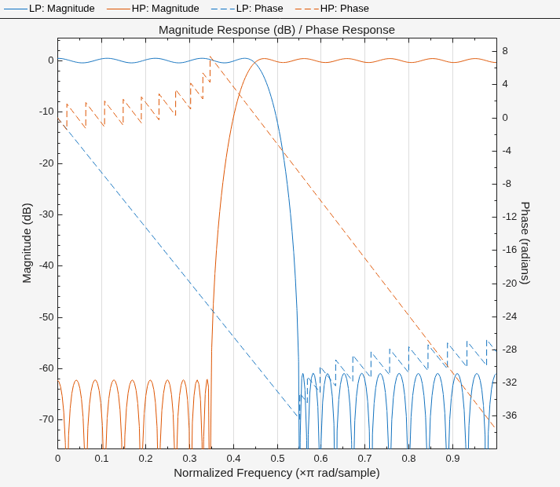
Design two filters. Analyze their magnitude and phase responses using the Filter Analyzer app.
d1 = designfilt("lowpassfir", ...
    PassbandFrequency=0.45,StopbandFrequency=0.55);
d2 = designfilt("highpassfir", ...
    StopbandFrequency=0.35,PassbandFrequency=0.45);

filterAnalyzer(d1,d2,FilterNames=["LP" "HP"], ...
    Analysis="magnitude",OverlayAnalysis="phase")
Design a tenth-order elliptic bandpass filter with 5 dB of passband ripple and 60 dB of stopband attenuation. Specify passband edge frequencies of rad/sample and rad/sample. Express the design as a cascade of fourth-order transfer functions.
[z,p,k] = ellip(5,5,60,[0.2 0.45]);
[bb,aa] = zp2ctf(z,p,k,SectionOrder=4);
Design a finite impulse response bandpass filter with 5 dB of passband ripple and asymmetric stopbands for use with signals sampled at 2 kHz.
At lower frequencies, the stopband has 80 dB of attenuation and the transition region ranges from 500 Hz to 600 Hz.
At higher frequencies, the stopband has 40 dB of attenuation and the transition region ranges from 750 Hz to 900 Hz.
dfir = designfilt("bandpassfir", ...
    SampleRate=2e3,PassbandRipple=5, ...
    StopbandFrequency1=500,PassbandFrequency1=600, ...
    StopbandAttenuation1=80, ...
    PassbandFrequency2=750,StopbandFrequency2=900, ...
    StopbandAttenuation2=40);
Start a Filter Analyzer session to analyze the filters. Import the filters. On the Analyzer tab, click Import Filter.
To import the elliptic filter, select Filter Coefficients. Select
bbas the Numerator andaaas the Denominator. SpecifyEllipfor the Filter Name, and leave the Sample Rate asNormalized. Click Import.To import the FIR filter, select Filter Objects, select
dfir, and click Import and Close.
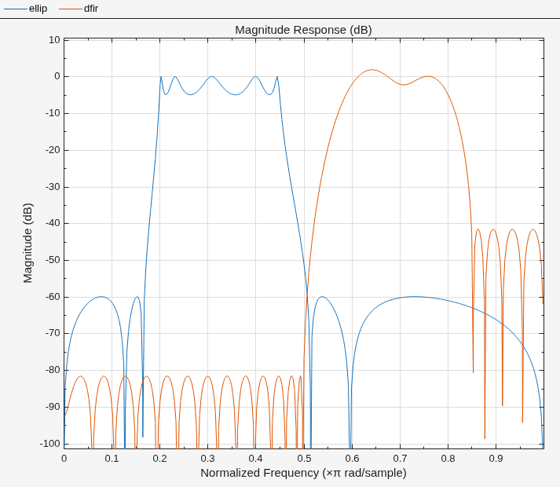
Alternatively, open Filter Analyzer by using the command-line interface. By default, the app displays magnitude responses. Only one of the filters has a sample rate, so the app displays the responses using normalized frequencies.
fa = filterAnalyzer(bb,aa,dfir,FilterNames=["ellip" "dfir"]);
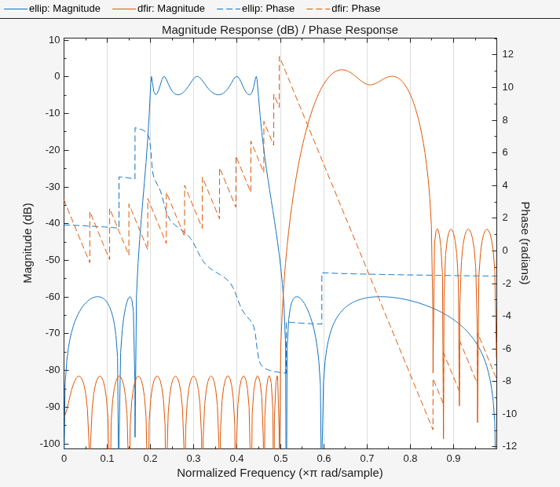
Add a display and use it to plot the magnitude responses and the phase responses of the filters.
On the Analyzer tab, click New Display.
Expand the Analysis gallery so the Overlay Analysis section is visible, and click
Phase.Add the filters by clicking the eye icons on the Filters table.
Alternatively, use the filterAnalysisOptions object and the addDisplays and showFilters functions.
opts = filterAnalysisOptions(OverlayAnalysis="phase");
addDisplays(fa,AnalysisOptions=opts)
showFilters(fa,true,FilterNames=["ellip" "dfir"])
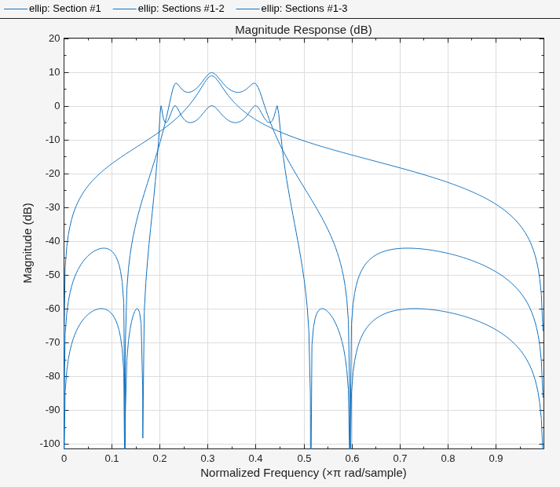
Add another display and show the cumulative magnitude responses of the cascaded transfer functions that specify the elliptic filter.
Click New Display to add the display and click the eye icon for the elliptic filter.
On the Display Options tab, click CTF View ▼ and select Cumulative.
Alternatively, use the command-line interface.
addDisplays(fa,CTFAnalysisMode="cumulative")
showFilters(fa,true,FilterNames="ellip")
Add one more display and show the filter specification mask for the FIR filter.
On the Analyzer tab, click New Display and click the eye icon for the FIR filter. The app displays the frequencies in units of Hz.
For a
digitalFilterobject, the app shows the specification mask by default. To remove the mask, on the Display Options tab, click Mask ▼ and clear Specification.
Alternatively, use the command-line interface.
addDisplays(fa)
showFilters(fa,true,FilterNames="dfir")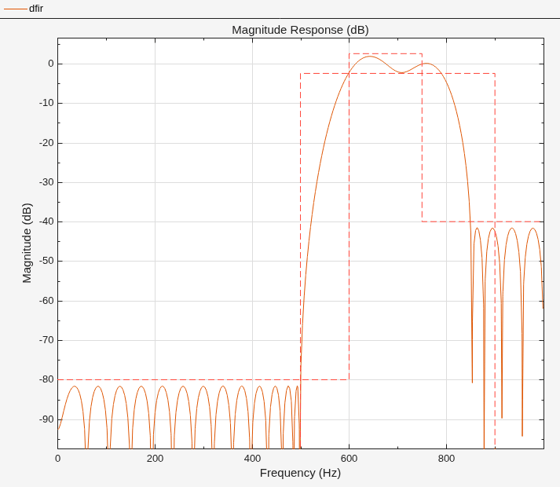
Create two lowpass halfband decimation filters. The design method in the first filter is set to "Equiripple" and in the second filter is set to "Kaiser".
Specify the filter order to be 52. Specify the transition width in normalized frequency units.
filterspec = "Filter order and transition width";
Order = 52;
TW = 0.1859;
firhalfbanddecimEqui = dsp.FIRHalfbandDecimator( ...
    NormalizedFrequency=true, ...
    Specification=filterspec, ...
    FilterOrder=Order, ...
    TransitionWidth=TW ,...
    DesignMethod="Equiripple");
firhalfbanddecimKaiser = dsp.FIRHalfbandDecimator( ...
    NormalizedFrequency=true, ...
    Specification=filterspec, ...
    FilterOrder=Order, ...
    TransitionWidth=TW, ...
    DesignMethod="Kaiser");
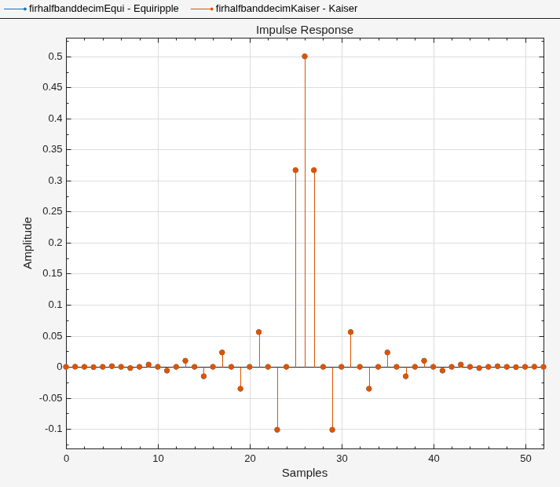
Plot the impulse response of both the filters. The zeroth-order coefficient is delayed 26 samples, which is equal to the group delay of the filter. This yields a causal halfband filter.
hfvt = filterAnalyzer(firhalfbanddecimEqui,firhalfbanddecimKaiser, ...
    Analysis="impulse");
setLegendStrings(hfvt,["Equiripple","Kaiser"])
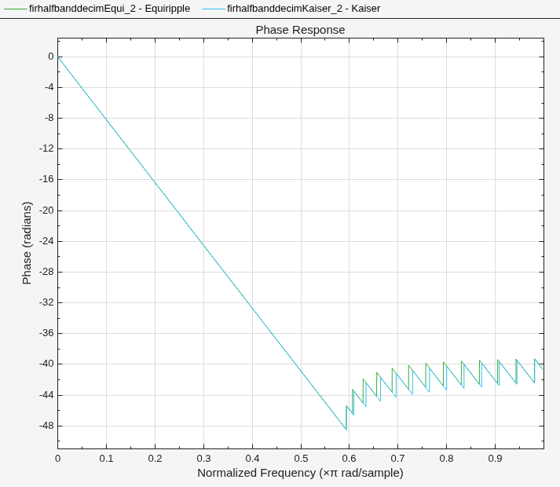
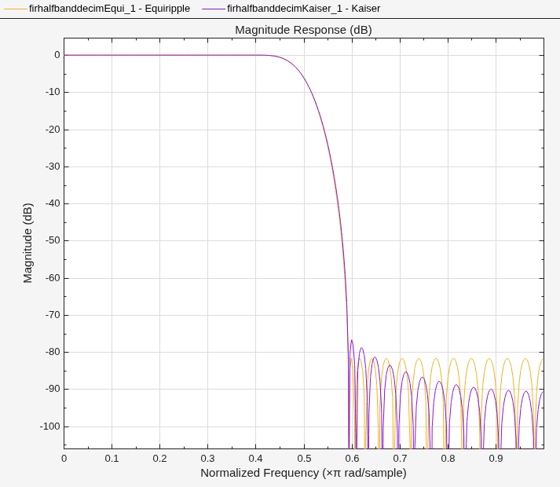
Plot the magnitude and phase response.
If the filter specifications are tight, say a very high filter order with a very narrow transition width, the filter designed using the "Kaiser" method converges more effectively.
hvftMag = filterAnalyzer(firhalfbanddecimEqui,firhalfbanddecimKaiser, ...
    Analysis="magnitude");
setLegendStrings(hvftMag,["Equiripple" "Kaiser"])
hvftPhase = filterAnalyzer(firhalfbanddecimEqui,firhalfbanddecimKaiser, ...
    Analysis="phase");
setLegendStrings(hvftPhase,["Equiripple" "Kaiser"])