Main Content

Asset Generator

R2026b

Generate, visualize, and export 3D assets from images or text

Since R2026b

Description

Add-On Required: This feature requires the 3D Asset Processing Library for MATLAB add-on.

The Asset Generator app enables you to interactively generate, visualize, and export 3D mesh assets from images or text prompts.

Using the app, you can:

  • Generate textured 3D meshes from images or text prompts using AI.

  • Import existing 3D assets from files or the MATLAB® workspace.

  • Preview assets in an interactive 3D viewer.

  • Apply spatial transformations such as rotation, scaling, and translation.

  • Segment meshes into distinct parts based on shape geometry.

  • Modify meshes using generative AI.

  • Export results to standard 3D file formats or to the MATLAB workspace.

Note

Generation of 3D mesh from image or text prompt using the Asset Generator app requires the Deep Learning Toolbox™, a GPU with at least 16 GB of memory, and CUDA compute capability 7.0 or higher.
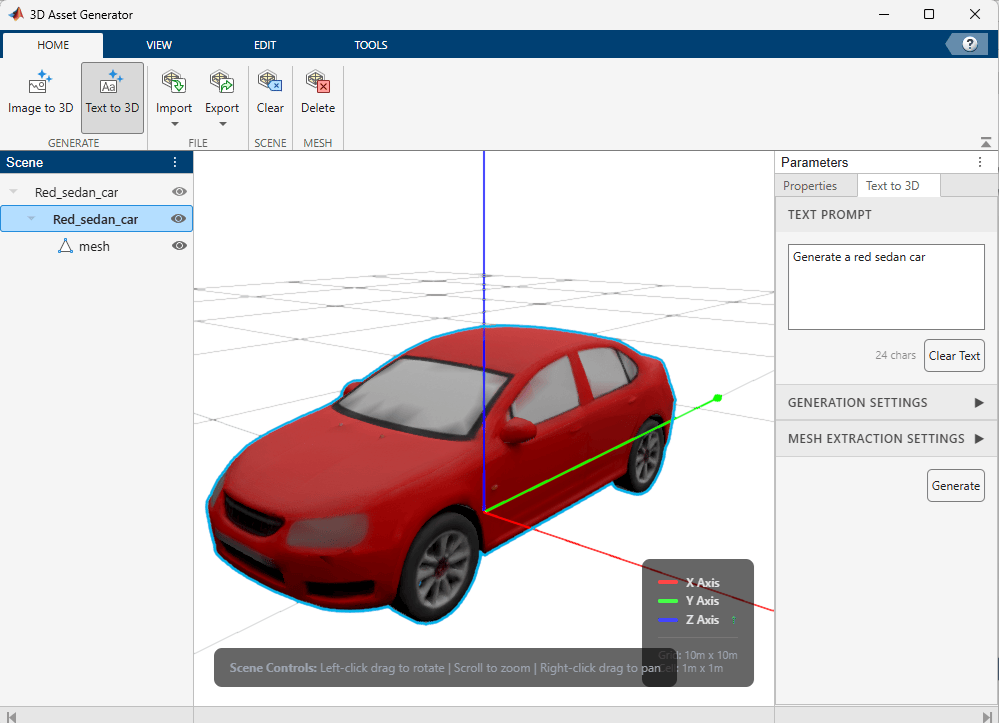
Asset Generator app

Open the Asset Generator App

  • MATLAB Toolstrip: On the Apps tab, under Automotive, click the Asset Generator app icon.

  • MATLAB command prompt: Enter assetGenerator.

Parameters

expand all

The Home tab contains the primary workflow actions for generating and managing 3D assets.

ParameterDescription
Image to 3D

Generate a textured 3D mesh from one or more reference images.

Text to 3D

Generate a textured 3D mesh from a text prompt.

Import

Import a 3D mesh from a file or from the MATLAB workspace.

Export

Export the selected mesh to a 3D file format or to the MATLAB workspace.

Clear

Clear all objects from the scene.

Delete

Delete the selected mesh from the scene.

The View tab contains options for controlling the 3D viewer display, camera, textures, and mesh overlays.

ParameterDescription
Axes

Toggle world axes visibility.

Grid

Toggle ground grid visibility.

Grid Size (m)

Set the grid size in meters.

Dark Background

Toggle between dark and light background.

Perspective

Switch to perspective camera view.

Orthographic

Switch to orthographic camera view.

Base Color

Toggle base color texture display.

Roughness

Toggle roughness texture display.

Metallic

Toggle metallic texture display.

Opacity

Toggle opacity texture display.

Split Texture View

Toggle split view for individual texture channels.

Sub-mesh Axes

Toggle sub-mesh local axes visibility.

Wire-frame

Toggle wire-frame overlay.

Animate

Play or pause mesh animation.

The Edit tab contains tools for applying gizmo transformations to selected meshes.

ParameterDescription
Scale

Enable scale transform mode.

Rotate

Enable rotate transform mode.

Translate

Enable translate transform mode.

Apply

Apply the current transform to the selected mesh.

Reset

Reset the transform to original values.

The Tools tab contains additional utilities for mesh segmentation and AI-based editing.

ParameterDescription
Segment

Open the segmentation panel to segment a mesh into parts.

Merge

Merge selected meshes into one.

Modify

Open the editing panel to modify a mesh using generative AI with text prompts.

The Scene panel on the left side of the app displays a tree structure representing the scene graph of 3D models. Use this panel to select individual meshes or sub-meshes for editing and inspection. You can double-click the nodes to edit node names. Also, you can drag and drop nodes to reorder them in the tree.

The Canvas in the center of the app is an interactive 3D viewer for previewing generated and imported assets. Use the canvas to orbit, pan, and zoom the camera, and to interactively apply spatial transformations to selected meshes.

The Parameters panel on the right side of the app displays information about the selected mesh and provides access to generation panels. The panel contains the following tabs and settings:

ParameterDescription
Properties tab

Displays mesh information such as vertices, triangles, materials, UV channels, and dimensions of the selected mesh. You can also modify the position, scale, and orientation of the mesh from this tab.

Segmentation tab

Segment the selected mesh into distinct parts based on shape geometry. Adjust segmentation parameters and preview results before applying.

Image to 3D tab

Upload a single image or multiple view images to generate a textured 3D mesh. Supports drag-and-drop and file selection.

Text to 3D tab

Enter a text prompt to generate a textured 3D mesh from a natural language description.

Generation Settings

Advanced parameters for controlling the generation process, including seed, guidance strength, and sampling steps for both geometry and texture generation stages.

Mesh Extraction Settings

Parameters for mesh output, including mesh simplification ratio and texture resolution size.

Limitations

Generation of 3D mesh from image or text prompt using the Asset Generator app is not supported in macOS.

Version History

Introduced in R2026b