Main Content

Results for

MATLAB MCP Core Server v0.6.0 has been released onGitHub: https://github.com/matlab/matlab-mcp-core-server/releases/tag/v0.6.0
Release highlights:
  • New cross-platform MCP Bundle; one-click installation in Claude Desktop
Enhancements:
  • Provide structured output from check_matlab_code and additional information for MATLAB R2022b onwards
  • Made project_path optional in evaluate_matlab_code tool for simpler tool calls
  • Enhanced detect_matlab_toolboxes output to include product version
Bug fixes:
  • Updated MCP Go SDK dependency to address CVE.
We encourage you to try this repository and provide feedback. If you encounter a technical issue or have an enhancement request, create an issue https://github.com/matlab/matlab-mcp-core-server/issues
Web Automation with Claude, MATLAB, Chromium, and Playwright
Duncan Carlsmith, University of Wisconsin-Madison
Introduction
Recent agentic browsers (Chrome with Claude Chrome extension and Comet by Perplexity) are marvelous but limited. This post describes two things: first, a personal agentic browser system that outperforms commercial AI browsers for complex tasks; and second, how to turn AI-discovered web workflows into free, deterministic MATLAB scripts that run without AI.
My setup is a MacBook Pro with the Claude Desktop app, MATLAB 2025b, and Chromium open-source browser. Relevant MCP servers include fetch, filesystem, MATLAB, and Playwright, with shell access via MATLAB or shell MCP. Rather than use my Desktop Chrome application, which might expose personal information, I use an independent, dedicated Chromium with a persistent login and preauthentication for protected websites. Rather than screenshots, which quickly saturate a chat context and are expensive, I use the Playwright MCP server, which accesses the browser DOM and accessibility tree directly. DOM manipulation permits error-free operation of complex web page UIs.
The toolchain required is straightforward. You need Node.js , which is the JavaScript runtime that executes Playwright scripts outside a browser. Install it, then set up a working directory and install Playwright with its bundled Chromium:
# Install Node.js via Homebrew (macOS) or download from nodejs.org
brew install node
# Create a working directory and install Playwright
mkdir MATLABWithPlaywright && cd MATLABWithPlaywright
npm init -y
npm install playwright
# Download Playwright's bundled Chromium (required for Tier 1)
npx playwright install chromium
That is sufficient for the Tier 1 examples. For Tier 2 (authenticated automation), you also need Google Chrome or the open-source Chromium browser, launched with remote debugging enabled as described below. Playwright itself is an open-source browser automation library from Microsoft that can either launch its own bundled browser or connect to an existing one -- this dual capability is the foundation of the two-tier architecture. For the AI-agentic work described in the Canvas section, you need Claude Desktop with MCP servers configured for filesystem access, MATLAB, and Playwright. The INSTALL.md in the accompanying FEX submission covers all of this in detail.
AI Browser on Steroids: Building Canvas Quizzes
An agentic browser example just completed illustrates the power of this approach. I am adding a computational thread to a Canvas LMS course in modern physics based on relevant interactive Live Scripts I have posted to the MATLAB File Exchange. For each of about 40 such Live Scripts, I wanted to build a Canvas quiz containing an introduction followed by a few multiple-choice questions and a few file-upload questions based on the "Try this" interactive suggestions (typically slider parameter adjustments) and "Challenges" (typically to extend the code to achieve some goal). The Canvas interface for quiz building is quite complex, especially since I use a lot of LaTeX, which in the LMS is rendered using MathJax with accessibility features and only a certain flavor of encoding works such that the math is rendered both in the quiz editor and when the quiz is displayed to a student.
My first prompt was essentially "Find all of my FEX submissions and categorize those relevant to modern physics.” The categories emerged as Relativity, Quantum Mechanics, Atomic Physics, and Astronomy and Astrophysics. Having preauthenticated at MathWorks with a Shibboleth university license authentication system, the next prompt was "Download and unzip the first submission in the relativity category, read the PDF of the executed script or view it under examples at FEX, then create quiz questions and answers as described above." The final prompt was essentially "Create a new quiz in my Canvas course in the Computation category with a due date at the end of the semester. Include the image and introduction from the FEX splash page and a link to FEX in the quiz instructions. Add the MC quiz questions with 4 answers each to select from, and the file upload questions. Record what you learned in a SKILL file in my MATLAB/claude/SKILLS folder on my filesystem." Claude offered a few options, and we chose to write and upload the quiz HTML from scratch via the Canvas REST API. Done. Finally, "Repeat for the other FEX File submissions." Each took a couple of minutes. The hard part was figuring out what I wanted to do exactly.
Mind you, I had tried to build a Canvas quiz including LaTeX and failed miserably with both Chrome Extension and Comet. The UI manipulations, especially to handle the LaTeX, were too complex, and often these agentic browsers would click in the wrong place, wind up on a different page, even in another tab, and potentially become destructive.
A key gotcha with LaTeX in Canvas: the equation rendering system uses double URL encoding for LaTeX expressions embedded as image tags pointing to the Canvas equation server. The LaTeX strings must use single backslashes -- double backslashes produce broken output. And Canvas Classic Quizzes and New Quizzes handle MathJax differently, so you need to know which flavor your institution uses.
From AI-Assisted to Programmatic: The Two-Tier Architecture
An agentic-AI process, like the quiz creation, can become expensive. There is a lot of context, both physics content-related and process-related, and the token load mounts up in a chat. Wouldn't it be great if, after having used the AI for what it is best at -- summarizing material, designing student exercises, and discovering a web-automation process -- one could repeat the web-related steps programmatically for free with MATLAB? Indeed, it would, and is.
In my setup, usually an AI uses MATLAB MCP to operate MATLAB as a tool to assist with, say, launching an application like Chromium or to preprocess an image. But MATLAB can also launch any browser and operate it via Playwright. (To my knowledge, MATLAB can use its own browser to view a URL but not to manipulate it.) So the following workflow emerges:
1) Use an AI, perhaps by recording the DOM steps in a manual (human) manipulation, to discover a web-automation process.
2) Use the AI to write and debug MATLAB code to perform the process repeatedly, automatically, for free.
I call this "temperature zero" automation -- the AI contributes entropy during workflow discovery, then the deterministic script is the ground state.
The architecture has three layers:
MATLAB function (.m)
|
v
Generate JavaScript/Playwright code
|
v
Write to temporary .js file
|
v
Execute: system('node script.js')
|
v
Parse output (JSON file or console)
|
v
Return structured result to MATLAB
The .js files serve double duty: they are both the runtime artifacts that MATLAB generates and executes, AND readable documentation of the exact DOM interactions Playwright performs. Someone who wants to adapt this for their own workflow can read the .js file and see every getByRole, fill, press, and click in sequence.
Tier 1: Basic Web Automation Examples
I have demonstrated this concept with three basic examples, each consisting of a MATLAB function (.m) that dynamically generates and executes a Playwright script (.js). These use Playwright's bundled Chromium in headless mode -- no authentication required, no persistent sessions.
01_ExtractTableData
extractTableData.m takes a URL and scrapes a complex Wikipedia table (List of Nearest Stars) that MATLAB's built-in webread cannot handle because the table is rendered by JavaScript. The function generates extract_table.js, which launches Playwright's bundled Chromium headlessly, waits for the full DOM to render, walks through the table rows extracting cell text, and writes the result as JSON. Back in MATLAB, the JSON is parsed and cleaned (stripping HTML tags, citation brackets, and Unicode symbols) into a standard MATLAB table.
T = extractTableData(...
'https://en.wikipedia.org/wiki/List_of_nearest_stars_and_brown_dwarfs');
disp(T(1:5, {'Star_name', 'Distance_ly_', 'Stellar_class'}))
histogram(str2double(T.Distance_ly_), 20)
xlabel('Distance (ly)'); ylabel('Count'); title('Nearest Stars')
02_ScreenshotWebpage
screenshotWebpage.m captures screenshots at configurable viewport dimensions (desktop, tablet, mobile) with full-page or viewport-only options. The physics-relevant example captures the NASA Webb Telescope page at multiple viewport sizes. This is genuinely useful for checking how your own FEX submission pages or course sites look on different devices.
03_DownloadFile
downloadFile.m is the most complex Tier 1 function because it handles two fundamentally different download mechanisms. Direct-link downloads (where navigating to the URL triggers the download immediately) throw a "Download is starting" error that is actually success:
try {
await page.goto(url, { waitUntil: 'commit' });
} catch (e) {
// Ignore "Download is starting" -- that means it WORKED!
if (!e.message.includes('Download is starting')) throw e;
}
Button-click downloads (like File Exchange) require finding and clicking a download button after page load. The critical gotcha: the download event listener must be set up BEFORE navigation, not after. Getting this ordering wrong was one of those roadblocks that cost real debugging time.
The function also supports a WaitForLogin option that pauses automation for 45 seconds to allow manual authentication -- a bridge to Tier 2's persistent-session approach.
Another lesson learned: don't use Playwright for direct CSV or JSON URLs. MATLAB's built-in websave is simpler and faster for those. Reserve Playwright for files that require JavaScript rendering, button clicks, or authentication.
Tier 2: Production Automation with Persistent Sessions
Tier 2 represents the key innovation -- the transition from "AI does the work" to "AI writes the code, MATLAB does the work." The critical architectural difference from Tier 1 is a single line of JavaScript:
// Tier 1: Fresh anonymous browser
const browser = await chromium.launch();
// Tier 2: Connect to YOUR running, authenticated Chrome
const browser = await chromium.connectOverCDP('http://localhost:9222');
CDP is the Chrome DevTools Protocol -- the same WebSocket-based interface that Chrome's built-in developer tools use internally. When you launch Chrome with a debugging port open, any external program can connect over CDP to navigate pages, inspect and manipulate the DOM, execute JavaScript, and intercept network traffic. The reason this matters is that Playwright connects to your already-running, already-authenticated Chrome session rather than launching a fresh anonymous browser. Your cookies, login sessions, and saved credentials are all available. You launch Chrome once with remote debugging enabled:
/Applications/Google\ Chrome.app/Contents/MacOS/Google\ Chrome \
--remote-debugging-port=9222 \
--user-data-dir="$HOME/chrome-automation-profile"
Log into whatever sites you need. Those sessions persist across automation runs.
addFEXTagLive.m
This is the workhorse function. It uses MATLAB's modern arguments block for input validation and does the following: (1) verifies the CDP connection to Chrome is alive with a curl check, (2) dynamically generates a complete Playwright script with embedded conditional logic -- check if tag already exists (skip if so), otherwise click "New Version", add the tag, increment the version number, add update notes, click Publish, confirm the license dialog, and verify the success message, (3) executes the script asynchronously and polls for a result JSON file, and (4) returns a structured result with action taken, version changes, and optional before/after screenshots.
result = addFEXTagLive( ...
'https://www.mathworks.com/matlabcentral/fileexchange/183228-...', ...
'interactive_examples', Screenshots=true);
% result.action is either 'skipped' or 'added_tag'
% result.oldVersion / result.newVersion show version bump
% result.screenshots.beforeImage / afterImage for display
The corresponding add_fex_tag_production.js is a standalone Node.js version that accepts command-line arguments:
node add_fex_tag_production.js 182704 interactive-script 0.01 "Added tag"
This is useful for readers who want to see the pure JavaScript logic without the MATLAB generation layer.
batch_tag_FEX_files.m
The batch controller reads a text file of URLs, loops through them calling addFEXTagLive with rate limiting (10 seconds between submissions), tracks success/skip/fail counts, and writes three output files: successful_submissions.txt, skipped_submissions.txt, and failed_submissions_to_retry.txt.
This script processed all 178 of my FEX submissions:
Total: 178 submissions processed in 2h 11m (~44 sec/submission)
Tags added: 146 (82%) | Already tagged: 32 (18%) | True failures: 0
Manual equivalent: ~7.5 hours | Token cost after initial engineering: $0
The Timeout Gotcha
An interesting gotcha emerged during the batch run. Nine submissions were reported as failures with timeout errors. The error message read:
page.textContent: Timeout 30000ms exceeded.
Call log: - waiting for locator('body')
Investigation revealed these were false negatives. The timeout occurred in the verification phase -- Playwright had successfully added the tag and clicked Publish, but the MathWorks server was slow to reload the confirmation page (>30 seconds). The tag was already saved. When a retry script ran, all nine immediately reported "Tag already exists -- SKIPPING." True success rate: 100%.
Could this have been fixed with a longer timeout or a different verification strategy? Sure. But I mention it because in a long batch process (2+ hours, 178 submissions), gotchas emerge intermittently that you never see in testing on five items. The verification-timeout pattern is a good one to watch for: your automation succeeded, but your success check failed.
Key Gotchas and Lessons Learned
A few more roadblocks worth flagging for anyone attempting this:
waitUntil options matter. Playwright's networkidle wait strategy almost never works on modern sites because analytics scripts keep firing. Use load or domcontentloaded instead. For direct downloads, use commit.
Quote escaping in MATLAB-generated JavaScript. When MATLAB's sprintf generates JavaScript containing CSS selectors with double quotes, things break. Using backticks as JavaScript template literal delimiters avoids the conflict.
The FEX license confirmation popup is accessible to Playwright as a standard DOM dialog, not a browser popup. No special handling needed, but the Publish button appears twice -- once to initiate and once to confirm -- requiring exact: true in the role selector to distinguish them:
// First Publish (has a space/icon prefix)
await page.getByRole('button', { name: ' Publish' }).click();
// Confirm Publish (exact match)
await page.getByRole('button', { name: 'Publish', exact: true }).click();
File creation from Claude's container vs. your filesystem. This caused real confusion early on. Claude's default file creation tools write to a container that MATLAB cannot see. Files must be created using MATLAB's own file operations (fopen/fprintf/fclose) or the filesystem MCP's write_file tool to land on your actual disk.
Selector strategy. Prefer getByRole (accessibility-based, most stable) over CSS selectors or XPath. The accessibility tree is what Playwright MCP uses natively, and role-based selectors survive minor UI changes that would break CSS paths.
Two Modes of Working
Looking back, the Canvas quiz creation and the FEX batch tagging represent two complementary modes of working with this architecture:
The Canvas work keeps AI in the loop because each quiz requires different physics content -- the AI reads the Live Script, understands the physics, designs questions, and crafts LaTeX. The web automation (posting to Canvas via its REST API) is incidental. This is AI-in-the-loop for content-dependent work.
The FEX tagging removes AI from the loop because the task is structurally identical across 178 submissions -- navigate, check, conditionally update, publish. The AI contributed once to discover and encode the workflow. This is AI-out-of-the-loop for repetitive structural work.
Both use the same underlying architecture: MATLAB + Playwright + Chromium + CDP. The difference is whether the AI is generating fresh content or executing a frozen script.
Reference Files and FEX Submission
All of the Tier 1 and Tier 2 MATLAB functions, JavaScript templates, example scripts, installation guide, and skill documentation described in this post are available as a File Exchange submission: Web Automation with Claude, MATLAB, Chromium, and Playwright .The package includes:
Tier 1 -- Basic Examples:
- extractTableData.m + extract_table.js -- Web table scraping
- screenshotWebpage.m + screenshot_script.js -- Webpage screenshots
- downloadFile.m -- File downloads (direct and button-click)
- Example usage scripts for each
Tier 2 -- Production Automation:
- addFEXTagLive.m -- Conditional FEX tag management
- batch_tag_FEX_files.m -- Batch processing controller
- add_fex_tag_production.js -- Standalone Node.js automation script
- test_cdp_connection.js -- CDP connection verification
Documentation and Skills:
- INSTALL.md -- Complete installation guide (Node.js, Playwright, Chromium, CDP)
- README.md -- Package overview and quick start
- SKILL.md -- Best practices, decision trees, and troubleshooting (developed iteratively through the work described here)
The SKILL.md file deserves particular mention. It captures the accumulated knowledge from building and debugging this system -- selector strategies, download handling patterns, wait strategies, error handling templates, and the critical distinction between when to use Playwright versus MATLAB's native websave. It was developed as a "memory" for the AI assistant across chat sessions, but it serves equally well as a human-readable reference.
Credits and conclusion
This synthesis of existing tools was conceived by the author, but architected (if I may borrow this jargon) by Claud.ai. This article was conceived and architected by the author, but Claude filled in the details, most of which, as a carbon-based life form, I could never remember. The author has no financial interest in MathWorks or Anthropic.
I see many people are using our new MCP Core Sever to do amazing things with MATLAB and AI. Some people are describing their experiements here (e.g. @Duncan Carlsmith) and on LinkedIn (E.g. Sergiu-Dan Stan and Toshi Takeuchi) and we are getting lots of great feedback.Some of that feedback has been addressed in the latest release so please update your install now.
MATLAB MCP Core Server v0.4.0 has been released on public GitHub:
Release highlights:
  • Added Plain Text Live Code Guidelines MCP resource
  • Added MCP Annotations to all tools
We encourage you to try this repository and provide feedback. If you encounter a technical issue or have an enhancement request, create an issue https://github.com/matlab/matlab-mcp-core-server/issues
Untapped Potential for Output-arguments Block
MATLAB has a very powerful feature in its arguments blocks. For example, the following code for a function (or method):
  • clearly outlines all the possible inputs
  • provides default values for each input
  • will produce auto-complete suggestions while typing in the Editor (and Command Window in newer versions)
  • checks each input against validation functions to enforce size, shape (e.g., column vs. row vector), type, and other options (e.g., being a member of a set)
function [out] = sample_fcn(in)
arguments(Input)
in.x (:, 1) = []
in.model_type (1, 1) string {mustBeMember(in.model_type, ...
["2-factor", "3-factor", "4-factor"])} = "2-factor"
in.number_of_terms (1, 1) {mustBeMember(in.number_of_terms, 1:5)} = 1
in.normalize_fit (1, 1) logical = false
end
% function logic ...
end
If you do not already use the arguments block for function (or method) inputs, I strongly suggest that you try it out.
The point of this post, though, is to suggest improvements for the output-arguments block, as it is not nearly as powerful as its input-arguments counterpart. I have included two function examples: the first can work in MATLAB while the second does not, as it includes suggestions for improvements. Commentary specific to each function is provided completely before the code. While this does necessitate navigating back and forth between functions and text, this provides for an easy comparison between the two functions which is my main goal.
Current Implementation
The input-arguments block for sample_fcn begins the function and has already been discussed. A simple output-arguments block is also included. I like to use a single output so that additional fields may be added at a later point. Using this approach simplifies future development, as the function signature, wherever it may be used, does not need to be changed. I can simply add another output field within the function and refer to that additional field wherever the function output is used.
Before beginning any logic, sample_fcn first assigns default values to four fields of out. This is a simple and concise way to ensure that the function will not error when returning early.
The function then performs two checks. The first is for an empty input (x) vector. If that is the case, nothing needs to be done, as the function simply returns early with the default output values that happen to apply to the inability to fit any data.
The second check is for edge cases for which input combinations do not work. In this case, the status is updated, but default values for all other output fields (which are already assigned) still apply, so no additional code is needed.
Then, the function performs the fit based on the specified model_type. Note that an otherwise case is not needed here, since the argument validation for model_type would not allow any other value.
At this point, the total_error is calculated and a check is then made to determine if it is valid. If not, the function again returns early with another specific status value.
Finally, the R^2 value is calculated and a fourth check is performed. If this one fails, another status value is assigned with an early return.
If the function has passed all the checks, then a set of assertions ensure that each of the output fields are valid. In this case, there are eight specific checks, two for each field.
If all of the assertions also pass, then the final (successful) status is assigned and the function returns normally.
function [out] = sample_fcn(in)
arguments(Input)
in.x (:, 1) = []
in.model_type (1, 1) string {mustBeMember(in.model_type, ...
["2-factor", "3-factor", "4-factor"])} = "2-factor"
in.number_of_terms (1, 1) {mustBeMember(in.number_of_terms, 1:5)} = 1
in.normalize_fit (1, 1) logical = false
end
arguments(Output)
out struct
end
%%
out.fit = [];
out.total_error = [];
out.R_squared = NaN;
out.status = "Fit not possible for supplied inputs.";
%%
if isempty(in.x)
return
end
%%
if ((in.model_type == "2-factor") && (in.number_of_terms == 5)) || ... % other possible logic
out.status = "Specified combination of model_type and number_of_terms is not supported.";
return
end
%%
switch in.model_type
case "2-factor"
out.fit = % code for 2-factor fit
case "3-factor"
out.fit = % code for 3-factor fit
case "4-factor"
out.fit = % code for 4-factor fit
end
%%
out.total_error = % calculation of error
if ~isfinite(out.total_error)
out.status = "The total_error could not be calculated.";
return
end
%%
out.R_squared = % calculation of R^2
if out.R_squared > 1
out.status = "The R^2 value is out of bounds.";
return
end
%%
assert(iscolumn(out.fit), "The fit vector is not a column vector.");
assert(size(out.fit) == size(in.x), "The fit vector is not the same size as the input x vector.");
assert(isscalar(out.total_error), "The total_error is not a scalar.");
assert(isfinite(out.total_error), "The total_error is not finite.");
assert(isscalar(out.R_squared), "The R^2 value is not a scalar.");
assert(isfinite(out.R_squared), "The R^2 value is not finite.");
assert(isscalar(out.status), "The status is not a scalar.");
assert(isstring(out.status), "The status is not a string.");
%%
out.status = "The fit was successful.";
end
Potential Implementation
The second function, sample_fcn_output_arguments, provides essentially the same functionality in about half the lines of code. It is also much clearer with respect to the output. As a reminder, this function structure does not currently work in MATLAB, but hopefully it will in the not-too-distant future.
This function uses the same input-arguments block, which is then followed by a comparable output-arguments block. The first unsupported feature here is the use of name-value pairs for outputs. I would much prefer to make these assignments here rather than immediately after the block as in the sample_fcn above, which necessitates four more lines of code.
The mustBeSameSize validation function that I use for fit does not exist, but I really think it should; I would use it a lot. In this case, it provides a very succinct way of ensuring that the function logic did not alter the size of the fit vector from what is expected.
The mustBeFinite validation function for out.total_error does not work here simply because of the limitation on name-value pairs; it does work for regular outputs.
Finally, the assignment of default values to output arguments is not supported.
The next three sections of sample_fcn_output_arguments match those of sample_fcn: check if x is empty, check input combinations, and perform fit logic. Following that, though, the functions diverge heavily, as you might expect. The two checks for total_error and R^2 are not necessary, as those are covered by the output-arguments block. While there is a slight difference, in that the specific status values I assigned in sample_fcn are not possible, I would much prefer to localize all these checks in the arguments block, as is already done for input arguments.
Furthermore, the entire section of eight assertions in sample_fcn is removed, as, again, that would be covered by the output-arguments block.
This function ends with the same status assignment. Again, this is not exactly the same as in sample_fcn, since any failed assertion would prevent that assignment. However, that would also halt execution, so it is a moot point.
function [out] = sample_fcn_output_arguments(in)
arguments(Input)
in.x (:, 1) = []
in.model_type (1, 1) string {mustBeMember(in.model_type, ...
["2-factor", "3-factor", "4-factor"])} = "2-factor"
in.number_of_terms (1, 1) {mustBeMember(in.number_of_terms, 1:5)} = 1
in.normalize_fit (1, 1) logical = false
end
arguments(Output)
out.fit (:, 1) {mustBeSameSize(out.fit, in.x)} = []
out.total_error (1, 1) {mustBeFinite(out.total_error)} = []
out.R_squared (1, 1) {mustBeLessThanOrEqual(out.R_squared, 1)} = NaN
out.status (1, 1) string = "Fit not possible for supplied inputs."
end
%%
if isempty(in.x)
return
end
%%
if ((in.model_type == "2-factor") && (in.number_of_terms == 5)) || ... % other possible logic
out.status = "Specified combination of model_type and number_of_terms is not supported.";
return
end
%%
switch in.model_type
case "2-factor"
out.fit = % code for 2-factor fit
case "3-factor"
out.fit = % code for 3-factor fit
case "4-factor"
out.fit = % code for 4-factor fit
end
%%
out.status = "The fit was successful.";
end
Final Thoughts
There is a significant amount of unrealized potential for the output-arguments block. Hopefully what I have provided is helpful for continued developments in this area.
What are your thoughts? How would you improve arguments blocks for outputs (or inputs)? If you do not already use them, I hope that you start to now.
Should plotting functions, such as plot, semilogx, etc. internally apply squeeze to inputs?
For example, the ubiquitous bode from the Control System Toolbox always returns 3D outputs
w = logspace(-1,3,100);
[m,p] = bode(tf(1,[1 1]),w);
size(m)
ans = 1×3
1 1 100
<mw-icon class=""></mw-icon>
and therefore plotting requires an explicit squeeze (or rehape, or colon)
% semilogx(w,squeeze(db(m)))
Similarly, I'm using page* functions more regularly and am now generating 3D results whereas my old code would generate 2D. For example
x = [1;1];
theta = reshape(0:.1:2*pi,1,1,[]);
Z = [cos(theta), sin(theta);-sin(theta),cos(theta)];
y = pagemtimes(Z,x);
Now, plotting requires squeezing the inputs
% plot(squeeze(theta),squeeze(y))
Would there be any drawbacks to having plot, et. al., automagically apply squeeze to its inputs?
At the present time, the following problems are known in MATLAB Answers itself:
  • Symbolic output is not displaying. The work-around is to disp(char(EXPRESSION)) or pretty(EXPRESSION)
  • Symbolic preferences are sometimes set to non-defaults
I would like to propose the creation of MATLAB EduHub, a dedicated channel within the MathWorks community where educators, students, and professionals can share and access a wealth of educational material that utilizes MATLAB. This platform would act as a central repository for articles, teaching notes, and interactive learning modules that integrate MATLAB into the teaching and learning of various scientific fields.
Key Features:
1. Resource Sharing: Users will be able to upload and share their own educational materials, such as articles, tutorials, code snippets, and datasets.
2. Categorization and Search: Materials can be categorized for easy searching by subject area, difficulty level, and MATLAB version..
3. Community Engagement: Features for comments, ratings, and discussions to encourage community interaction.
4. Support for Educators: Special sections for educators to share teaching materials and track engagement.
Benefits:
- Enhanced Educational Experience: The platform will enrich the learning experience through access to quality materials.
- Collaboration and Networking: It will promote collaboration and networking within the MATLAB community.
- Accessibility of Resources: It will make educational materials available to a wider audience.
By establishing MATLAB EduHub, I propose a space where knowledge and experience can be freely shared, enhancing the educational process and the MATLAB community as a whole.
I just now discovered Discussions.
Can anyone provide insight into the intended difference between Discussions and Answers and what should be posted where?
Just scrolling through Discussions, I saw postst that seem more suitable Answers?
What exactly does Discussions bring to the table that wasn't already brought by Answers?
Maybe this question is more suitable for a Discussion ....
Ich habe das Problem das ich immer nur 1 Tag aufzeichnen kann (siehe Anhang), obwohl ich den Parameter au 15 tage gestellt habe.
In the past year, we've witnessed an exponential growth of ChatGPT and other Generative AI tools. AI has quickly become a transformative force across industries, from tech giants to small startups, and even community sites like ours. For instance, Stack Overflow announced its plan to leverage AI tools to draft a question or tag content; Quora built a ChatGPT bot to answer questions; and GitHub is piloting the AI tool for personalized content.
This trend in the community landscape makes me wonder what MATLAB Central community, especially in MATLAB Answers, can do to integrate AI and enhance the community.
Share with us your ideas in the comment session. Ideally one comment per idea, so that others can vote on a secific idea or have deeper discussions about it.
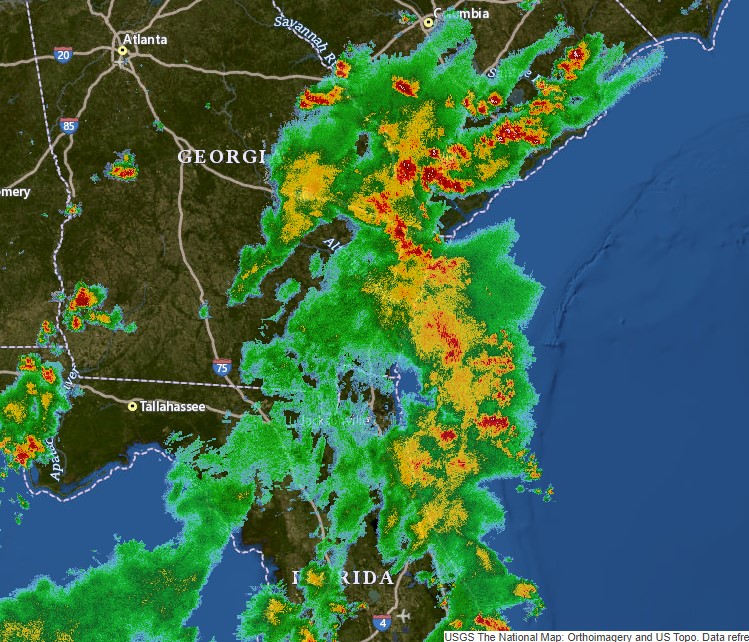
im trying to draw a path for the aircraft. so the aircraft needs to avoid all the red zones in the radar image i have and should travel only on green zones even the waypoints are on redzones.
% Load the radar image
radar_image = imread('radar.jpg');
I = radar_image;
% Display the radar image
figure;
imshow(I);
% Select waypoints
disp('Select the waypoints:');
[x, y] = ginput;
waypoints = [x, y];
% Save waypoints
save('waypoints.mat', 'waypoints');
% Load saved waypoints
load('waypoints.mat');
% Plot waypoints and connect them with lines
hold on;
plot(waypoints(:, 1), waypoints(:, 2), 'ro', 'LineWidth', 2);
plot(waypoints(:, 1), waypoints(:, 2), 'r--', 'LineWidth', 1);
% Load aircraft icon image
aircraft_icon = imread('aircraft_icon.png');
% Resize the aircraft icon image
desired_size = 30; % Change this value to adjust the size of the aircraft icon
aircraft_icon_resized = imresize(aircraft_icon, [desired_size, desired_size]);
% Animate aircraft using AI algorithm
tolerance = 5; % Tolerance for reaching waypoints
max_steps = 100; % Maximum steps to reach the destination
step_size = 1; % Step size for potential field calculations
% Plot the initial position of the aircraft
current_pos = waypoints(1, :);
h = image(current_pos(1), current_pos(2), aircraft_icon_resized);
set(h, 'AlphaData', 0.7); % Set the transparency (optional)
for i = 1:size(waypoints, 1)-1
start = waypoints(i, :);
finish = waypoints(i+1, :);
% Perform A* algorithm to find an alternate path through green zones
alternate_path = A_star(start, finish);
for j = 1:size(alternate_path, 1)-1
% Initialize the position of the aircraft
current_pos = alternate_path(j, :);
next_waypoint = alternate_path(j+1, :);
% Continue to the next waypoint if the current position is already near the waypoint
if norm(current_pos - next_waypoint) <= tolerance
continue;
end
% Perform animation to move the aircraft through the potential field
animateAircraft(current_pos, next_waypoint, max_steps, step_size, h);
% Update the radar image I with the current position of the aircraft
I(round(current_pos(2)), round(current_pos(1))) = 0;
end
end
function animateAircraft(current_pos, next_waypoint, max_steps, step_size, h)
% Animate the aircraft to move from current_pos to next_waypoint
for t = 1:max_steps
% Check if the aircraft has reached the destination waypoint
if norm(current_pos - next_waypoint) <= tolerance
break;
end
% Calculate potential field forces
attractive_force = next_waypoint - current_pos;
repulsive_force = zeros(1, 2);
% Calculate the repulsive forces from each red and yellow region
red_regions = find(I == 1);
yellow_regions = find(I == 2);
for k = 1:length(red_regions)
[r, c] = ind2sub(size(I), red_regions(k));
obstacle = [c, r];
repulsive_force = repulsive_force + calculate_repulsive_force(current_pos, obstacle);
end
for k = 1:length(yellow_regions)
[r, c] = ind2sub(size(I), yellow_regions(k));
obstacle = [c, r];
repulsive_force = repulsive_force + calculate_repulsive_force(current_pos, obstacle);
end
% Combine the forces to get the total force
total_force = attractive_force + 0.5 * repulsive_force; % Reduce repulsive force to move through obstacles more easily
% Normalize the total force and move the aircraft
total_force = total_force / norm(total_force);
current_pos = current_pos + step_size * total_force;
% Update the aircraft position on the plot
set(h, 'XData', current_pos(1), 'YData', current_pos(2));
drawnow; % Force the plot to update
% Pause for a short duration to visualize the animation
pause(0.05);
end
end
function force = calculate_repulsive_force(position, obstacle, I)
% Constants for the potential field calculation
repulsive_gain = 1000; % Adjust this value to control the obstacle avoidance strength
min_distance = 5; % Minimum distance to avoid division by zero
% Calculate the distance and direction to the obstacle
distance = norm(position - obstacle);
direction = (position - obstacle) / distance;
% Check if the obstacle is a waypoint
is_waypoint = false;
waypoints = [1, 2; 3, 4; 5, 6]; % Replace this with the actual waypoints' coordinates
for i = 1:size(waypoints, 1)
if isequal(obstacle, waypoints(i, :))
is_waypoint = true;
break;
end
end
% Check the color of the obstacle in the radar image
color = I(round(obstacle(2)), round(obstacle(1)));
% Calculate the repulsive force
if ~is_waypoint && color ~= 0 % Obstacle is not a waypoint or 0
force = repulsive_gain / max(distance, min_distance)^2 * direction;
else
force = zeros(1, 2);
end
end
this the code im using. But according to the output im getting, the aircraft is still travelling through all the red and yellow zones.i have tagged the aircraft_icon.png and rada.jpg images which have been used in the code. can somebody help me out with this?
This is the 6th installment of the wish-list and bug report thread.
This topic is the follow on to the first Wish-list for MATLAB Answer sections and second MATLAB Answers Wish-list #2 (and bug reports). The third started out as New design of the forum - grey on white and the fourth and fifth also grew so large they are slow to load and navigate.
Same idea as the previous ones: one wish (or bug report) per answer, so that people can vote their wishes.
What should you post where?
Wishlist threads (#1 #2 #3 #4 #5 #6): bugs and feature requests for Matlab Answers
Frustation threads (#1 #2): frustations about usage and capabilities of Matlab itself
Missing feature threads (#1 #2): features that you whish Matlab would have had
Next Gen threads (#1): features that would break compatibility with previous versions, but would be nice to have
@anyone posting a new thread when the last one gets too large (about 50 answers seems a reasonable limit per thread), please update this list in all last threads. (if you don't have editing privileges, just post a comment asking someone to do the edit)
Tom BS
Tom BS
Last activity on 15 Nov 2022

Hello,
Can someone please give me a hint how the settings at Tasmoto have to be made in order to send data via MQTT to ThingSpeak.
Halil Kemal has an open channel tag: tasmota where this seems to work.
Thank you in advance for your support.
TOM
We operate roughly 600 data loggers on Think Speak where there are roughly 150 gateways and each gateway communicates with a node. Our channels are labeled node# - gateway number and each number is 16 diigits. We have not found a wildcard search function so must have each number exactly right or we cannot find our channel. In some cases we wish to query a gateway and see which nodes are successfully communicating with it.

I have a Thingtweet: "Measurements %%datetime%% Comment" The tweet will send the time as say: 5:23pm I want it in 24hr format = 17:23 I have scoured the site and I cant find any way of doing this in a tweet. Also that would be local time, is it possible to use UTC ?

Bonjour, J'utilise arduino Mega 2560 avec le shield Ethernet. Le sketch ino joint ci-après me permet de visualiser la jauge dans la page index.htm chargée sur la carte SD. ThingSpeak affiche bien le graph correspondant. Mais ma page web n'y a pas accès. Comment intégrer les codes dans la page ou dans le sketch pour cela ? Je vous joins la capture d'écran de cette page ainsi que les codes De la page et du sketch. Merci pour votre aide.

*********************************** Code Page "index.htm" ***********************************

<!DOCTYPE html>
<html>
    <head>
        <title>Arduino Internet Voltmeter</title>
        <script>
		var data_val = 0;		// raw data from Arduino analog input (0 to 1023)
		var volts = 0;			// voltage calculated from Arduino analog raw data value
		var num_updates = 0;	// number of 200ms periods used to calculate time to send data to ThingSpeak
		// gauge code
		eval(function(p,a,c,k,e,r){e=function(c){return(c<a?'':e(parseInt(c/a)))+((c=c%a)>35?String.fromCharCode(c+29):c.toString(36))};if(!''.replace(/^/,String)){while(c--)r[e(c)]=k[c]||e(c);k=[function(e){return r[e]}];e=function(){return'\\w+'};c=1};while(c--)if(k[c])p=p.replace(new RegExp('\\b'+e(c)+'\\b','g'),k[c]);return p}('t W=v(f){W.2t.3T(A);A.B={Z:2u,19:1q,1h:1q,1J:U,1b:D,K:0,V:[\'0\',\'20\',\'40\',\'2A\',\'2B\',\'D\'],2r:10,2C:M,1E:U,2q:{2D:3,2E:2},2H:M,1c:{2j:10,2m:3y,2O:\'3v\'},J:{2P:\'#4h\',V:\'#31\',2r:\'#3k\',1J:\'#37\',1E:\'#37\',3e:\'#31\',1t:{2s:\'1e(3Y, 3d, 3d, 1)\',3c:\'1e(1Y, 5I, 5E, .9)\'}},1o:[{1n:20,1D:2A,1F:\'#3j\'},{1n:2A,1D:2B,1F:\'#36\'},{1n:2B,1D:D,1F:\'#5n\'}]};t g=0,1p=A,N=0,1S=0,1G=U;A.5d=v(a){N=f.1c?g:a;t b=(f.1b-f.K)/D;1S=a>f.1b?1S=f.1b+b:a<f.K?f.K-b:a;g=a;f.1c?3l():A.1g();C A};A.3m=v(a){N=g=a;A.1g();C A};A.4T=v(){g=N=1S=A.B.K;A.1g();C A};A.4R=v(){C g};A.13=v(){};v 2k(a,b){Q(t i 4P b){z(1H b[i]=="1W"&&!(4O.4y.2V.4p(b[i])===\'[1W 4n]\')&&i!=\'Z\'){z(1H a[i]!="1W"){a[i]={}}2k(a[i],b[i])}O{a[i]=b[i]}}};2k(A.B,f);A.B.K=1R(A.B.K);A.B.1b=1R(A.B.1b);f=A.B;N=g=f.K;z(!f.Z){4m 4j("4g 4d 4b 46 44 41 3Z 3W W 1W!");}t j=f.Z.5K?f.Z:2R.5v(f.Z),q=j.3u(\'2d\'),1i,1y,1A,14,17,u,1d;v 2M(){j.19=f.19;j.1h=f.1h;1i=j.4s(M);1d=1i.3u(\'2d\');1y=j.19;1A=j.1h;14=1y/2;17=1A/2;u=14<17?14:17;1i.2J=U;1d.3P(14,17);1d.G();q.3P(14,17);q.G()};2M();A.4Z=v(a){2k(A.B,a);2M();A.1g();C A};t k={4q:v(p){C p},4e:v(p){C E.1L(p,2)},4c:v(p){C E.1L(p,5)},3v:v(p){C 1-E.1O(E.5C(p))},5k:v(p){C 1-(v(p){Q(t a=0,b=1;1;a+=b,b/=2){z(p>=(7-4*a)/11){C-E.1L((11-6*a-11*p)/4,2)+E.1L(b,2)}}})(1-p)},4S:v(p){C 1-(v(p){t x=1.5;C E.1L(2,10*(p-1))*E.1T(20*E.1a*x/3*p)})(1-p)}};t l=2u;v 3S(d){t e=2v 3R;l=2x(v(){t a=2v 3R-e,1M=a/d.2m;z(1M>1){1M=1}t b=1H d.2g=="v"?d.2g:k[d.2g];t c=b(1M);d.3Q(c);z(1M==1){2b(l)}},d.2j||10)};v 3l(){l&&2b(l);t b=(1S-N),1n=N,29=f.1c;3S({2j:29.2j,2m:29.2m,2g:29.2O,3Q:v(a){N=1R(1n)+b*a;1p.1g()}})};q.5l="3O";A.1g=v(){z(!1i.2J){1d.3M(-14,-17,1y,1A);1d.G();t a=q;q=1d;3L();3K();3I();3H();3F();3D();3z();1i.2J=M;q=a;5G a}q.3M(-14,-17,1y,1A);q.G();q.4a(1i,-14,-17,1y,1A);z(!W.28){t b=2x(v(){z(!W.28){C}2b(b);2K();2L();z(!1G){1p.13&&1p.13();1G=M}},10)}O{2K();2L();z(!1G){1p.13&&1p.13();1G=M}}C A};v S(a){C a*E.1a/4J};v 1l(a,b,c){t d=q.4Y(0,0,0,c);d.1V(0,a);d.1V(1,b);C d};v 3L(){t a=u/D*5g,3x=u-a,2a=u/D*5q,5u=u-2a,1f=u/D*5z,5A=u-1f;3t=u/D*5F;q.G();z(f.2H){q.2o=3x;q.2n=\'1e(0, 0, 0, 0.5)\'}q.P();q.16(0,0,a,0,E.1a*2,M);q.L=1l(\'#42\',\'#43\',a);q.T();q.R();q.P();q.16(0,0,2a,0,E.1a*2,M);q.L=1l(\'#49\',\'#36\',2a);q.T();q.P();q.16(0,0,1f,0,E.1a*2,M);q.L=1l(\'#3j\',\'#3s\',1f);q.T();q.P();q.16(0,0,3t,0,E.1a*2,M);q.L=f.J.2P;q.T();q.G()};v 3H(){t r=u/D*2T;q.2e=2;q.2U=f.J.V;q.G();Q(t i=0;i<f.V.H;++i){t a=45+i*(1U/(f.V.H-1));q.1z(S(a));q.P();q.1K(0,r);q.F(0,r-u/D*15);q.1X();q.R();q.G()}z(f.2C){q.1z(S(2X));q.P();q.16(0,0,r,S(45),S(4N),U);q.1X();q.R();q.G()}};v 3I(){t r=u/D*2T;q.2e=1;q.2U=f.J.2r;q.G();t b=f.2r*(f.V.H-1);Q(t i=0;i<b;++i){t a=45+i*(1U/b);q.1z(S(a));q.P();q.1K(0,r);q.F(0,r-u/D*7.5);q.1X();q.R();q.G()}};v 3F(){t r=u/D*55;Q(t i=0;i<f.V.H;++i){t a=45+i*(1U/(f.V.H-1)),p=1w(r,S(a));q.1x=20*(u/1q)+"2i 2Y";q.L=f.J.3e;q.2e=0;q.2h="2f";q.27(f.V[i],p.x,p.y+3)}};v 3D(){z(!f.1J){C}q.G();q.1x=24*(u/1q)+"2i 2Y";q.L=f.J.1J;q.2h="2f";q.27(f.1J,0,-u/4.25);q.R()};v 3z(){z(!f.1E){C}q.G();q.1x=22*(u/1q)+"2i 2Y";q.L=f.J.1E;q.2h="2f";q.27(f.1E,0,u/3.25);q.R()};v 32(a){t b=f.2q.2E,34=f.2q.2D;a=1R(a);t n=(a<0);a=E.35(a);z(b>0){a=a.5t(b).2V().1j(\'.\');Q(t i=0,s=34-a[0].H;i<s;++i){a[0]=\'0\'+a[0]}a=(n?\'-\':\'\')+a[0]+\'.\'+a[1]}O{a=E.3O(a).2V();Q(t i=0,s=34-a.H;i<s;++i){a=\'0\'+a}a=(n?\'-\':\'\')+a}C a};v 1w(r,a){t x=0,y=r,1O=E.1O(a),1T=E.1T(a),X=x*1T-y*1O,Y=x*1O+y*1T;C{x:X,y:Y}};v 3K(){q.G();t a=u/D*2T;t b=a-u/D*15;Q(t i=0,s=f.1o.H;i<s;i++){t c=f.1o[i],39=(f.1b-f.K)/1U,1P=S(45+(c.1n-f.K)/39),1N=S(45+(c.1D-f.K)/39);q.P();q.1z(S(2X));q.16(0,0,a,1P,1N,U);q.R();q.G();t d=1w(b,1P),3a=1w(a,1P);q.1K(d.x,d.y);q.F(3a.x,3a.y);t e=1w(a,1N),3b=1w(b,1N);q.F(e.x,e.y);q.F(3b.x,3b.y);q.F(d.x,d.y);q.1C();q.L=c.1F;q.T();q.P();q.1z(S(2X));q.16(0,0,b,1P-0.2,1N+0.2,U);q.R();q.1C();q.L=f.J.2P;q.T();q.G()}};v 2L(){t a=u/D*12,1f=u/D*8,1u=u/D*3X,1r=u/D*20,2l=u/D*4,1B=u/D*2,38=v(){q.3f=2;q.3g=2;q.2o=10;q.2n=\'1e(5L, 3h, 3h, 0.45)\'};38();q.G();z(N<0){N=E.35(f.K-N)}O z(f.K>0){N-=f.K}O{N=E.35(f.K)+N}q.1z(S(45+N/((f.1b-f.K)/1U)));q.P();q.1K(-1B,-1r);q.F(-2l,0);q.F(-1,1u);q.F(1,1u);q.F(2l,0);q.F(1B,-1r);q.1C();q.L=1l(f.J.1t.2s,f.J.1t.3c,1u-1r);q.T();q.P();q.F(-0.5,1u);q.F(-1,1u);q.F(-2l,0);q.F(-1B,-1r);q.F(1B/2-2,-1r);q.1C();q.L=\'1e(1Y, 1Y, 1Y, 0.2)\';q.T();q.R();38();q.P();q.16(0,0,a,0,E.1a*2,M);q.L=1l(\'#3s\',\'#36\',a);q.T();q.R();q.P();q.16(0,0,1f,0,E.1a*2,M);q.L=1l("#47","#48",1f);q.T()};v 3i(x,y,w,h,r){q.P();q.1K(x+r,y);q.F(x+w-r,y);q.23(x+w,y,x+w,y+r);q.F(x+w,y+h-r);q.23(x+w,y+h,x+w-r,y+h);q.F(x+r,y+h);q.23(x,y+h,x,y+h-r);q.F(x,y+r);q.23(x,y,x+r,y);q.1C()};v 2K(){q.G();q.1x=40*(u/1q)+"2i 30";t a=32(g),2Z=q.4f(\'-\'+32(0)).19,y=u-u/D*33,x=0,2W=0.12*u;q.G();3i(-2Z/2-0.21*u,y-2W-0.4i*u,2Z+0.3n*u,2W+0.4k*u,0.21*u);t b=q.4l(x,y-0.12*u-0.21*u+(0.12*u+0.3o*u)/2,u/10,x,y-0.12*u-0.21*u+(0.12*u+0.3o*u)/2,u/5);b.1V(0,"#37");b.1V(1,"#3k");q.2U=b;q.2e=0.3n*u;q.1X();q.2o=0.3p*u;q.2n=\'1e(0, 0, 0, 1)\';q.L="#4o";q.T();q.R();q.3f=0.3q*u;q.3g=0.3q*u;q.2o=0.3p*u;q.2n=\'1e(0, 0, 0, 0.3)\';q.L="#31";q.2h="2f";q.27(a,-x,y);q.R()}};W.28=U;(v(){t d=2R,h=d.3r(\'4r\')[0],2S=4t.4u.4v().4w(\'4x\')!=-1,2Q=\'4z://4A-4B.4C/4D/4E/4F-7-4G.\'+(2S?\'4H\':\'4I\'),1I="@1x-4K {"+"1x-4L: \'30\';"+"4M: 2Q(\'"+2Q+"\');"+"}",1s,r=d.3w(\'1v\');r.2N=\'1I/4Q\';z(2S){h.2p(r);1s=r.2I;1s.3A=1I}O{4U{r.2p(d.4V(1I))}4W(e){r.3A=1I}h.2p(r);1s=r.2I?r.2I:(r.4X||d.3B[d.3B.H-1])}t b=2x(v(){z(!d.3C){C}2b(b);t a=d.3w(\'50\');a.1v.51=\'30\';a.1v.52=\'53\';a.1v.1h=a.1v.19=0;a.1v.54=\'56\';a.57=\'.\';d.3C.2p(a);58(v(){W.28=M;a.59.5a(a)},3y)},1)})();W.2t=[];W.2t.5b=v(a){z(1H(a)==\'5c\'){Q(t i=0,s=A.H;i<s;i++){z(A[i].B.Z.18(\'5e\')==a){C A[i]}}}O z(1H(a)==\'5f\'){C A[a]}O{C 2u}};v 3E(a){z(2G.3G){2G.3G(\'5h\',a,U)}O{2G.5i(\'5j\',a)}}3E(v(){v 2F(a){t b=a[0];Q(t i=1,s=a.H;i<s;i++){b+=a[i].1Z(0,1).5m()+a[i].1Z(1,a[i].H-1)}C b};v 3J(a){C a.5o(/^\\s+|\\s+$/g,\'\')};t c=2R.3r(\'5p\');Q(t i=0,s=c.H;i<s;i++){z(c[i].18(\'1k-2N\')==\'5r-5s\'){t d=c[i],B={},1m,w=2c(d.18(\'19\')),h=2c(d.18(\'1h\'));B.Z=d;z(w){B.19=w}z(h){B.1h=h}Q(t e=0,1s=d.3N.H;e<1s;e++){1m=d.3N.5w(e).5x;z(1m!=\'1k-2N\'&&1m.1Z(0,5)==\'1k-\'){t f=1m.1Z(5,1m.H-5).5y().1j(\'-\'),I=d.18(1m);z(!I){2z}5B(f[0]){2y\'J\':{z(f[1]){z(!B.J){B.J={}}z(f[1]==\'1t\'){t k=I.1j(/\\s+/);z(k[0]&&k[1]){B.J.1t={2s:k[0],3c:k[1]}}O{B.J.1t=I}}O{f.5D();B.J[2F(f)]=I}}26}2y\'1o\':{z(!B.1o){B.1o=[]}2w=I.1j(\',\');Q(t j=0,l=2w.H;j<l;j++){t m=3J(2w[j]).1j(/\\s+/),1Q={};z(m[0]&&m[0]!=\'\'){1Q.1n=m[0]}z(m[1]&&m[1]!=\'\'){1Q.1D=m[1]}z(m[2]&&m[2]!=\'\'){1Q.1F=m[2]}B.1o.3T(1Q)}26}2y\'1c\':{z(f[1]){z(!B.1c){B.1c={}}z(f[1]==\'2O\'&&/^\\s*v\\s*\\(/.5H(I)){I=3U(\'(\'+I+\')\')}B.1c[f[1]]=I}26}5J:{t n=2F(f);z(n==\'13\'){2z}z(n==\'V\'){I=I.1j(/\\s+/)}O z(n==\'2C\'||n==\'2H\'){I=I==\'M\'?M:U}O z(n==\'2q\'){t o=I.1j(\'.\');z(o.H==2){I={2D:2c(o[0]),2E:2c(o[1])}}O{2z}}B[n]=I;26}}}}t g=2v W(B);z(d.18(\'1k-3V\')){g.3m(1R(d.18(\'1k-3V\')))}z(d.18(\'1k-13\')){g.13=v(){3U(A.B.Z.18(\'1k-13\'))}}g.1g()}}});',62,358,'||||||||||||||||||||||||||ctx|||var|max|function||||if|this|config|return|100|Math|lineTo|save|length|attrValue|colors|minValue|fillStyle|true|fromValue|else|beginPath|for|restore|radians|fill|false|majorTicks|Gauge|||renderTo||||onready|CX||arc|CY|getAttribute|width|PI|maxValue|animation|cctx|rgba|r2|draw|height|cache|split|data|lgrad|prop|from|highlights|self|200|rOut|ss|needle|rIn|style|rpoint|font|CW|rotate|CH|pad2|closePath|to|units|color|imready|typeof|text|title|moveTo|pow|progress|ea|sin|sa|hlCfg|parseFloat|toValue|cos|270|addColorStop|object|stroke|255|substr||025||quadraticCurveTo|||break|fillText|initialized|cfg|r1|clearInterval|parseInt||lineWidth|center|delta|textAlign|px|delay|applyRecursive|pad1|duration|shadowColor|shadowBlur|appendChild|valueFormat|minorTicks|start|Collection|null|new|hls|setInterval|case|continue|60|80|strokeTicks|int|dec|toCamelCase|window|glow|styleSheet|i8d|drawValueBox|drawNeedle|baseInit|type|fn|plate|url|document|ie|81|strokeStyle|toString|th|90|Arial|tw|Led|444|padValue||cint|abs|ccc|888|shad|vd|pe|pe1|end|128|numbers|shadowOffsetX|shadowOffsetY|143|roundRect|eee|666|animate|setRawValue|05|045|012|004|getElementsByTagName|f0f0f0|r3|getContext|cycle|createElement|d0|250|drawUnits|cssText|styleSheets|body|drawTitle|domReady|drawNumbers|addEventListener|drawMajorTicks|drawMinorTicks|trim|drawHighlights|drawPlate|clearRect|attributes|round|translate|step|Date|_animate|push|eval|value|the|77|240|creating||when|ddd|aaa|specified||not|e8e8e8|f5f5f5|fafafa|drawImage|was|quint|element|quad|measureText|Canvas|fff|04|Error|07|createRadialGradient|throw|Array|babab2|call|linear|head|cloneNode|navigator|userAgent|toLocaleLowerCase|indexOf|msie|prototype|http|smart|ip|net|styles|fonts|digital|mono|eot|ttf|180|face|family|src|315|Object|in|css|getValue|elastic|clear|try|createTextNode|catch|sheet|createLinearGradient|updateConfig|div|fontFamily|position|absolute|overflow||hidden|innerHTML|setTimeout|parentNode|removeChild|get|string|setValue|id|number|93|DOMContentLoaded|attachEvent|onload|bounce|lineCap|toUpperCase|999|replace|canvas|91|canv|gauge|toFixed|d1|getElementById|item|nodeName|toLowerCase|88|d2|switch|acos|shift|122|85|delete|test|160|default|tagName|188'.split('|'),0,{}))
		// function called periodically to get analog value from Arduino using Ajax
		function GetArduinoInputs()
		{
			nocache = "&nocache=" + Math.random() * 1000000;
			var request = new XMLHttpRequest();
			request.onreadystatechange = function()
			{
				if (this.readyState == 4) {
					if (this.status == 200) {
						if (this.responseXML != null) {
							document.getElementById("input3").innerHTML =
								this.responseXML.getElementsByTagName('analog')[0].childNodes[0].nodeValue;
								data_val = this.responseXML.getElementsByTagName('analog')[0].childNodes[0].nodeValue;
								// calculate voltage
								volts = data_val * 3.5 / 1023;
								// only send data to ThingSpeak every 20 seconds or 100 x 200ms
								if (num_updates >= 100) {
									num_updates = 0;
									// send voltage to ThingSpeak
								ThingSpeakSend("xxxxxxxxxxxxxxxx", volts);	// insert your ThingSpeak Write API Key here
								
								}
								num_updates++;
						}
					}
				}
			}
			request.open("GET", "ajax_inputs" + nocache, true);
			request.send(null);
			setTimeout('GetArduinoInputs()', 200);	// send the request for Arduino analog data every 200ms
			
		}
		// function to send data to ThingSpeak
		function ThingSpeakSend(api_write_key, voltage)
		{
			var ts_req = new XMLHttpRequest();
			// GET request string - modify if more fields are needed
			var req_str = "http://api.thingspeak.com/update?key=" + api_write_key + "&field1=" + voltage;
			ts_req.onreadystatechange = function()
			{
				// not doing anything with response from ThingSpeak
			}
			// send the data to ThingSpeak
			ts_req.open("GET", req_str, true);
			ts_req.send(null);
		}
	</script>
    </head>
    <body onload="GetArduinoInputs()">
        <h1>Arduino Internet Voltmeter</h1>
        <p>Analog (A2): <span id="input3">...</span></p>
        <canvas id="an_gauge_1" data-major-ticks="0 0.5 1 1.5 2 2.5 3 3.5" data-type="canv-gauge" data-min-value="0" data-max-value="3.5" data-onready="setInterval( function() { Gauge.Collection.get('an_gauge_1').setValue(volts);}, 200);"></canvas>
        <!-- insert ThingSpeak chart code here -->
          <iframe width="450" height="260" style="border: 1px solid #cccccc;" src="https://thingspeak.com/channels/1620920/charts/1?bgcolor=%23ffffff&color=%23d62020&dynamic=true&results=60&type=line&update=20&yaxismax=4&yaxismin=0"></iframe>
  <!-- REPLACE THIS COMMENT WITH YOUR THINGSPEAK GRAPH -->
      </body>
  </html>

********************************************* Code "eth_websrv_SD_Ajax_gauge.ino" : *********************************************

#include <Ethernet.h>
#include <SD.h>
#include <ThingSpeak.h>
// size of buffer used to capture HTTP requests
#define REQ_BUF_SZ   50
// MAC address from Ethernet shield sticker under board
byte mac[] = { 0x90, 0xA2, 0xDA, 0x00, 0x1A, 0x71 };
IPAddress ip(192, 168, 1, 17); // IP address, may need to change depending on network
EthernetServer server(80);  // create a server at port 80
File webFile;               // the web page file on the SD card
char HTTP_req[REQ_BUF_SZ] = {0}; // buffered HTTP request stored as null terminated string
char req_index = 0;              // index into HTTP_req buffer
void setup()
{
  // disable Ethernet chip
  pinMode(10, OUTPUT);
  digitalWrite(10, HIGH);
    Serial.begin(9600);       // for debugging
    // initialize SD card
    Serial.println("Initializing SD card...");
    if (!SD.begin(4)) {
        Serial.println("ERROR - SD card initialization failed!");
        return;    // init failed
    }
    Serial.println("SUCCESS - SD card initialized.");
    // check for index.htm file
    if (!SD.exists("index.htm")) {
        Serial.println("ERROR - Can't find index.htm file!");
        return;  // can't find index file
    }
    Serial.println("SUCCESS - Found index.htm file.");
    Ethernet.begin(mac, ip);  // initialize Ethernet device
    server.begin();           // start to listen for clients
    Serial.print ("*\n -> Le serveur est sur l'adresse : ");
    Serial.println(Ethernet.localIP());
}
void loop()
{
    EthernetClient client = server.available();  // try to get client
    if (client)   // got client?
        {
          boolean currentLineIsBlank = true;
        while (client.connected()) 
        {
            if (client.available())    // client data available to read
                {
                char c = client.read(); // read 1 byte (character) from client
                // buffer first part of HTTP request in HTTP_req array (string)
                // leave last element in array as 0 to null terminate string (REQ_BUF_SZ - 1)
                if (req_index < (REQ_BUF_SZ - 1)) {
                    HTTP_req[req_index] = c;          // save HTTP request character
                    req_index++;
                }
                // last line of client request is blank and ends with \n
                // respond to client only after last line received
                if (c == '\n' && currentLineIsBlank) {
                    // send a standard http response header
                    client.println("HTTP/1.1 200 OK");
                    // remainder of header follows below, depending on if
                    // web page or XML page is requested
                    // Ajax request - send XML file
                    if (StrContains(HTTP_req, "ajax_inputs")) {
                        // send rest of HTTP header
                        client.println("Content-Type: text/xml");
                        client.println("Connection: keep-alive");
                        client.println();
                    // send XML file containing input states
                    XML_response(client);
                    }
                    else {  // web page request
                        // send rest of HTTP header
                        client.println("Content-Type: text/html");
                        client.println("Connection: keep-alive");
                        client.println();
                        // send web page
                        webFile = SD.open("index.htm");        // open web page file
                        if (webFile) {
                            while(webFile.available()) {
                                client.write(webFile.read()); // send web page to client
                            }
                            webFile.close();
                        }
                    }
                    // display received HTTP request on serial port
                    Serial.print(HTTP_req);
                    // reset buffer index and all buffer elements to 0
                    req_index = 0;
                    StrClear(HTTP_req, REQ_BUF_SZ);
                    break;
                }
                // every line of text received from the client ends with \r\n
                if (c == '\n') {
                    // last character on line of received text
                    // starting new line with next character read
                    currentLineIsBlank = true;
                } 
                else if (c != '\r') {
                    // a text character was received from client
                    currentLineIsBlank = false;
                }
            } // end if (client.available())
        } // end while (client.connected())
        delay(1);      // give the web browser time to receive the data
        client.stop(); // close the connection
    } // end if (client)
}
// send the XML file containing analog value
void XML_response(EthernetClient cl)
{
    int analog_val;
      cl.print("<?xml version = \"1.0\" ?>");
      cl.print("<inputs>");
      // read analog pin A2
      analog_val = analogRead(2);
      cl.print("<analog>");
      cl.print(analog_val);
      cl.print("</analog>");
      cl.print("</inputs>");
  }
// sets every element of str to 0 (clears array)
void StrClear(char *str, char length)
{
    for (int i = 0; i < length; i++) {
        str[i] = 0;
    }
}
// searches for the string sfind in the string str
// returns 1 if string found
// returns 0 if string not found
char StrContains(char *str, char *sfind)
{
    char found = 0;
    char index = 0;
    char len;
    len = strlen(str);
    if (strlen(sfind) > len) {
        return 0;
    }
    while (index < len) {
        if (str[index] == sfind[found]) {
            found++;
            if (strlen(sfind) == found) {
                return 1;
            }
        }
        else {
            found = 0;
        }
        index++;
    }
      return 0;
  }

Hi, i wonder if any one experiencing the same, but in my thing sepak profiel i can only see : 1- User API Key 2- Alert API Key

but no MQTT API key? not sure why Thank you

Hallo,

bei THINKSPEAK werden auf dem Handy max 60 Werte angezeigt.

Bei 1 Wert pro Stunde sieht man also 2,5 Tage.

Ich würde lieber 1 Wert pro Tag senden und damit 60 Tage im Überblick haben.

Gibt es dafür eine Lösung ?

Danke & MfG 

Peter Benger 

Dear Sir, I have configure the thing-speak account for our monitoring system.But I have two issue regarding this as shown below; 1.whatever the field i have configure in the channel number 1,2...8,with respective tag, same tag is not reflected on graph.i just shown to you for your reference in the attachments. 2 whatever the excel file is generating based on input data it takes 7 minutes of delay.after live capturing. can you please resolve this issue for me

Right now ThingSpeak supports up to 8 fields of data plus the status and three position fields. If you could have more fields, how many would you want? I have one channel of control settings for a project that I would have used up to 12, but no more than that.