Pull up a chair!
Discussions is your place to get to know your peers, tackle the bigger challenges together, and have fun along the way.
- Want to see the latest updates? Follow the Highlights!
- Looking for techniques improve your MATLAB or Simulink skills? Tips & Tricks has you covered!
- Sharing the perfect math joke, pun, or meme? Look no further than Fun!
- Think there's a channel we need? Tell us more in Ideas
Updated Discussions

In week 2, we are excited to see that the overall quality of entries went up. The games became more polished, creative, and ambitious.
Week 1: We were supposed to pick 5 winners. We picked 12.
Week 2: We tried to be more selective. We picked 13!
We’re especially excited about our new STEM Education category. This week we selected 6 winning entries, spanning topics including physics, biology, health, and engineering:
- Soobok / TRANSCRIPTION - one-button climber
- Roatis / RESONANCE — Master the Frequency
- Ahmed / Beat the PID
- Raffaele / X-Ray Guided: a coronary stenting simulator on one fluoro pedal
- Jan Studnicka / Pacemaker
- Shuen / Orbital Rendezvous
This is exactly what we hoped to see: learning through play. And remember, STEM Education comes with a special prize: a MathWorks Stainless Steel Coffee Mug! ☕
The category continues through Week 3, so keep the STEM games coming!
Week 2 Winners for other categories. Congratulations!
Visualization:
Humor:
Physics-Inspired
Game Design:

I submitted a game called Sticky 8 last week inspired by a puzzle from Quanta Magazine. The puzzle is about understanding entropy in a toy universe, whereas my game is just about letting a figure 8 remain unlit (in that puzzle's terminology, keeping the entropy from reaching its minimum). It is made with help from an AI agent (the free one showcased in this starter article). Since this game did not fit in any of the familiar game categories, the AI asked quite a few questions regarding what I meant by bars sticking on a 7-segment display, what was to be scored, what was to be penalized, what kind of timings I was after, etc? After answering those questions as best as I could and half a dozen iterations trying to fix the "timings" & "characters limit" issues, a more or less working version was ready. I tweaked this last version a lot myself to bring the character count down to "4999" as I ran out of agent's "free time" for the day! 😂
Anyway, two interesting things I learnt from the agent (the first was done by the agent on its own while the second was suggested by me):
- Input Guard: Retain a screen for a bit longer by ignoring accidental button/space presses like after a round's result is displayed. For this purpose set a state variable "S.gd=0.6;" (for 0.6s delay) as the result screen loads. Let that variable decrease by "dt" in the updateState() function: "S.gd=S.gd-dt;". And before the next round loads, check not just for "pressed" state but also "S.gd<=0". Bingo! Your game player is not frustated by their best score vanish right before their eyes.🥳
- Title Fly-out: This powerpoint-style transition effect was quite easily implemented (by the agent). Here's the problem description: the title on the title screen is to be animated from its prominent screen position to the top of the screen, while its fontsize decreases and its colour fades to white. The following code loops inside the "renderFrame()" function (with the initialization code setting "S.anT=s.t;" and "S.t" increasing with "dt" somewhere in the "updateState()" function):
p = min(max((S.t - S.anT)/.9, 0), 1); %0.9s is the time duration for the animation
pe = p^2 * (3 - 2*p); % smooth-step easing!?
set(G.titleH, Position=[2.5,3.5+.591*pe], FontSize=38-22*pe, Color=cg+([1 1 1]-cg)*pe);
%So the header title's Position(2) changes from 3.5 to 4.091; Fontsize changes
%from 38 to 16; Color changes from cg=[1 0 1] to [1 1 1]=w smoothly!

That's all for now. Enjoy!🎉

My One-Button Game Mini Hack entry, HOT AIR PILOT, is a hot-air balloon game with a single control. A tap fires the burner. The balloon rises while the air inside is hot, sinks as it cools, and drifts with whichever wind layer it is in. The goal is to land on a green field a couple of kilometers away.
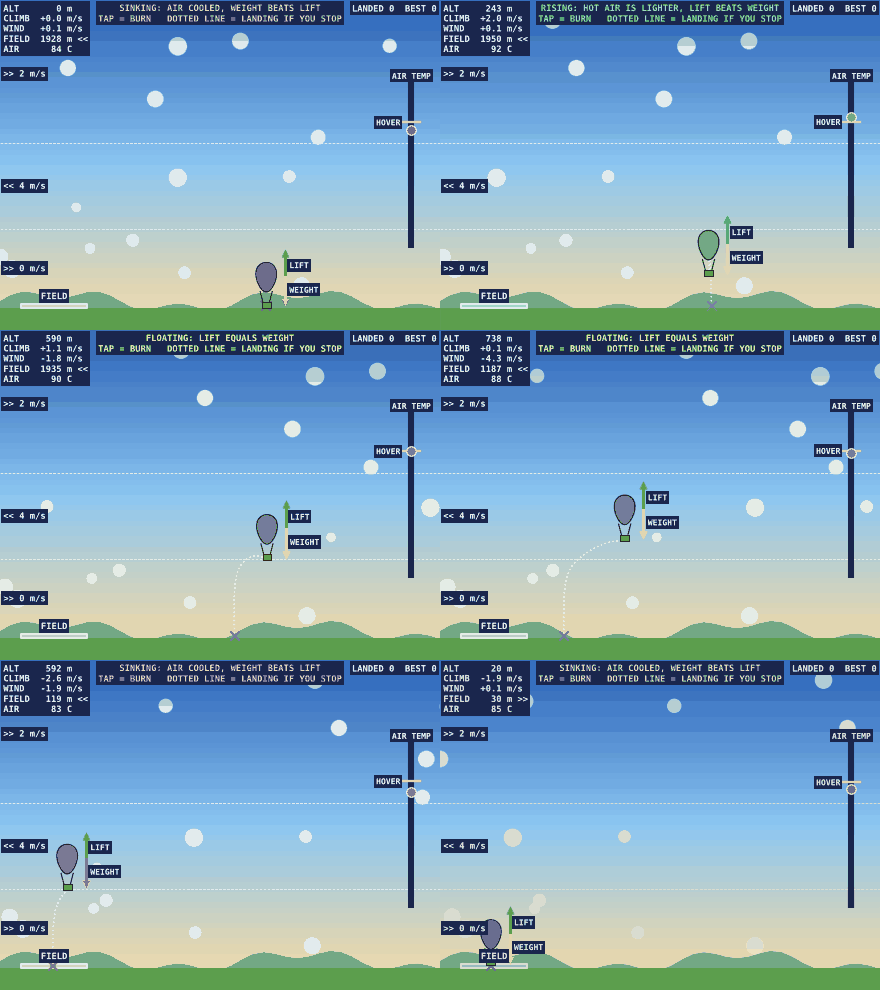
The physics in a few lines
A balloon floats when the hot air inside it is lighter than the air outside. At the same pressure, density goes as one over absolute temperature, so the lift is
ri = r * To / T; % density of the hot air inside
lift = (r - ri) * V * 9.81; % upward force from the hot air
The game compares that lift with the weight of the envelope, basket and pilot, and applies drag. Heat leaks out with Newton's law of cooling, so the inside temperature relaxes toward the outside temperature. A burn adds 3 K. The result feels like holding a ball up with short pushes, because every burn fades away within a few seconds.Putting the lesson on the screen
Two gauges show the balance directly. A green arrow shows the lift and a red arrow shows the weight, and the text at the top reads RISING, FLOATING or SINKING depending on which is larger. On the right, a thermometer shows the inside temperature as a dot and the temperature needed to float as a yellow tick. Solving lift equals weight for the temperature gives the tick:
T = (288.15 - .0065*z) / (1 - M / (rho(z)*V));
As the balloon climbs the air gets thinner, so the tick moves up. Players learn to chase the tick with taps before anyone tells them why.
A forecast made from the same step function
The dotted line is the part players like most. It is the balloon's own update function run forward in 6-second steps with no more burns, until it touches the ground:
for k = 1:300
[x,z,vx,vz,T] = stp(S,x,z,vx,vz,T,6);
S.fx(k) = x; S.fz(k) = max(z,0);
if z <= 0, break; end
end
One function, stp, does both the real flight and the forecast, so the line is always consistent with the game. It bends where the wind changes and it slides sideways each time the player burns, which is wind shear and thermal lag drawn in one picture.
Moving clouds as a wind display
Wind layers need to be visible without a chart. Sixteen clouds are a single scatter object. Each cloud has its own altitude, and each frame its x position moves by the wind at that altitude:
S.cx = mod(S.cx + wnd(S,(S.cy-40)/.24)*12*dt + 50,900) - 50;
Because wnd accepts a vector, no loop is needed. Clouds in different layers slide in different directions, and a player sees the shear before reading a number.
Tuning with a script pilot
My first version let the balloon hover for many seconds after the last burn, and the landing point swung by hundreds of meters. I wrote a small pilot script that climbs, holds altitude and stops burning when the forecast reaches the field, and ran it over random flights. A shorter cooling time and smaller burns made the forecast steady enough to use. If your game has a skill a script can play, it is worth testing that the script can win at human reaction times.
Which wind layer did you end up using?

Earlier this year a bunch of MATLAB users got together to talk about their hobbies in a lightning talk format.
- Using "UIHTML" to create app components and Lightning
- Creating generative art with MATLAB
- Making MATLAB run on the Steam Deck (it was a wager)
Do you use MATLAB for hobbies?

A one-button game where the hard part is deciding, not tapping.
Radioembolization treats liver tumours from the inside: millions of glass microspheres loaded with yttrium-90 are injected into the hepatic artery, and they stop wherever the blood takes them. There is no steering after the injection. The whole art is choosing where to inject: far enough downstream to spare healthy liver, but upstream of every branch that feeds the tumour. And sometimes the honest answer is: nowhere, do not treat.
That is a single decision made with a catheter tip that slides along an arterial tree, which felt like a natural fit for one button. I am a medical physicist working with X-ray imaging, and after my first entry (X-Ray Guided, coronary stenting) I wanted to try a game where the difficulty is clinical judgement rather than reflexes.
How to play
A shift is 6 patients, each with a different theme: a simple case, lesions in both lobes, a high lung shunt, a bulky tumour, cirrhosis with a poorly vascularised tumour, and a random mix. Anatomy, arteries and lesions are different every time.
- Angiography: the catheter tip runs back and forth along the hepatic arteries. Tap to mark an injection point (up to two), tap while the tip is in the aorta when you are done. Common or proper hepatic artery means the whole liver, a lobar trunk one lobe, a segmental branch only the part of the lobe it feeds. Each tumour is fed by the branch it grows on.
- MAA simulation: a scan shows what you really perfuse, in red. Is the whole tumour red? How much healthy liver? How much goes to the lungs? The activity is planned automatically and the bars show tumour, liver and lung doses against their limits. A menu cycles: approve, go back to the angio (new MAA, small penalty), or decline the patient.
- Report: the post-treatment Y-90 PET, then the 3-month follow-up: treated tumour gone, under-dosed or untreated tumour still there, harmed organs in red.
A complication, or declining a patient who could have been treated, costs a life. About one patient in six has no safe plan at all: spotting those is part of the game.
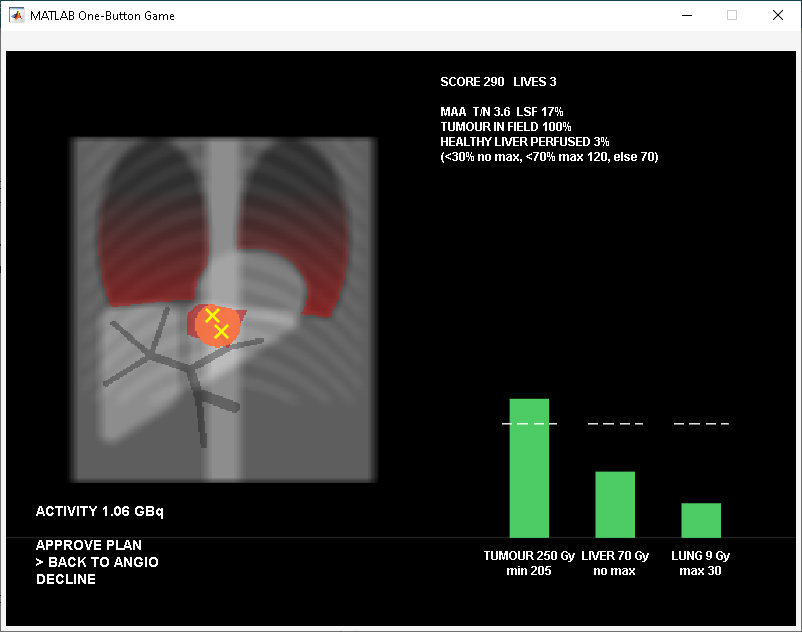
Real vs. playable
What I kept real
- The workflow: angiography, MAA simulation from the same catheter position, dosimetry, treatment, post-treatment imaging, follow-up.
- Dosimetry is the partition model used clinically: the activity in the perfused territory is shared between tumour and healthy liver in proportion to their masses and to the tumour-to-normal uptake ratio (T/N), and the lung gets the shunted fraction.
- Limits follow published recommendations for glass microspheres, simplified: tumour at least 205 Gy, lung at most 30 Gy, and a healthy-liver limit that depends on how much liver you irradiate (no limit for a small segmental treatment, 120 Gy for a lobe with enough liver spared, 70 Gy for most of the liver, lower with cirrhosis).
- The MAA is only a predictor: the T/N of the spheres can differ from the MAA, so the plan aims at 250 Gy to keep a margin.
- Clues are where they would be: a poorly vascularised tumour shows a faint blush on the angiogram, before the MAA confirms the low T/N.
What I changed for playability
- Synthetic anatomy: one projection, a liver cut into two lobes, 3 + 2 segmental branches, territories assigned to the nearest branch.
- At most two injection points. A tumour that would need three forces you upstream, at the cost of more healthy liver, which is exactly the trade-off I wanted to show.
- The catheter moves by itself, at constant speed: the tap is a choice, not a reflex test.
- The activity is computed for you, and the infusion itself is skipped: in real life the critical decision is the position, and that is what you play.
Three things I learned
1. A one-button game can be a game of decisions. If the game moves things by itself, when you tap becomes the input, and a cycling menu turns one button into any number of choices. Show what the tap does right now, and keep the cycle slow enough to read:
o = mod(floor((t-3)/1.5),3); % 0 approve, 1 back to angio, 2 decline
2. Hidden rules must become visible, or they feel unfair. My first versions had invisible random weights on the vascular territories and lesions placed anywhere: a tumour that clearly sat on one branch could end up 87 % covered, and nobody understood why. Now territories are simply “nearest branch”, every number that decides the outcome is on screen, and the report says why things went wrong. The game became harder to win and much easier to accept.
3. Vectorised geometry is cheap in characters. Territories, coverage and doses are a few array operations on a 256x256 grid, with no loops over pixels:
[~,i] = min(D,[],3); % D(:,:,k): distance from branch k
s.Tm = i==reshape(1:7,1,1,7) & s.v; % one logical map per territory
k = 49.67*A*(1-L)/(tn*s.q+s.w); % partition model: dose to healthy liver
What would you treat, and what would you decline? And if you work in interventional radiology or nuclear medicine: what did I oversimplify?

I made a one-button game that teaches particle swarm optimization (PSO, a search method in which a group of agents shares its best position). Each step, the game draws three colored arrows next to the player's bird. These arrows show the PSO rule: the next move is the sum of "keep going", "my best spot" and "flock's best spot". The other birds follow this rule exactly, and the whole flock sometimes gets stuck at a trap, which is a local maximum of the smell. The player can then leave the flock, search other places and lead it to the real food.
The 10,000-character limit restricts the design, but I still wanted the game to work for color-blind players. Red-green color blindness is the most common type, and it affects up to 1 in 12 men (8 %) and 1 in 200 women (0.5 %) [Wikipedia]. People with this type often confuse red, brown, green and yellow. In my first version, the green "PSO says" target and the orange "flock's best" arrow could therefore look alike.
I followed three simple ideas from the same article:
- Avoid red-green pairs. The arrows now use light gray, sky blue and orange, and the "PSO says" target is white.
- Do not use color alone. Each marker also has its own shape: a ring, a star or a diamond.
- Use brightness. On the smell map, a brighter spot always means a stronger smell.
The smell map is one line:
set(ax,'Colormap',(.55:.01:1)'.^[2 1 4],'CLim',[0 1]) % green -> white
These changes cost almost no characters, because they mostly replace color values. I would welcome feedback from color-blind players.
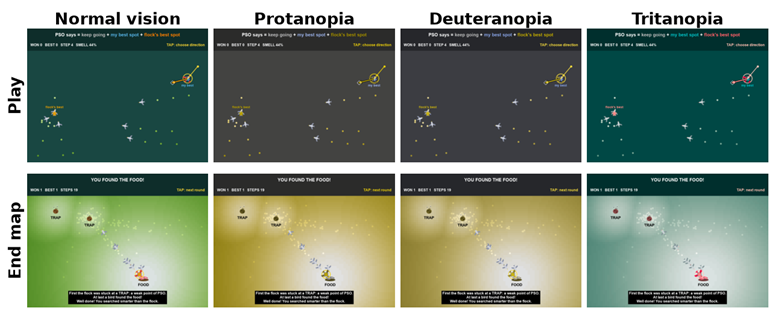
*How different people may see the game (approximate views, made with the color-blindness model of Machado et al., IEEE Transactions on Visualization and Computer Graphics, 2009).*

Magnetic Corridor is a game in which you guide a magnet that moves forward automatically through a winding corridor by reversing its top and bottom poles. A maglev railway line being developed in Japan will pass near the area where I live, which inspired the electromagnet theme.
There is only one button, but pressing it does not instantly reverse the vertical velocity. It changes the magnetic force, which then changes velocity and position. This delayed response makes looking ahead part of the controls. The game does not reproduce real maglev levitation or propulsion, or an exact electromagnetic field.

How to Play
- Press Space or click to start. During a run, each press swaps N/S on the top and bottom of the player together.
- Red walls are N, cyan walls are S, and white walls have no magnetic pole. White walls exert no magnetic force, but touching them still causes a collision.
- A collision displays the distance traveled, Lv, and changes in speed and width. Press to return to the start screen with a new course, then press again to start.
At startup, an approximately 1.5-second title display leads to the start screen. It does not repeat on retries. Close the window with the × button to quit. Input is only whether a press occurred, not how long it was held or where the click occurred.
1. Magnetic Force, Inertia, and Timing
The pole on the top of the player is represented by p: +1 for N and -1 for S. The bottom always has the opposite pole. A press reverses only this sign.
if tap
s.p = -s.p;
end
Position y and vertical velocity vy are not overwritten, so motion remains continuous immediately after the reversal. You need to consider the current direction of motion when choosing when to press for the next bend.
The magnetic force is calculated from the interaction between each wall and the nearest face of the player. bands.Tp and bands.Bt represent the wall poles: +1 for N, -1 for S, and 0 for no pole.
weightTop = 0.25 + 1.5*exp(-max(distanceTop, 0)/95);
weightBottom = 0.25 + 1.5*exp(-max(distanceBottom, 0)/95);
Tp = -260*s.p*bands.Tp*weightTop;
Bt = -260*s.p*bands.Bt*weightBottom;
mag = Tp + Bt;
This game model gives a nearer wall a larger weight. The bottom face has polarity -p, and the lower wall's interaction direction is opposite to the upper wall's, allowing both terms to use the same -p factor. mag is used as the vertical acceleration corresponding to magnetic force.
The motion update adds velocity-proportional drag. Each update is divided into substeps no larger than 1/240 of a second. Velocity is updated first, then position is advanced using that velocity.
h = min(remaining, 1/240);
mag = computeForce(s);
s.vy = s.vy + h*(mag-2.2*s.vy);
s.y = s.y + h*s.vy;
s.x = s.x + h*s.vx;
This is a semi-implicit Euler-style calculation. Drag opposes the current vertical velocity; reversing polarity does not also reverse drag. When neither wall has a pole, mag becomes 0, but velocity does not suddenly become 0. It gradually decays through drag. Actions taken before entering a section with no magnetic poles therefore affect the path through it.
The yellow arrow shows the magnetic component, with a cap on its displayed length. Comparing the arrow with the player's motion lets you observe that the direction of force is not necessarily the direction of travel.
2. Smooth Width Transitions
The Lv increases every 10 seconds of running time. Forward speed starts at 120, increases by 18 per level, and is capped at 300. Each level reduces the corridor width by 2% of its initial width, down to a minimum of 80%. Speed changes at the level boundary, while width changes smoothly over the following 1 second.
s.lv = 1 + floor((s.t+1e-10)/10);
s.vx = min(300, 120+18*(s.lv-1));
u = max(0, min(1, s.t-10*(s.lv-1)));
s.c.w = 1-.02*min(10, max(0, s.lv-2+u*u*(3-2*u)));
u*u*(3-2*u) is smoothstep, with a rate of change of 0 at both endpoints. At Lv2, width changes from 100% at 10 seconds to 98% at 11 seconds. At Lv11, it changes from 82% at 100 seconds to 80% at 101 seconds. The reduction is relative to the initial width, not repeated multiplication by a fixed factor.
The width scale factor c.w multiplies both the corridor half-width and its spatial derivative. Rendering, magnetic force, and collision detection share the same corridor calculation, so the visible and collision walls do not need separate narrowing logic. Collisions remain active during the transition; there is no invincibility period.

Percentages in the HUD and results are relative to the initial settings. SPEED +150% means 2.5 times the initial speed, and WIDTH -20% means 80% of the initial width.
3. Reusing Graphics and Transforming Coordinates
Graphics objects are created during initialization. Rendering updates the data of existing lines, semicircles, text, and arrows. Wall points are supplied as arrays to XData and YData. Points that do not match a given magnetic polarity are set to NaN to split the lines. This groups the walls into a few lines instead of creating an object for every point.
Motion is calculated in world coordinates, with the camera position subtracted for rendering. The vertical expression playerY = s.y - cameraY; follows the same idea. This is a 2D view transformation: the camera follows the corridor without any force pulling the player back to its center. The dark shell, support ribs, and slowly scrolling distant segments are decorative, not magnetic-field visualizations or collision objects.
The corridor combines 3 sine waves, with a random seed chosen initially and on retries. The same seed generates the same course, which also supports comparison tests. Collision detection approximates distance to the wall's local tangent and runs before integration and after each substep. It is not an exact closest-point calculation on the curve or continuous collision detection.
4. Development Takeaways
The game is a single game.m file and contains 9,602 characters using the official mtree → tree2str method. Removing detailed diagnostics, trajectory history, and numerous labels freed up room for the background, displays, and width interpolation.
The 10-second version passed the official validator in MATLAB R2026b with the official Toolkit 1.0.1. Generative AI assisted with design exploration, implementation, validation, and writing. The images in this article were captured with the earlier 18-second version.
To experiment, change just one of the drag coefficient, magnetic force strength, or wave amplitudes or wavelengths, and compare runs with the same seed. This makes the connection to the controls easier to follow. The game offers a way to explore how reversing polarity connects force, velocity, and position through play.
The code consists of excerpts from game.m; the snippets are not intended to run independently.

This Week's Quiz
84 responses

Thanks to Siddharth Jawahar for the Misconceptions in Control Design workshop. I worked through the M3 to M5 models and have three follow-ups.
- Transport delay in PID Tuner. In M5, the tuned design showed 60 degrees of phase margin at 5.27 rad/s, while the gain margin sat at 25 rad/s for both the original and the tuned gains. That suggests the transport delay sets the phase crossover. Does PID Tuner linearize the Transport Delay block exactly, use a Pade approximation, or tune on the delay-free plant? If it drops the delay, the margins on screen would be optimistic.
- Missing the settling spec. The tuned design settled in 1.02 s against the 0.8 s requirement, while rise time and overshoot passed. Which would you trade first: a little more overshoot, derivative action, or reducing the delay itself?
- Windup in field logs. The M4 hand-built PI asked for about 26 V against a 12 V driver limit and overshot by 187.7 percent after the disturbance cleared. On real hardware, is the requested voltage pinned at the limit while the error keeps growing the signature you look for? Do you recommend logging requested and applied voltage as separate signals by default?
Context: I work on simulation validation and am building a fault-injection testbed for a small robot that injects latency, jitter, and packet loss on the control link. Variable delay is the case I care about most, so any pointers on modeling jitter (for example with the NetworkCondition block) would help.
Thanks!
In a cath lab, the most important button is a pedal: press it and you see, release it and the image freezes. Every second you press costs radiation dose. That felt like the perfect one-button game.
My entry, X-Ray Guided, simulates a coronary stenting procedure from the groin to the heart. I work on fluoroscopic image quality as a medical physicist, so I wanted the X-ray image and the dose to behave like the real thing, at least where it matters for the game.
How to play
You are on shift in the cath lab. Patients arrive one after another, each with two random traits (obese, tortuous iliacs, tachycardic, small vessel, renal failure, calcified vessel) that change how the case plays. Three complications end your shift.
Each patient has four steps, and the line at the bottom of the screen always tells you what the tap does right now:
- Wire: tap to start pushing the guidewire blind and watch the FEEL bar. When you meet resistance, you can keep pushing blind (risky) or tap to switch fluoroscopy on. With X-rays on, the wire tip rotates: tap when it lines up with the vessel, or wait and let it creep through slowly while the dose climbs.
- Angiography: tap to inject contrast, then tap again at peak opacification to save the reference image of the lesion.
- Stent: without contrast the vessel is invisible. The stent slides along the wire; use the reference image (top left) and the small contrast puffs at each end of its travel, then tap to deploy it on the lesion.
- Balloon: it inflates by itself, faster and faster. Tap inside the yellow box, at nominal pressure.
A full HARM bar, a full DOSE bar, a missed lesion or a wrong inflation is a complication. Score depends on lesion coverage and expansion, minus dose, vessel trauma and time; consecutive clean cases give a multiplier.
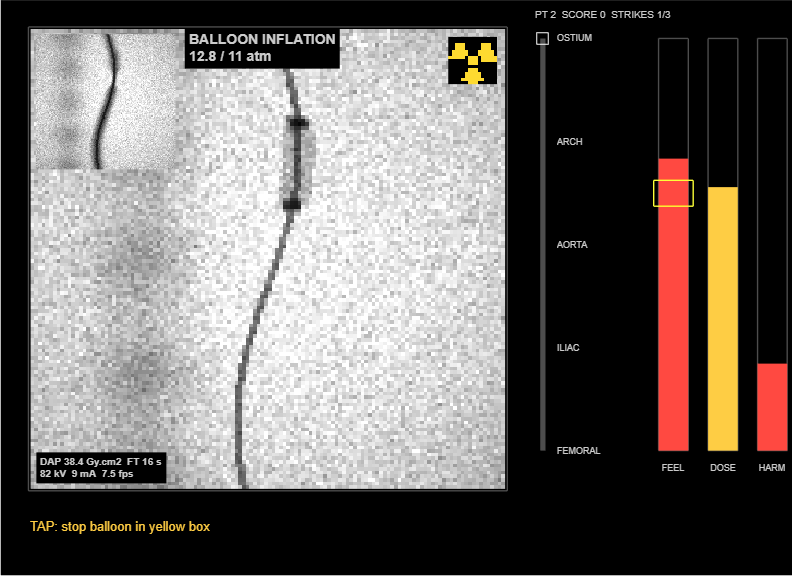
One pedal, many jobs
The contest gives you a single tap, with no hold and no release. That turned out to fit the cath lab surprisingly well, because a real procedure is also a sequence of single, well-timed decisions, and each phase asks a different one:
- Navigation: do I need to look? The wire goes up mostly by feel. The tap is the moment you decide that the resistance in your hand is worth some radiation to understand.
- Fluoroscopy on an obstacle: now, or wait? Tapping when the tip lines up is fast but risky; waiting lets the wire creep through safely, and the DOSE bar shows what that patience costs.
- Angiography: when is the vessel best filled? Saving the reference too early or too late leaves you with a poor map of the lesion for the next step.
- Stent: is it on the lesion? With the contrast gone, you deploy from memory of the reference image and from the short puffs, each of which costs extra dose.
- Balloon: when do I stop? Too little and the stent is under-expanded, too much and you overstretch or rupture the vessel.
So the tap always means “act now”, but what it acts on changes with the phase. Two things made this readable: the game moves things by itself (the tip rotates, the stent slides, the balloon inflates), so when you tap is the decision, and not tapping is a decision too; and a line at the bottom of the screen always says what the tap will do next.Real vs. playable
What I kept real
- Most of the wire’s journey is done without X-rays, by feel. Fluoroscopy is switched on when you need it.
- The image is built like a fluoroscopy frame: attenuation of anatomy, vessel and devices, quantum noise that grows with the signal, and a recursive temporal filter that reduces noise but leaves lag behind moving objects. Release the pedal and you are left with the last image hold.
- Cine costs much more than fluoroscopy. Here it is 5 times per second, so the contrast injection and each puff are visible jumps on the DOSE bar.
- Coronary arteries are invisible without contrast, while the stent’s marker bands are not. That is why a good reference image matters.
- An obese patient means a noisier image and more dose for the same procedure.
What I changed for playability
- Time is compressed: a procedure lasts a couple of minutes, so the DAP values on screen are game numbers, and the per-patient limit is a game rule, not a clinical threshold.
- The contrast puffs during stent positioning are automatic, at each end of the stent’s travel, instead of being a separate action.
- The stent and the balloon move by themselves, so that the single tap becomes a timing decision.
- One projection, simplified anatomy, and a vessel that bends only where the obstacles are.
On the code side, the whole X-ray monitor is a single 128x128 image whose CData is rebuilt every frame from an attenuation map, with noise and temporal filtering added in two lines. For fitting everything into the character limit, Ahmed’s post on how the validator counts reformatted code says it better than I could.
How long does your shift last? And if you work in a cath lab: what would you add?

For the MATLAB One-Button Game Mini Hack, I created DECOY, an arcade survival game built around a simple idea:
What if the same button could help you escape and trick your enemies at the same time?
In DECOY, the player controls a glowing courier moving automatically around an elliptical circuit. Hostile drones attempt to intercept the courier, while a single button allows the player to reverse direction and leave behind a temporary holographic decoy.
The decoy attracts nearby drones, creating opportunities to escape or eliminate several pursuers with one well-timed move.
The game's motto is "DECEIVE TO SURVIVE."
The project was developed using OpenAI Codex with MATLAB MCP tools, allowing an AI coding agent to inspect the official contest project, implement the game, run MATLAB checks, and refine the code through several iterations.
Play DECOY — Deceive to Survive:
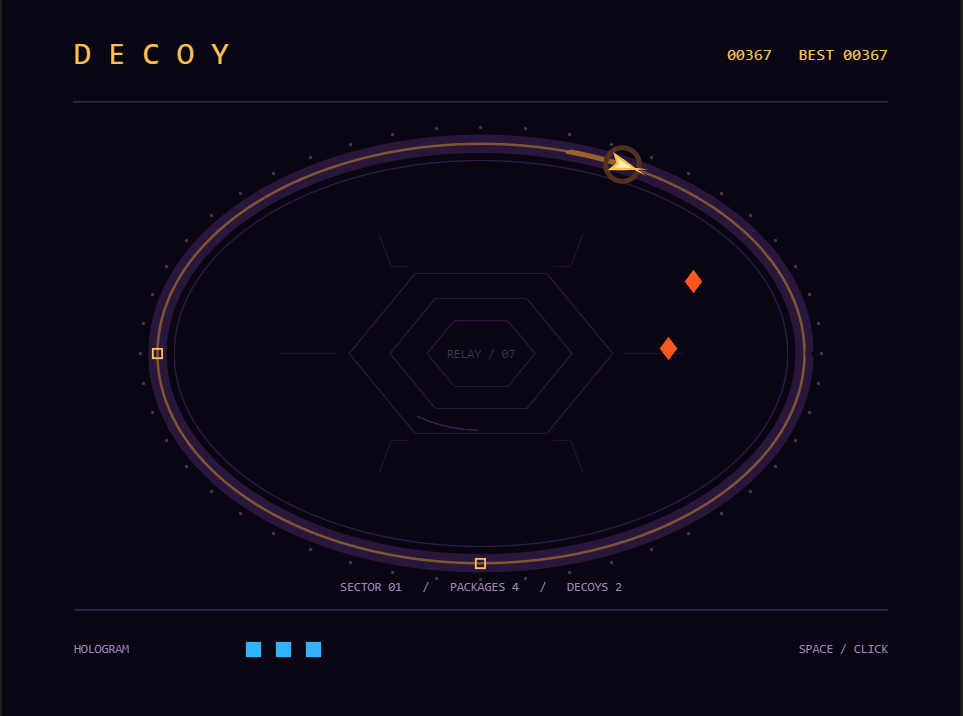
DECOY — A one-button arcade game featuring predictive drones, holographic distractions, and tactical survival.
Here are some of the most interesting technical and design lessons from the process.
1. Designing a Meaningful One-Button Mechanic
The first challenge was creating a game where pressing one button involves a genuine decision.
In DECOY, pressing SPACE or clicking performs two actions:
- Reverses the courier's direction.
- Creates a temporary hologram if an available charge remains.
The corresponding logic is compact:
if pressed
s.dir=-s.dir;
if s.charges>0
[~,k]=min(s.h(:,3));
s.h(k,:)=[p 2.8 0];
s.charges=s.charges-1;
end
end
The courier always reverses direction, even when no hologram charges are available.
Each hologram lasts 2.8 seconds. The player can hold a maximum of three charges, replenished by collecting packages along the circuit.
This creates an interesting tradeoff.
Using a hologram early may provide a safe escape, but waiting until several drones are nearby could produce a more valuable capture.
The goal was to make timing and positioning more important than rapid button pressing.
2. Moving Along an Elliptical Circuit
Rather than allowing free movement, DECOY keeps the courier on a fixed elliptical path.
The position is calculated from a single angle:
function p=position(a)
p=[400+270*cos(a),305+175*sin(a)];
end
The courier advances automatically by updating the angle:
s.theta=mod(s.theta+s.dir*.78*dt,2*pi);
Here, s.dir determines the direction of travel, while dt makes the movement dependent on elapsed time rather than the number of rendered frames.
This approach has several benefits.
First, the player's movement remains predictable. Second, the game only needs to manage one movement parameter. Finally, enemy drones can anticipate where the courier is likely to be in the near future.
The ellipse is also a useful visual design element. It creates a clearly defined arena without requiring complicated level geometry.
3. Giving Drones Predictive Pursuit Behavior
One of the main gameplay challenges was making the drones feel threatening without making their movement completely unpredictable.
The drones use a lightweight, rule-based steering system.
Instead of always chasing the courier's current position, they estimate a future position along the elliptical path.
The core calculation is:
target=position(s.theta+s.dir*.78*min(1.4,norm(p-q)/speed));
The estimated lead time depends on the distance between the drone and the courier, together with the drone's speed.
This produces a simple form of predictive interception.
A drone approaching from inside the ellipse can aim ahead of the courier instead of constantly following behind it.
The important distinction is that this behavior does not require a trained machine-learning model. It is implemented through geometry, prediction, and steering rules.
That was an important design choice for a game with a strict code-size limit.
4. Making Holograms Change Enemy Behavior
A hologram is more than a visual effect. It changes how the drones select their targets.
The game checks the distance from each drone to the active holograms:
dist=sum((s.h(:,1:2)-q).^2,2);
dist(s.h(:,3)<=0)=inf;
[near,h]=min(dist);
Expired holograms are excluded from consideration by assigning them an infinite distance.
The drone normally pursues the predicted courier position, but a nearby hologram takes priority:
if near<235^2, target=s.h(h,1:2); end
This is what makes the central mechanic work.
A carefully placed hologram can redirect several drones away from the courier. If a drone reaches an active hologram, it is eliminated and awards points.
The player is therefore not simply avoiding enemies. They are manipulating enemy behavior.
I found this much more interesting than implementing another conventional dodge mechanic.
5. Rewarding Clever Decoys
The scoring system encourages players to use holograms tactically.
A captured drone provides a base reward of 100 points. Additional drones caught by the same hologram increase the reward.
The implementation uses:
s.h(h,4)=s.h(h,4)+1;
s.score=s.score+100+25*(s.h(h,4)-1);
s.caught=s.caught+1;
This creates a bonus for multi-drone captures.
Packages provide another incentive to keep moving around the circuit. Collecting one restores a hologram charge, up to the maximum of three, and awards 30 points.
The player also receives points for survival time.
Together, these systems create several possible strategies: survive cautiously, collect packages consistently, or take greater risks to capture groups of drones.
The best score is retained between rounds while the current game session remains open.
6. Progressive Difficulty Without Traditional Levels
DECOY is designed as an endless survival game rather than a sequence of fixed levels.
As time passes, drones become faster and appear more frequently.
Their movement speed is calculated using:
speed=min(142,90+s.t*.48);
This gradually increases their speed while enforcing an upper limit.
The spawning interval also changes over time:
s.spawn=max(.85,2.5-.018*s.t)*(1+.12*sin(s.t*.7));
This gradually increases pressure while introducing some variation into the arrival rhythm.
The game uses a fixed pool of twelve drone objects rather than creating unlimited graphics objects.
The interface displays a sector indicator that advances with survival time, giving players a sense of progression even though the game uses one continuous arena.
This approach keeps the implementation compact while encouraging repeated attempts to beat the previous record.
7. Creating a Neon-Noir Visual Identity
I wanted DECOY to have a visual identity distinct from a typical arcade prototype.
The final design uses a dark violet background, gold circuit lines, orange drones, blue holograms, and a luminous courier.
The interface includes a central geometric relay, an elliptical arena with subtle markings, charge indicators, a score display, and a dedicated start screen.
The visual design was refined after the first playable version.
Initially, the central area felt too empty and the courier was not visually distinctive enough. Later iterations added more recognizable player geometry, environmental details, and clearer introductory instructions.
An important MATLAB technique was to create graphics objects only during initialization and update their properties afterward.
For example, the courier's orientation is calculated from the tangent to the elliptical path:
v=s.dir*[-270*sin(s.theta) 175*cos(s.theta)];
v=v/norm(v);
w=[-v(2) v(1)];
These vectors are then used to construct a directional shape.
This makes the courier visibly change orientation when the player reverses direction.
The holograms also display a circular arc representing their remaining lifetime, helping players understand when their decoy will disappear.
Visual feedback is especially important when the game is controlled with only one button.
8. Keeping MATLAB Animation Responsive
DECOY separates the simulation from the rendering logic using the contest's required init, update, and render functions.
The graphics objects are created in init, while render updates existing object properties.
The simulation also divides longer time steps into smaller increments:
n=ceil(dt/.01);
step=dt/n;
for j=1:n
s=advance(s,step);
if s.mode==2, break; end
end
This limits the internal simulation step to approximately 0.01 seconds.
Smaller steps help maintain more consistent movement and collision behavior when the rendering frame rate varies.
The game also reuses its drone, hologram, and visual-effect objects instead of creating new objects continuously.
These decisions helped keep the implementation manageable and supported smooth real-time gameplay in MATLAB.
9. Developing the Game with Codex and MATLAB MCP
One of the most interesting aspects of this project was the development workflow.
Unlike my previous Mini Hack projects, I used OpenAI Codex as the primary coding agent, connected to MATLAB through Model Context Protocol (MCP).
The workflow started with the official Mini Hack starter project.
Codex first inspected the project structure, read AGENTS.md, identified the contest restrictions, and checked which MATLAB tools were available.
Before implementation, it proposed three different game concepts. I reviewed the alternatives and selected DECOY because its combination of deception, movement, and enemy prediction seemed particularly suitable for one-button gameplay.
Codex then implemented the game directly in game.m.
Through the MATLAB MCP integration, it could execute MATLAB commands, inspect the implementation, run static analysis, and invoke the official contest validator.
The development process included:
- Initial implementation of the arena and pursuit mechanics.
- Validation against the contest rules.
- Programmatic checks of gameplay state transitions.
- Live gameplay checks in MATLAB.
- Visual refinements based on screenshots and manual playtesting.
- A final change to the start-screen slogan.
The AI handled much of the coding and technical verification. My role was to select the concept, assess the gameplay, evaluate the visual results, request improvements, and make the final design decisions.
This was a useful demonstration of how AI-assisted development can support an iterative workflow without removing the importance of human testing and judgment.
10. Lessons from the 10,000-Character Constraint
The contest's 10,000-character limit shaped many implementation decisions.
Rather than using a complicated pathfinding system, DECOY relies on geometric prediction and simple steering.
Instead of building multiple arenas, it creates increasing difficulty within a single circuit.
And rather than continuously creating new effects, it reuses a small collection of MATLAB graphics objects.
The official minihackContest.validate command was used during development to check compatibility with the contest requirements.
The main lesson was that technical constraints can encourage more focused game design.
A compact implementation does not necessarily mean a shallow game. The interaction between a moving courier, predictive drones, and temporary holograms can generate surprisingly varied situations.Final Thoughts
DECOY started as an experiment in designing a meaningful one-button mechanic.
The result is a small arcade game where success depends on understanding how enemies react to the player's actions.
A well-timed press can turn a dangerous pursuit into an opportunity to score points.
The project also demonstrated how OpenAI Codex and MATLAB MCP tools can be combined to develop, validate, and refine a complete game inside MATLAB.
My biggest takeaway is that interesting gameplay often comes from combining a few simple rules rather than adding more controls or features.
In DECOY, one button is enough to reverse direction, create a distraction, manipulate enemy behavior, and sometimes escape a seemingly impossible situation.
DECEIVE TO SURVIVE.
Thanks for reading, and I hope you enjoy playing DECOY!
What a start! We’ve already seen almost 100 one-button games in Week 1, packed with creative ideas, clever mechanics, and plenty of surprises. Even better, participants have published 18 Tips & Tricks articles sharing how they designed and built their games, what they learned, and how they used agentic AI along the way.
Now for the difficult part: picking the winners. We planned to select 5 Week 1 winners.
We tried. We really did. We ended up picking 12. 😄
And honestly, even 12 doesn’t feel like enough to recognize all the great games we’ve seen.
Congratulations to our Week 1 winners!
Category: Art & Design
Category: Engineering
Category: Anxiety Raising
Category: Sports
Category: Score = 9999
Category: Simple but fun
Category: Humorous
Category: Retro Design
Special Category for Week 2 & Week 3: STEM Education
For Weeks 2 and 3, we’re introducing a special STEM Education category. Our challenge: Can you help someone learn while they’re having fun?
Your game could teach a MATLAB function or programming concept, demonstrate gravity or projectile motion, simulate a scientific experiment, or visualize an engineering concept.
The possibilities are wide open. Just remember: learning + playing = the goal.
And there’s a special prize too: STEM Education winners will receive a MathWorks Stainless Steel Coffee Mug! ☕

If you had to catch up with a spacecraft ahead of you in the same orbit, what would you do?
The intuition is to speed up and catch the spacecraft ahead. In orbit, that’s wrong. To catch something ahead of you, you burn retrograde and slow down.
Why burning retrograde works
Slowing down drops you into a lower orbit. A lower orbit is shorter and faster, so you complete each revolution sooner and gain on the spacecraft ahead every lap.
At the lowest point of that new orbit you’re actually moving faster than your target. Speeding up does the opposite: you climb higher, your orbit takes longer, and you fall behind.
You start in the same 800 km circular orbit as a space station, trailing it by 25–55° with 400 m/s of Δv. One tap starts a burn and the next tap cuts the engine.
Burns alternate automatically: the first is retrograde, the second prograde, then retrograde again, and so on.
How to win
- Win: get within 200 km of the station with a relative speed below 50 m/s.
- Don’t burn up: if your orbit drops below 120 km altitude, you burn up in the atmosphere.
- Watch your fuel: you have 600 m/s of Δv.
- Beat the clock: you have 20 orbits to dock.
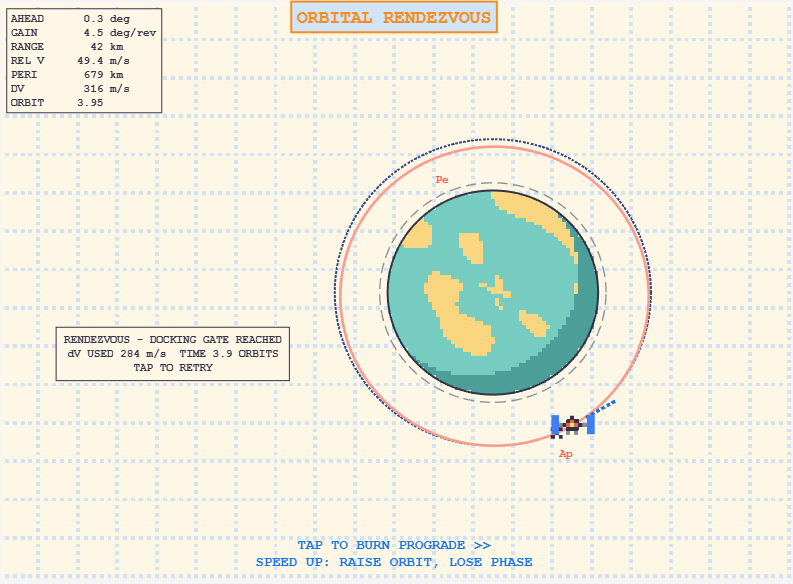
Key terms
- Prograde: thrusting along your direction of travel. Speeds you up and raises the opposite side of your orbit.
- Retrograde: thrusting against your direction of travel. Slows you down and lowers the opposite side of your orbit.
- Perigee: the lowest point of an orbit.
- Apogee: the highest point of an orbit.
What I learned building the game: realism vs. playability
I started out trying to make everything 1:1 with real orbital mechanics. It was physically accurate, but it was frustrating to play. Some trade-offs had to be made:
What I kept real
- The game simulates planar Keplerian dynamics. Burns are applied either along (prograde) or against (retrograde) your velocity vector.
- Orbital mechanics: to catch a station that’s ahead of you, you slow down. A retrograde burn reduces your semi-major axis a, and since the orbital period is T = 2π·sqrt(a³/μ), a smaller orbit has a shorter period. You gain on the station every revolution.
- The vis-viva equation v² = μ(2/r − 1/a), shows that speed is highest at periapsis and lowest at apoapsis. At the periapsis of your lower orbit you’re moving faster than the station, even though you got there by braking.
- To stop drifting, do a prograde burn back at the point where you first burned, which is now your apoapsis. Raising a back to the station’s radius recircularises your orbit and matches its period.
What I changed for playability
- Time warping. A real orbit at this altitude takes about 100 minutes. In the game it takes 8 seconds, roughly 750x real time.
- Burn in slow motion. Time runs 4x slower while the engine fires, so you can actually control how long a burn lasts with one button.
- A strong engine. Thrust is about 0.4 m/s², which is way higher than a normal spacecraft but it means a burn takes a few seconds instead of minutes.
- Exaggerated distance. In the game the distance from the station’s orbit is stretched 3x, otherwise the difference of the orbits wouldn't be visible.
- A generous docking gate. A realistic range (tens of km and relative velocity around 15 m/s) was nearly impossible to hit, so I widened it to 200 km and 50 m/s.

What happens when you take a classic Pac-Man style maze game and limit the player to just one button?
That was the idea behind MAZE FRENZY, my entry for the MATLAB One Button Game Mini Hack.
The player moves automatically through a maze, collecting pellets while avoiding four pursuing ghosts. A single click changes direction at available turns. Power orbs temporarily reverse the chase, allowing players to capture ghosts and earn bonus points.
How to play
- Collect pellets for 10 points each.
- Collect power orbs for 50 points.
- Capture powered up ghosts for 200 points.
- Survive with three lives.
- Clear the maze to advance to faster levels.
Gameplay screenshot
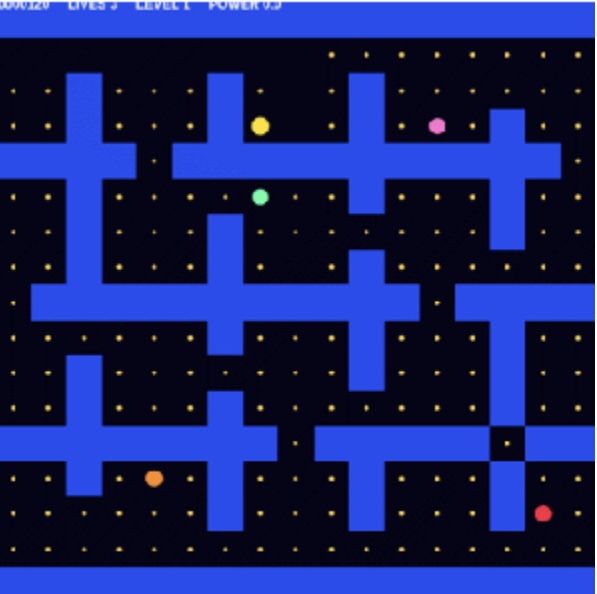
Figure1. Maze gameplay showing the player, ghosts, pellets,
power orbs, and scoreboard.
Inside the MATLAB code
The game follows the init,update, and render architecture.
- init constructs the maze and initializes graphics.
- update handles movement, collisions, scoring, and ghost behavior.
- render updates the existing graphics objects.
The maze uses a logical matrix (true for walls and false for paths). MATLAB functions such as image, scatter, text, find, set, abs, and sprintf handle the graphics and game logic. Ghosts use Manhattan distance calculations to pursue the player and retreat when a power orb is active.
What I'd improve next
I would like to explore breadth first search for smarter ghost navigation, individual ghost personalities, procedural maze layouts, and smoother character animation.
The interesting challenge was making a familiar arcade game work with just one button. It turns movement into a strategic excercise in timing and anticipating the next junction.
How would you approach ghost AI in MATLAB for shortest path search or individual enemy behaviors?

The MATLAB One-Button Game Mini Hack runs from November 2nd through November 29th, 2026! The challenge is to make a game that can be played with one button. I thought this would be a good opportunity to share some of the graphics and programming ideas behind Arcade, a collection of 15 games I developed in MATLAB using Claude Code and the MATLAB MCP Server.
Before the 2024 MATLAB Shorts Mini Hack, Tim Marston published his walkthrough of Little Nemo's airship. I learned a lot from Tim's article, and it inspired me to enter the contest. I hope that sharing some of what goes into these games might encourage a few more people to give it a try this time around as well.
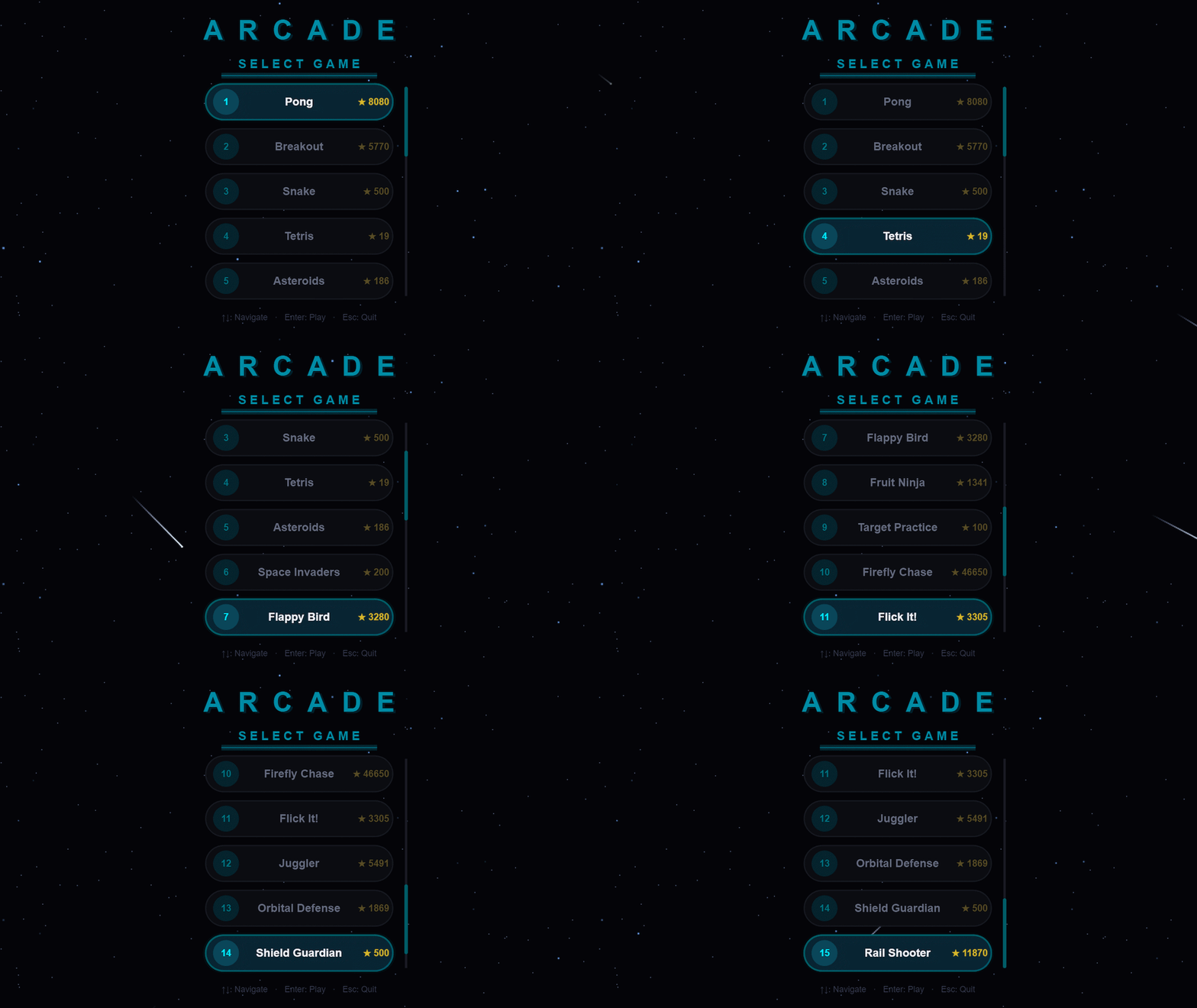
You can download Arcade from File Exchange or GitHub, add the project folder to the MATLAB search path, and run:
Arcade();
Creating and updating graphics
Arcade sports neon-styled graphics. This is accomplished by layering ordinary MATLAB graphics against a dark background. The bright colors used come from the shared GameBase palette, which enables the different games to keep a consistent appearance and accounts for quite a bit of that look.
In Pong, the ball is made by drawing a colored dot, a semitransparent scatter marker and a smaller white dot at the same position. The ball and trail change from cyan through green, gold and red as the ball speeds up, while the center stays white. Against the dark background, these simple shapes give us the bright center and surrounding glow.
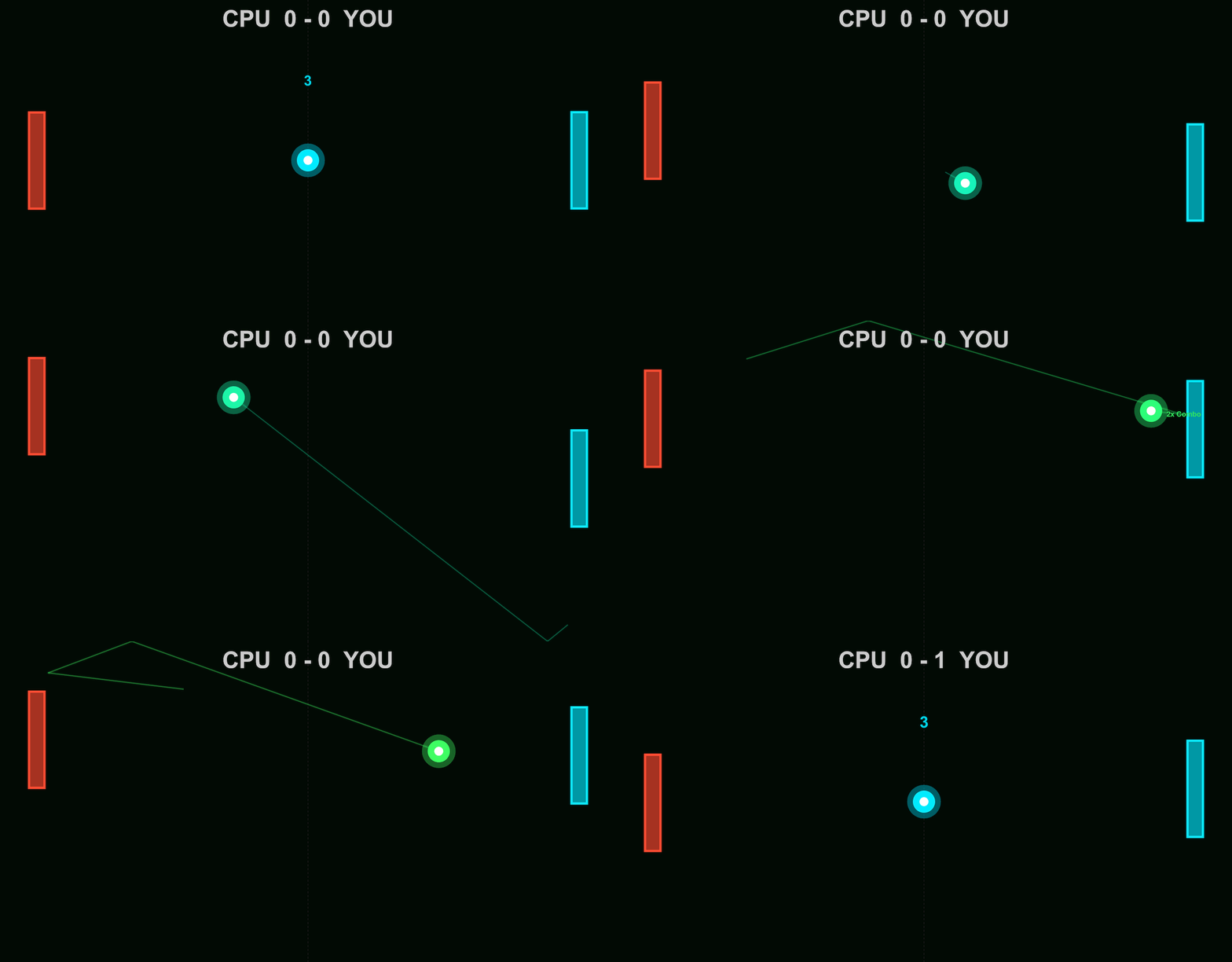
arcadeBallDemo();
worldSize = [854, 480];
position = worldSize / 2;
cyan = [0, 0.92, 1];
radiusParameter = max(3, round(min(worldSize) * 0.035));
baseCoreSize = 2 * radiusParameter;
baseDotSize = 5 * radiusParameter;
baseGlowArea = pi * (1.25 * radiusParameter)^2;
coloredDot = line(ax, NaN, NaN, ...
Marker=".", MarkerSize=baseDotSize, LineStyle="none", Color=[cyan, 0.15]);
glow = scatter(ax, position(1), position(2), baseGlowArea, cyan, "filled", ...
MarkerFaceAlpha=0.4);
core = line(ax, position(1), position(2), ...
Marker=".", MarkerSize=baseCoreSize, LineStyle="none", Color=[1, 1, 1, 1]);
ballLayers = {coloredDot, glow, core};
Here's how the ball looks as each layer is added:
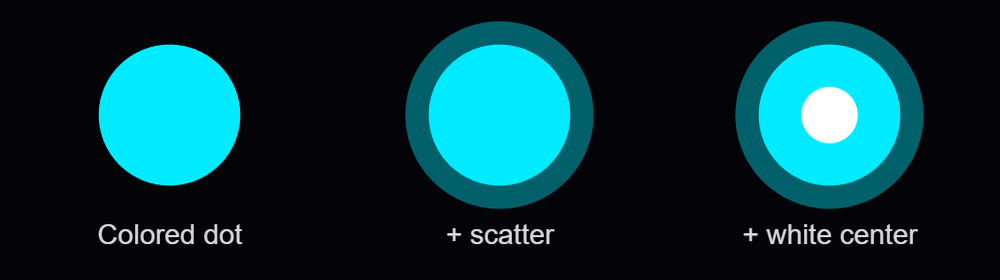
Setting NextPlot="add" preserves the existing graphics as we add the layers. Specifying the axes limits by using XLim and YLim keeps the view in place as the ball moves.
Each drawing call returns a handle to its object. With those handles stored in ballLayers, moving the ball involves assigning its new position to the existing objects:
for layerIndex = 1:numel(ballLayers)
ballLayers{layerIndex}.XData = position(1);
ballLayers{layerIndex}.YData = position(2);
end
drawnow
MathWorks' graphics-performance guidance recommends retaining graphics and updating the properties that change. Pong also checks whether its scores have changed before assigning new score text. Its trail uses preallocated position buffers, wrapping around as new positions arrive, and two retained lines display that history as a broad dim stroke with a narrower bright stroke.
Handling inputs using callback functions
The ball example responds to mouse presses through a callback function. After creating the scene, it assigns a function handle to the figure's WindowButtonDownFcn callback property:
fig.WindowButtonDownFcn = @reverseVerticalDirection;
MATLAB executes the callback function when a mouse button is pressed in the window. In the example, it is nested inside the local animateBall function:
function reverseVerticalDirection(~, ~)
velocity(2) = -velocity(2);
end
The two arguments supplied by MATLAB are the source object and event data. The ~ placeholders indicate that this function doesn't use them. As a nested function, it can access velocity in the enclosing function. Each mouse press reverses the shared vertical velocity, which the next loop iteration uses to move the ball.
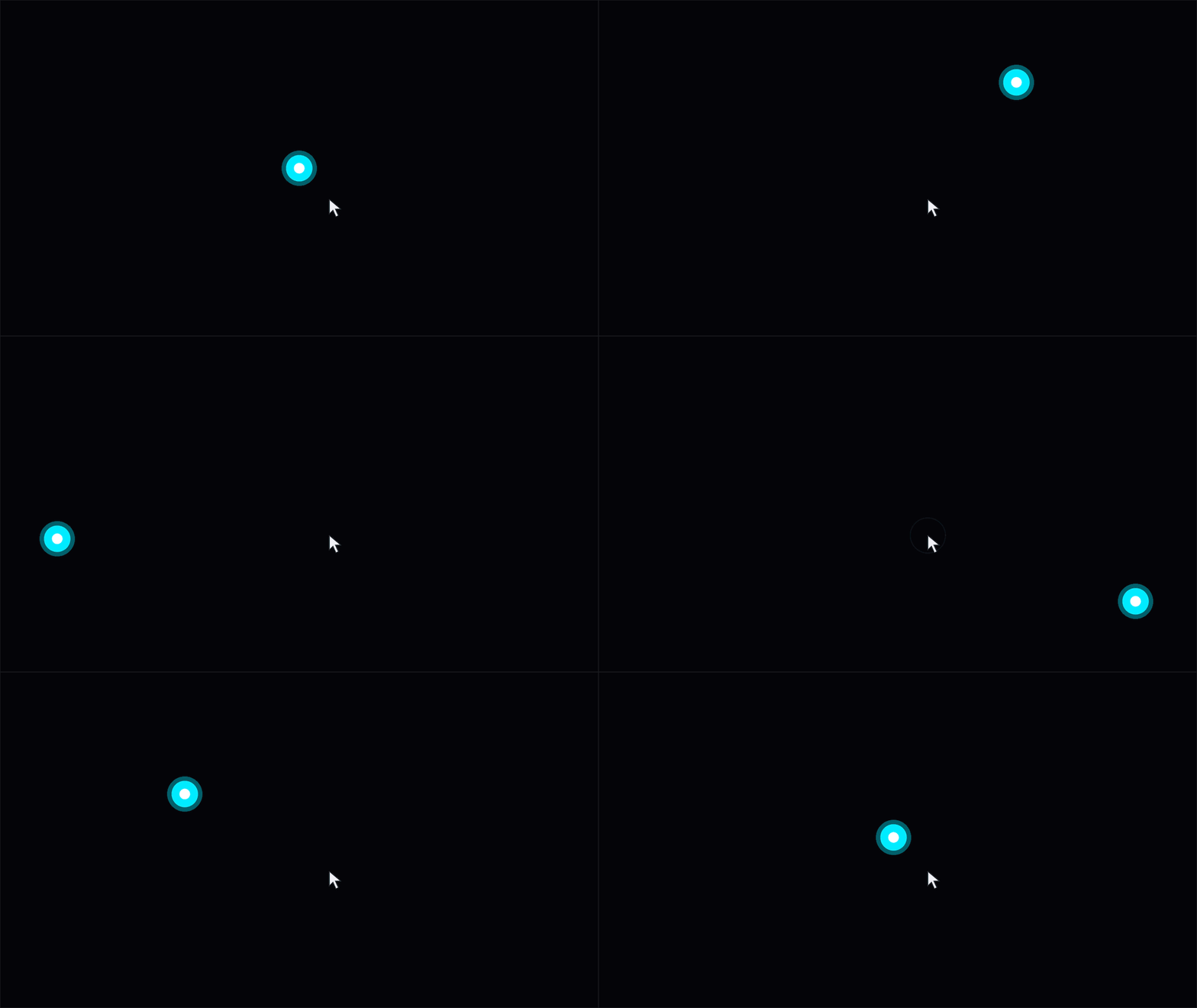
Arcade routes input through methods on the launcher. Its figure's KeyPressFcn callback property is assigned as follows, where obj is the launcher instance:
obj.Fig.KeyPressFcn = @(~, event) obj.onKeyPress(event);
The anonymous function forwards the event data to onKeyPress, where its Key property identifies the key. The launcher handles its own controls and passes appropriate input to the active game. Button release and scrolling have their own callback functions.
Mouse movement can control a paddle or aim a shot. To track the pointer as it moves within the figure, Arcade assigns a callback function to WindowButtonMotionFcn:
obj.Fig.WindowButtonMotionFcn = @(~, ~) obj.onMouseMove();
function onMouseMove(obj)
pointer = obj.Ax.CurrentPoint;
obj.MousePos = pointer(1, 1:2);
end
The axes' CurrentPoint gives the pointer position in game coordinates. MATLAB accounts for the axes' position and size, so the same code works when the playfield is resized or surrounded by margins.
On each game update, the launcher passes the stored position to the active game's onUpdate method. In Pong, obj now refers to the game instance. Once the incoming pos is available, its vertical coordinate determines the player's paddle position:
yLimits = obj.DisplayRange.Y;
if ~any(isnan(pos))
obj.PlayerPaddleY = max(yLimits(1) + obj.PaddleHalfH, ...
min(yLimits(2) - obj.PaddleHalfH, pos(2)));
end
The min and max calls keep the paddle's center at least half a paddle height from either edge. Moving the pointer into a margin therefore leaves the whole paddle inside the playfield. The graphics update then applies that position to the existing paddle patches.
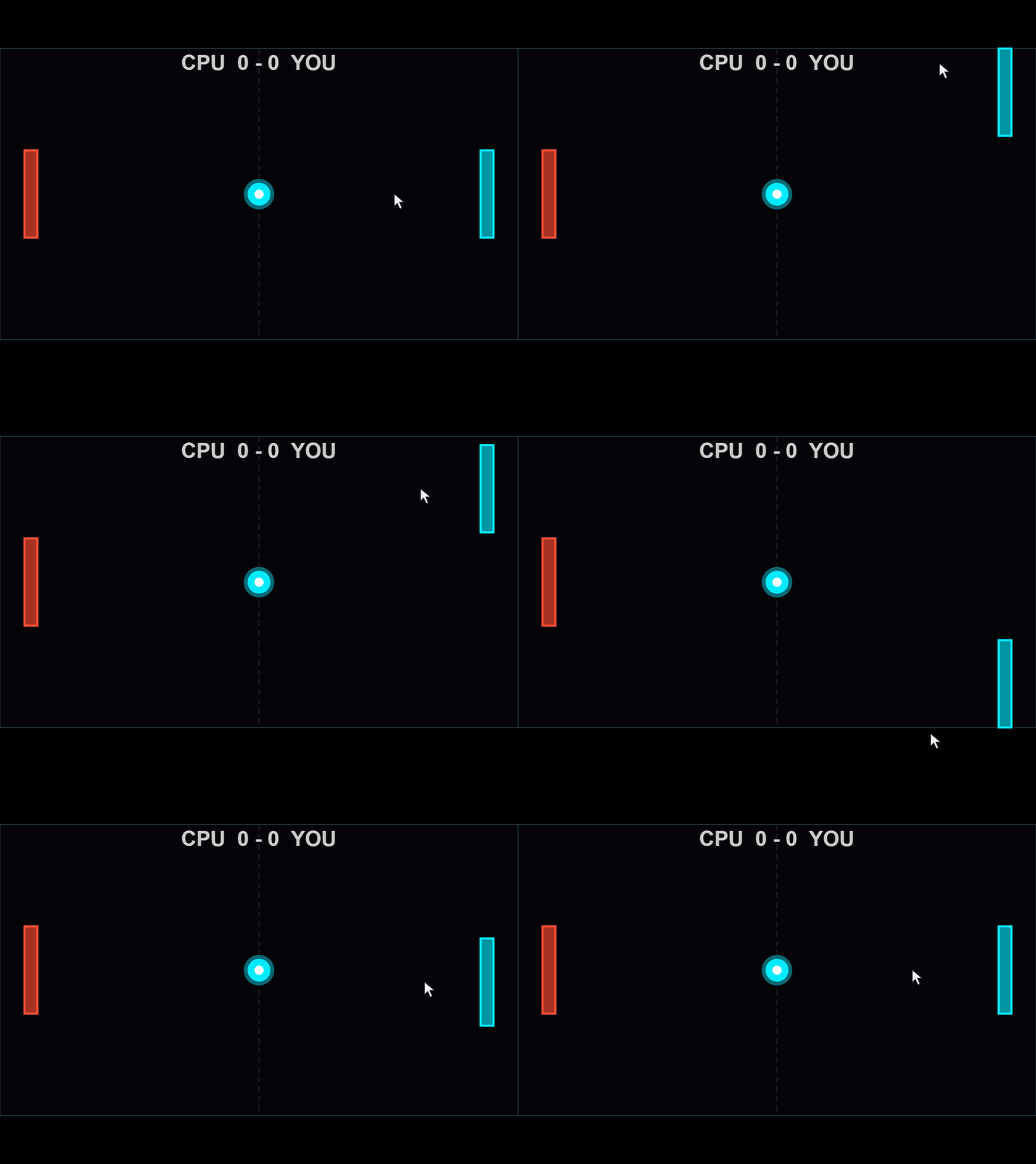
The animation loop's drawnow displays pending graphics changes and processes pending callbacks. Keeping callback functions short allows control to return to the loop promptly.
Animating visual effects
When the orb is launched in Flick It!, a call to spawnHitEffect creates a ring and rays that expand and fade. The launcher advances these shared effects alongside the active game.
In arcadeEffectsDemo.m, each click creates a burst at the mouse position, allowing several bursts to expand and fade together. To try it out, download the function, add its folder to the MATLAB path, and run:
arcadeEffectsDemo();
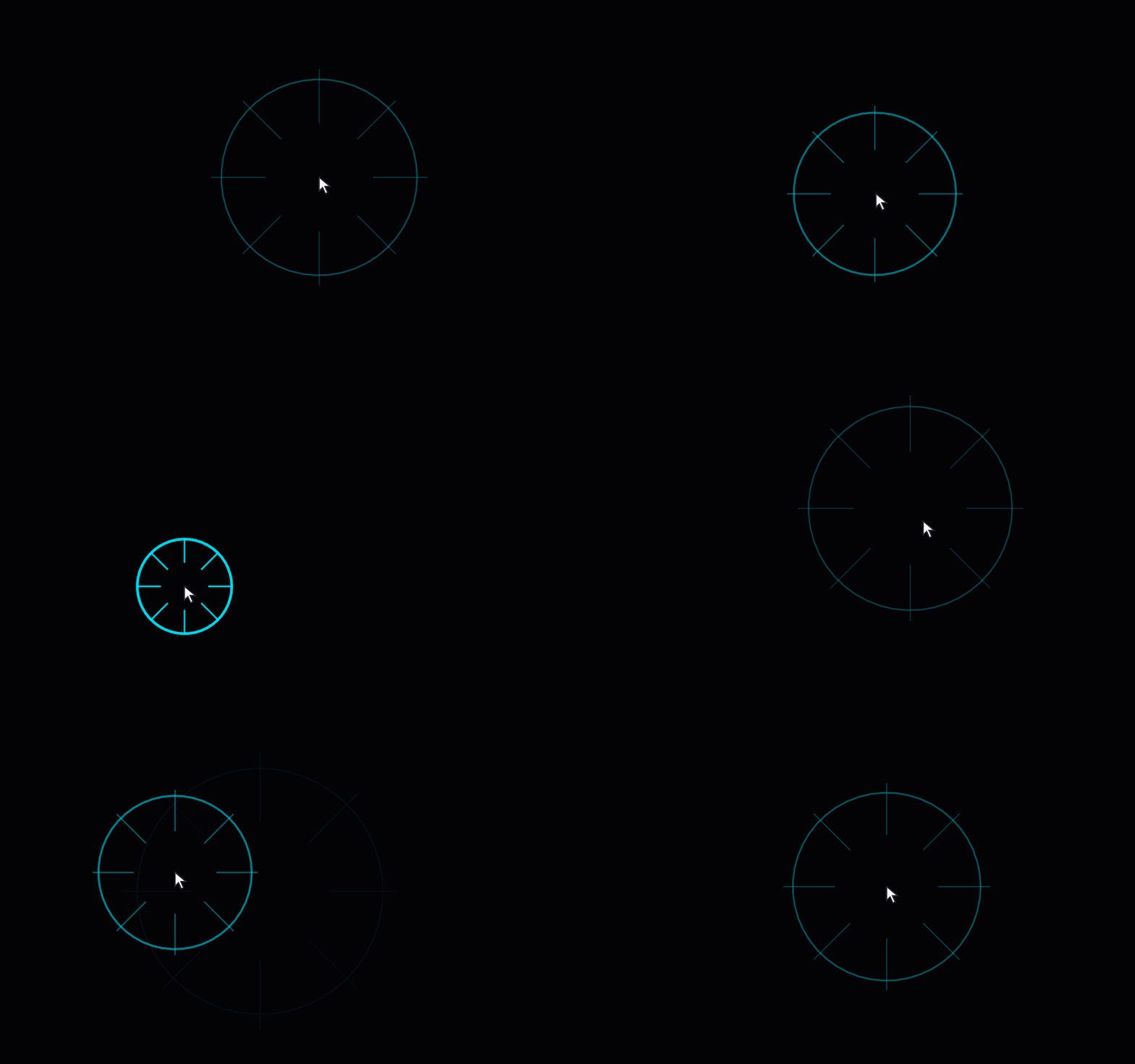
The nested callback function combines mouse-press handling with the mouse-position tracking introduced earlier. Here's the part that creates and stores a new burst:
fig.WindowButtonDownFcn = @createManualImpact;
function createManualImpact(~, ~)
point = ax.CurrentPoint;
position = point(1, 1:2);
if any(~isfinite(position)) || any(position < 0 | position > worldSize)
return
end
[newRing, newRays] = createEffect(position);
activeEffects(end+1) = struct('Ring', newRing, 'Rays', newRays, ...
'Center', position, 'AgeSeconds', 0, 'LastTime', toc(animationClock));
end
The bounds check ignores clicks outside the playfield. createEffect creates the lines, and activeEffects stores their handles, center and timing state. The animation loop updates each burst independently, allowing further clicks while earlier bursts are still expanding.
We can drive the geometry, transparency and line width from a common progress value: 0 when the burst begins and 1 at the end of its lifetime. Inside the function, the ring is updated as follows:
progress = ageSeconds / lifetimeSeconds;
eased = 1 - (1-progress)^2;
opacity = max(0, 1-1.5*eased);
ringRadius = radiusParameter * (1+2.5*eased);
ring.XData = center(1) + ringRadius*ringCos;
ring.YData = center(2) + ringRadius*ringSin;
ring.Color = [cyan, 0.8 * opacity];
ring.LineWidth = max(0.5, 3*(1-eased));
The ease-out expression starts the expansion quickly and slows it down toward the end. The burst fades out before its nominal lifetime finishes. ringCos and ringSin hold the circle's fixed directions, calculated before the loop. Arcade controls the transparency of these lines by assigning an RGBA value to Color, with alpha as the fourth component, ranging from 0 (clear) to 1 (fully opaque).
The row vectors rayCos and raySin contain the eight ray directions. Each ray joins the inner and outer radii, which increase as the burst expands:
innerRadius = radiusParameter * (0.5+1.5*eased);
outerRadius = radiusParameter * (1+3*eased);
for rayIndex = 1:numel(rays)
rays(rayIndex).XData = center(1) + [innerRadius, outerRadius]*rayCos(rayIndex);
rays(rayIndex).YData = center(2) + [innerRadius, outerRadius]*raySin(rayIndex);
rays(rayIndex).Color = [cyan, 0.6 * opacity];
rays(rayIndex).LineWidth = max(0.5, 2*(1-eased));
end
The lines are created when the burst begins, updated throughout its lifetime and deleted when it expires.
Display scaling: Keeping the scene in proportion
Try making the ball example's window wider while keeping its height the same. Space appears beside the playfield, and the ball still travels between the same boundaries. The example's reference window is 854 by 480 pixels, matching worldSize numerically. Resizing scales the playfield on the screen while the game's coordinate system remains unchanged.
The figure and axes use Units="pixels". Taking the min of the width and height ratios relative to the reference window gives the largest scale factor that fits in both directions. Applying that same scale to both dimensions preserves the playfield's 16:9 aspect ratio.
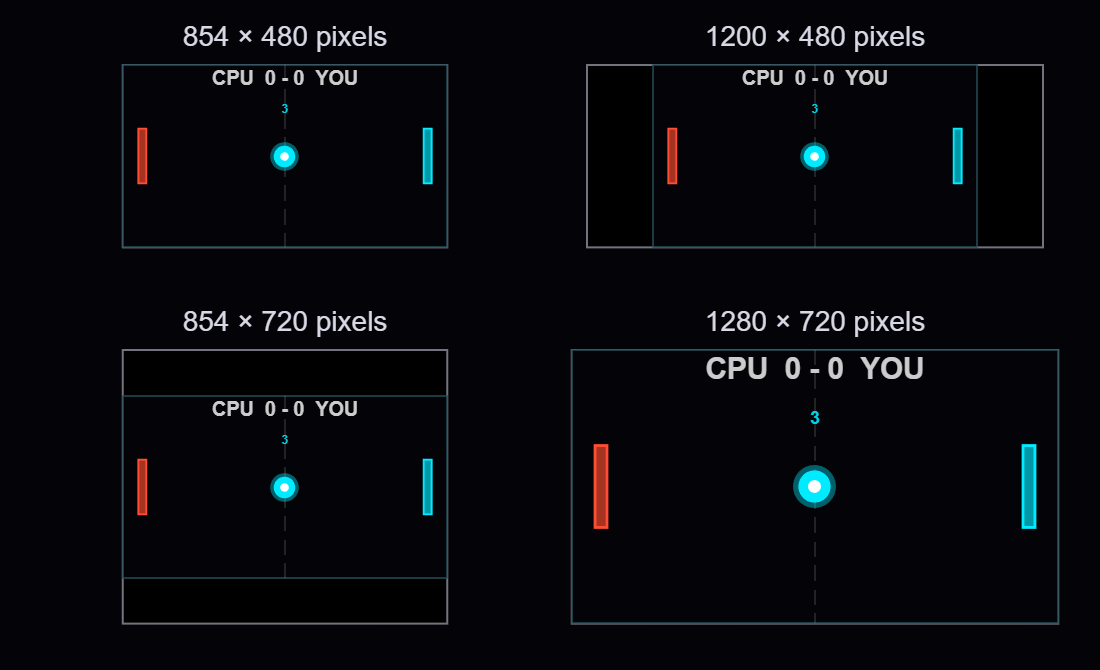
For a 1200-by-480 window, the height limits the scale to 1. The fitted area remains 854 by 480, leaving (1200-854)/2 = 173 pixels on each side. In a 1280-by-720 window, the playfield grows to approximately 1.5 times its reference width and height. Here are four window sizes at a common page scale:
MATLAB already scales graphics defined in data coordinates as the axes resize. For example, a paddle drawn with patch grows with the axes. In the example, marker sizes, font sizes and line widths use points, while scatter sizes use points squared.

To make a circle twice as wide, we need four times its area. Doubling SizeData multiplies its width by only √2:
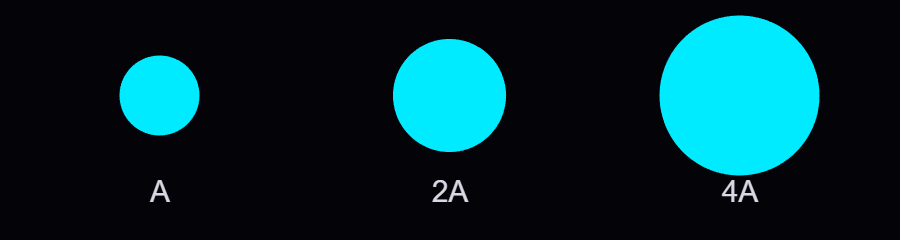
fig.SizeChangedFcn = @fitScene;
The nested fitScene callback function combines the axes calculation with these size updates:
function fitScene(~, ~)
if ~isgraphics(ax)
return
end
availableSize = max(fig.Position(3:4), [1, 1]);
displayScale = min(availableSize ./ worldSize);
fittedSize = worldSize * displayScale;
ax.Position = [(availableSize - fittedSize)/2 + 1, fittedSize];
% Always derive sizes from their reference values
core.MarkerSize = baseCoreSize * displayScale;
coloredDot.MarkerSize = baseDotSize * displayScale;
glow.SizeData = baseGlowArea * displayScale^2;
instruction.FontSize = baseFontSize * displayScale;
playfield.LineWidth = 0.5 * displayScale;
end
The first two entries of ax.Position set the left and bottom position, splitting the unused space equally between opposite sides. The last two give the fitted width and height. The axes limits remain unchanged, so movement and collision calculations keep using the same game coordinates.
At scale 1.5, the marker sizes are multiplied by 1.5 and the scatter area by 2.25. The updated sizes are calculated from their stored reference values. A 34-point reference marker becomes 51 points at scale 1.5, then 68 points at scale 2.
You can also use Units="normalized" to size and position the axes relative to the figure. Arcade's axes setup uses [0 0 1 1] to allocate the full available area:
obj.Ax = axes(obj.Fig, "Units", "normalized", "Position", [0 0 1 1]);
obj.Ax.XLim = obj.DisplayRange.X;
obj.Ax.YLim = obj.DisplayRange.Y;
Arcade's resize method obtains the available dimensions in pixels with getpixelposition and calculates the same display scale. It uses pbaspect to preserve the playfield's aspect ratio. MATLAB fits the playfield within the available space, leaving margins where needed:
axPx = getpixelposition(obj.Ax);
newPs = min(axPx(3) / 854, axPx(4) / 480);
gameAR = diff(obj.DisplayRange.X) / diff(obj.DisplayRange.Y);
pbaspect(obj.Ax, [gameAR 1 1]);
For Arcade, I also wanted markers, text and line widths to grow proportionally with the playfield. MATLAB also supports automatic resizing for text through FontUnits="normalized", which expresses font size as a fraction of the axes plot box height. This works well for text in a playfield with a fixed aspect ratio. Arcade's shared resize helper modifies current property values, using the ratio of the new scale to the previous scale; for example, moving from 51 to 68 points requires multiplying by 2/1.5. The function applies a common display scale to text, markers and line widths, in order to preserve their relative sizes as the window is resized.
FPS scaling: Let elapsed time determine the motion
Suppose that the ball moves 5 game units on each update. At 60 updates per second it travels 300 units in a second, but at 30 it travels only 150. Calculating the state, drawing and processing input all contribute to the time between updates, so we need to measure that interval to maintain a consistent speed.
Gianluca Carnielli discusses the relationship between time and animation frames in Animating Science: Creating Time-Sensitive Animations with MATLAB. In his example, he explains how to create a frame-based animation from time-based coordinates, by choosing the video’s duration and frame rate, calculating the simulation timestep between two consecutive frames, and resampling the coordinates using retime.
In a live game, we process player actions and calculate each new state using the time elapsed since the previous update. Arcade expresses many motion parameters per reference interval, using 60 frames per second (FPS) as its reference frequency. An elapsed time of 1/60 seconds represents 1 reference interval, while 1/30 seconds represents 2. In the example, we define the velocity and reference frequency before the loop and start the clock with tic once the initial scene is displayed:
velocity = [5, 3]; % Game units per reference interval
referenceFPS = 60; % Reference intervals per second
animationClock = tic;
previousTime = 0;
currentTime = toc(animationClock);
dtSeconds = min(currentTime - previousTime, 0.1);
previousTime = currentTime;
dtScale = dtSeconds * referenceFPS;
position = position + velocity * dtScale;
Here dtSeconds is in seconds, and dtScale counts reference intervals. A horizontal velocity of 5 now gives a movement of 10 game units over 1/30 second. Taking 30 steps of 10 units covers the same 300 units as 60 steps of 5 units. The samples are farther apart, so the motion can look less smooth:
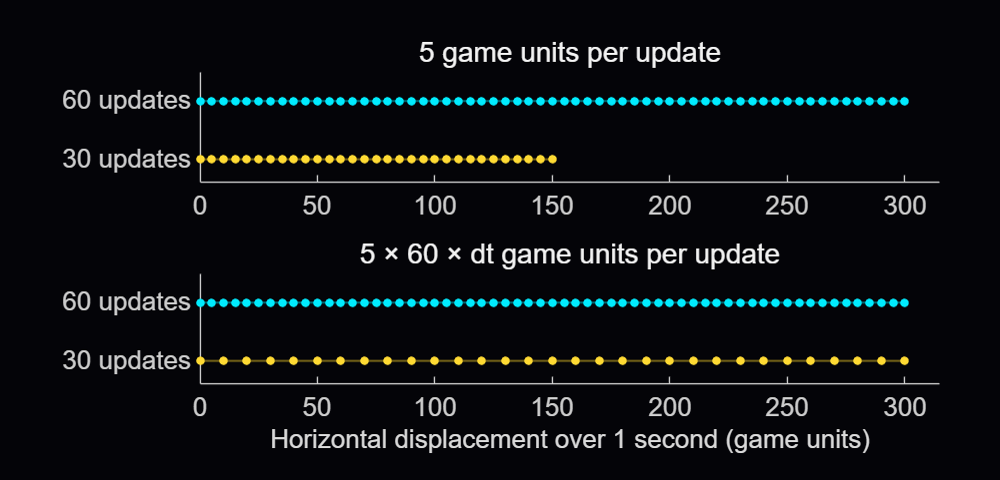
The min(..., 0.1) caps a single represented interval at 0.1 seconds (10 FPS) to limit jumps after a stall. If an update arrives after 0.5 seconds, the code advances only 0.1 seconds, and the remaining 0.4 seconds are discarded.
The reference frequency is 60 FPS; the actual update rate depends on execution. We could also use game units per second and write position = position + velocityPerSecond * dtSeconds.
Arcade schedules its updates with a timer. The callback function assigned to its TimerFcn property calls the launcher's frame-update method:
obj.RenderTimer = timer(ExecutionMode="fixedSpacing", ...
Period=0.02, TimerFcn=@(~, ~) obj.onFrame());
start(obj.RenderTimer)
With fixedSpacing, the period begins after the preceding callback function finishes. The function's own work therefore contributes to the interval between updates. The launcher measures the full interval and passes the resulting time scale to the active game.
arcadeBallDemo(Inf, 0.04);
Its measured interval includes both the pause and the surrounding work. Both Arcade and the example use the full drawnow command. The limitrate option can reduce rendering work by limiting display updates to 20 per second; its suitability depends on the animation's required display rate.
Flick It! multiplies its velocity by friction^dtScale, where friction is the fraction of velocity retained over one reference interval. Over 2 intervals, the multiplier is the square of that factor, equivalent to applying it once in each interval. This makes the velocity decay follow the elapsed time.
For accelerating objects, the numerical approximation can still change with step size, and collisions need to account for movement between samples. Pong checks when the ball crosses the paddle's front face and interpolates its vertical position there, allowing a contact to be detected between two displayed positions.
Organizing games using classes
Arcade's registry stores a constructor function handle for each game. When a game is selected, the launcher calls the corresponding constructor to instantiate the game class. Here's an adaptation of the launch sequence, with Pong selected explicitly and obj referring to the launcher:
createGame = @games.Pong;
game = createGame();
game.FontScale = obj.FontScale;
game.init(obj.Ax, obj.DisplayRange)
game.beginGame()
obj.ActiveGame = game;
Each game subclasses engine.GameBase. The shared init method sets up the session and calls the game's onInit, which creates its state and graphics. Assigning FontScale beforehand lets newly created markers and text use the current display size. The launcher stops its render timer before creating the game and restarts it after the initialized game is assigned to ActiveGame. This prevents timer callbacks from running while the game’s state and graphics are being created.
GameBase declares four abstract methods that each game class must implement:
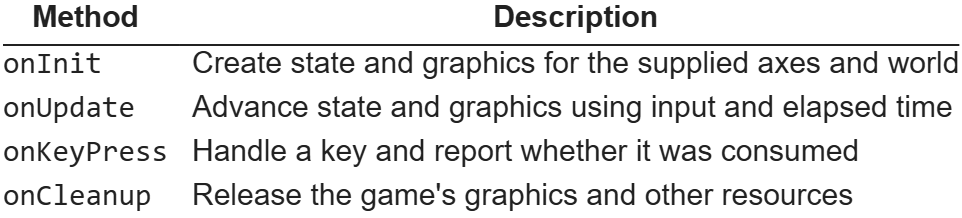
The launcher calls onUpdate on its active game, and MATLAB dispatches that call to the selected subclass. Pong implements paddle and ball movement; Flappy Bird advances its bird and pipes. All games inherit methods for scoring, combo handling and visual effects from GameBase. Window management, menus, timing and common services stay with the launcher.
As a handle class, GameBase lets the launcher keep a reference to the same game instance while its state changes. Position arrays, velocities, scores and graphics handles belong to that instance. Property access attributes allow the host to read the common score while leaving changes under the control of the game classes.
Flappy Bird creates its pipe patches in onInit, then reuses them throughout the game. Their handles and state are stored in private properties of the game instance. Its onUpdate method moves the active pipes across the playfield. Spawning a pipe selects an available pair, assigns its position and gap, and adds it to the active list. Once it leaves the playfield, the pair is hidden and its slot becomes available again:

In the default gravity-and-flap mode, the onKeyPress input handler sets a pending flap flag. The next update applies the upward impulse and clears the flag.
When the window closes, Arcade stops and deletes its timer, calls the active game's onCleanup method and clears its effects before deleting the figure. The smaller examples use MATLAB's onCleanup object to delete their own figure when the function exits. The requestClose callback function assigned to the figure’s CloseRequestFcn property sets a stop flag, letting the current update finish before cleanup removes the graphics.
Recent work on MATLAB graphics and performance
The MathWorks graphics team has also been improving the underlying rendering system. Maddie Moon's article about WebGL describes the R2025a transition, which brought the renderer already used by uifigure to regular MATLAB figures, along with work on stability, consistency and smoothing. Will Jackson also explains related changes to built-in panning, zooming and rotation in his article on the new interactions system.
R2025b focused on quality and stability improvements, building on the changes introduced in R2025a. It also improved performance when capturing successive frames in a loop with getframe, the function used by Arcade’s recording helper to capture and store frames for GIFs and videos.
R2026a included memory and stability improvements for graphics such as scatter and surface plots, described in Adam Danz's overview and the release notes. In addition, Jessa Karlberg describes the redesigned axes toolbar in R2026a, which allows seamless hovering without the animation slowdown issues caused by the toolbar’s continuous mouse tracking in earlier releases, eliminating the need to remove the toolbar as a workaround.
R2026b improved responsiveness for large data visualizations, with plot and plot3 being able to display lines and markers incrementally and shortening the wait time for the first visible results. MathWorks also reports automatic selection of a dedicated rendering GPU on supported Windows and Linux systems with multiple GPUs. These changes are documented in the release notes and the GPU-selection update.
info = rendererinfo;
info.GraphicsRenderer
info.RendererDevice
Mike Croucher also describes a new object-management system for R2026b, which can speed up object-oriented MATLAB code by reducing the cost of creating and deleting objects, as well as accessing their properties. The system is currently available as a beta and can be enabled through a package on File Exchange. Its documentation explains the changes to object lifecycle and compatibility.
Developing MATLAB code with AI
Arcade was developed with Claude Code through the MATLAB MCP Server, and the contest welcomes AI assistance as an option.
When working with an AI assistant, consider sharing your project's requirements and any existing code it can build on. Arcade's developer guide, for example, describes the shared game interface and explains how to add a new game. For your own game, you could begin with the main interaction and add features gradually, playing and improving it as you go. When something goes wrong, describe what happened and how to reproduce the problem, such as a ball passing through a wall at higher speeds.
The MATLAB Agentic Toolkit provides workflows for code review, analysis and testing. Its setup guide covers connecting MATLAB to AI applications including Claude Code, GitHub Copilot, OpenAI Codex, Gemini CLI and Amp, and installing MATLAB-specific skills. Through the MCP server, the AI assistant can run MATLAB code and tests, inspect the results, and use them to help diagnose problems and revise the code.
Several implementation choices in Arcade align with the MATLAB Coding Guidelines and performance rules: using a handle class for an object whose identity persists, restricting access to its state, retaining graphics, preallocating known-size arrays and cleaning up timers. The two downloadable examples presented above were checked with MATLAB Code Analyzer and tested for resizing, input, handle reuse and cleanup.
I hope that this article gives you something to experiment with, and perhaps a starting point for the One-Button Game Mini Hack. I look forward to seeing what you make!

I am unable to submit an entry for the One Button contest using the supplied minihackContest.submit function. I keep getting the error "Submission failed: HTTP 500 Something went wrong. Please try again in a moment.". It happens to me both in a MATLAB session as well as on a MATLAB Online session. No idea what I am doing wrong...

1. TRANSCRIPTION: Climb the Helix
You are RNA polymerase climbing a DNA double helix. Each rung is a base pair, and the next one is either up-left or up-right. An arrow swings back and forth above you, and a tap steps the way it points. Pick the wrong side and the polymerase stalls. Every step reads one template base and adds its partner to your growing mRNA (A to U, T to A, G to C, C to G), which trails behind you as colored tiles. Your NTP bar drains constantly and refills a little with each step. Each stage is one gene that starts with AUG and ends with a stop codon, and finishing one refills your NTPs for the next, longer gene.
The biology: RNA polymerase really does build RNA from four NTPs (ATP, GTP, CTP, UTP), which are both its building blocks and its energy, so running out stops the process. As it moves, the two DNA strands open into a small transcription bubble that closes again behind it, and you can watch that bubble travel up the helix with you. The game takes liberties: real polymerases don’t hop sideways, and real transcripts carry untranslated regions instead of ending at the stop codon.
2. IMMUNE HERO
You are a T cell travelling through a blood vessel. Pathogens drift in from the right, and a tap launches an attack with a short cooldown, so timing is everything. Every fifth wave brings a boss. Defeated pathogens drop XP, and on level-up you choose one of three upgrade cards: tap to light a card, tap again to move to the next, and stop tapping for two seconds to confirm. Upgrades stack, so every run grows into a different immune cell.
The biology: each upgrade borrows from the real immune response. Cytokines coordinate immune cells, so they speed up your attacks. Interferons warn neighbouring cells, so they hit everything nearby. The complement system punches holes in pathogen membranes, so it pierces. Memory cells make a second infection milder, so they give you a second life. In a real body antibodies come from B cells, not T cells, so think of this hero as the whole immune system squeezed into one cell.
Tips
Judge the tap against what the player saw. In TRANSCRIPTION, my first version moved the arrow before checking the tap, so a tap made while the arrow clearly pointed the right way could be judged against the next frame and count as a miss. Reading input before advancing any animation that decides the outcome removed every unfair fall.
Lock one-button menus for a moment. In IMMUNE HERO, players are usually mid-combo when they level up. Ignoring taps for the first half second after the menu opens stops their next tap from picking a card by accident.
And if you lose
Don’t worry too much. Right now, inside your own cells, real RNA polymerases are transcribing at dozens of nucleotides per second with only about one mistake in ten thousand or more, and your immune system is quietly stopping pathogens every day. You may lose the game, but your body is already winning it. Have fun!

The goal is simple: help MATLAMB escape through all 10 farms without getting caught!
But with farmers patrolling, dogs following your trail, and a new challenge in every farm, escaping won't be easy!
The Controls
You only need one button!
- Tap or press SPACE to start walking.
- Tap again to stop walking.
- Stop inside a bush to hide from farmers.
Watch Out for Farmers!
Each farm has a farmer patrolling back and forth. Farmers can only see in the direction they're facing, so pay attention to where they're looking!
If a farmer spots you, the ALERT meter starts filling up. Once it's full, you're caught! Farmers will also follow you once they've spotted you, so make sure you find a hiding spot before it's too late.
Beware of the Dogs!
Hiding from farmers is only half the battle! Each farm also has a dog that follows your trail.
If you stay hidden in a bush for too long, the dog can eventually catch up and sniff you out. Watch the DOG meter , if it fills completely, you're caught!
Ten Farms, Ten Challenges!
Each farm introduces something new:
- Field: Learn the basics of walking, stopping, and hiding.
- Watch: The farmer looks behind himself more frequently.
- Dogs: A faster dog makes camping in bushes more dangerous.
- Fog: The farmer has a shorter viewing distance.
- Light: The farmer's lantern allows him to see in both directions when illuminated.
- Chase: The farmer moves faster when chasing you.
- Mud: Muddy areas slow MATLAMB down.
- Wind: Changing winds can speed you up, slow you down, or even push you while you're stopped!
- Bark: Getting too close to the dog while walking can alert the farmer.
- Gate: Moving near the final gate rings a bell that alerts the farmer.
Checkpoints
Don't worry if you get caught! You'll unlock checkpoints after reaching Farms 4 and 7, meaning you won't always have to start from the beginning.
Tips for Escaping
- Watch which way the farmer is facing before moving.
- Don't stay in bushes too long—the dogs are always approaching!
- Keep an eye on your ALERT and DOG meters.
- Be extra careful in the Wind farm, since stopping doesn't always mean staying still.
- Sometimes it's better to keep moving than to risk hiding in the wrong spot.
Good luck helping MATLAMB escape!

Currently, MathWorks provides free access to MATLAB Online for anyone with a personal account. Each account receives 20 hours of usage per month and includes access to the following 10 toolboxes:
- Control System Toolbox(控制系统工具箱)
- Curve Fitting Toolbox(曲线拟合工具箱)
- Deep Learning Toolbox(深度学习工具箱)
- Image Processing Toolbox(图像处理工具箱)
- Optimization Toolbox(优化工具箱)
- Signal Processing Toolbox(信号处理工具箱)
- Statistics and Machine Learning Toolbox(统计与机器学习工具箱)
- Symbolic Math Toolbox(符号数学工具箱)
- Text Analytics Toolbox(文本分析工具箱)
I would like to know whether it is possible to customise the selection of these 10 toolboxes. For example, I mainly work in computer vision, but Computer Vision Toolbox is not included in the current offering, which is quite disappointing because I cannot use it.
At the same time, several of the included toolboxes are not useful for my work, such as Control System Toolbox and Signal Processing Toolbox. Therefore, it would be great if users could choose the toolboxes that best fit their needs rather than being limited to a fixed set of toolboxes.
Hello Everyone!
For the MATLAB One-Button Game Mini Hack, I created MATLAMB ESCAPE!, a side-scrolling stealth game where a sheep (inspired by the real MATLAMB!) tries to escape through ten farms while avoiding farmers and their dogs. The entire game is controlled using just one button: tap to start walking, and tap again to stop. Stopping inside a bush lets the sheep hide from farmers, but the dogs can still follow its trail, so you can't stay hidden forever! Each section also introduces its own unique challenge to keep things interesting. Keep reading to find out what awaits MATLAMB Escape!
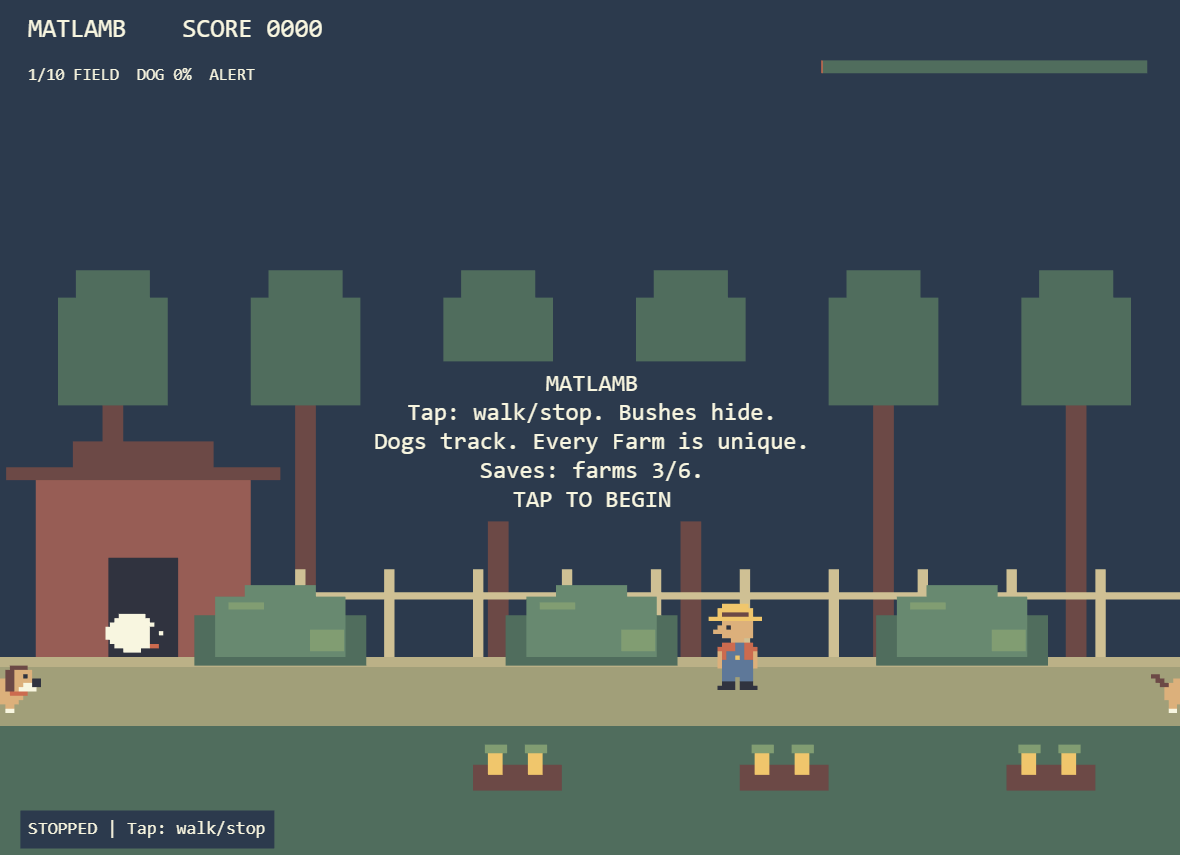
(If you would like a tutorial on the game, make sure to check out my other Tips & Tricks post!)
The Idea
When I started brainstorming ideas, I knew I wanted to do something fun Mathworks related. After spending a few days brainstorming ideas and getting nowhere, I finally found my inspiration in this perfectly timed Mathworks Instagram Post! There is an actual sheep born in 2024 at Mass Audubon's Drumlin Farm in Massachusetts and named in honor of MathWorks. Apparently, some of the sheep escaped their barn, and MATLAMB was suspected of leading the charge! You literally cannot make up a better MATLAB game idea.
Designing around one button
My biggest design challenge was making a stealth game that still requires strategy without having separate movement and hiding controls.
I decided to make the sheep move automatically when walking is toggled on. Instead of controlling its direction, players have to observe the farmers movements and make tactical decisions on when to stop.
However, I quickly realized that players could just camp in bushes until the perfect opportunity to move, which took away much of the challenge. So, how did I fix this? Puppies! No, literally. I added dogs that follow the sheep's trail and sniff out its hiding spots, forcing players to keep moving instead of staying in one bush forever.
To prevent the game from feeling repetitive, I gave the ten sections, aka 'farms' different mechanics. These include a farmer with a lantern that detects movement in both directions, muddy terrain that reduces movement speed, and a windmill farm where changing wind directions can push the sheep even when the player stops.
Working with AI and the character limit
I used ChatGPT throughout development to help write, revise, and simplify the MATLAB code. I guided the game's design and continued adjusting the mechanics, enemy behavior, difficulty, and overall gameplay.
One of the hardest constraints was the 10,000-character limit. As I added more mechanics, I had to find ways to reduce the code size without removing the features that made the game interesting.
Some useful approaches included shortening internal variable names, representing multiple enemies with arrays, using shared functions for repeated graphics operations, and constructing scenery from reusable patterns.
My biggest takeaway was that the one-button restriction actually encouraged me to design more creative game mechanics.
I'd be interested to hear how other participants approached one-button game design in MATLAB!
Thank you for taking the time to read my post, best of luck to you all!
About Discussions
Discussions is a user-focused forum for the conversations that happen outside of any particular product or project.
Get to know your peers while sharing all the tricks you've learned, ideas you've had, or even your latest vacation photos. Discussions is where MATLAB users connect!
Get to know your peers while sharing all the tricks you've learned, ideas you've had, or even your latest vacation photos. Discussions is where MATLAB users connect!
More Community Areas

MATLAB Answers
Ask & Answer questions about MATLAB & Simulink!

File Exchange
Download or contribute user-submitted code!

Cody
Solve problem groups, learn MATLAB & earn badges!

Blogs
Get the inside view on MATLAB and Simulink!

AI Chat Playground
Use AI to generate initial draft MATLAB code, and answer questions!

