Specify Data Types of Variables in MATLAB Function Blocks
R2026bWhen you create variables that interface with your model data in a MATLAB Function block, you can define the data type by specifying the Type property. By default, MATLAB Function block variables inherit their data type. You can also set the type to built-in, fixed-point, an enumeration, a nonvirtual bus, or an expression that evaluates to a type.
For more information on creating variables that interface with your model, see Create MATLAB Function Block Variables.
Specify Variable Data Types
You can specify the data types by using the Symbols pane and Property Inspector (since R2022a), or the Model Explorer.
To specify the data type using the Symbols pane and Property Inspector:
Double-click the MATLAB Function block to open the MATLAB Function Block Editor.
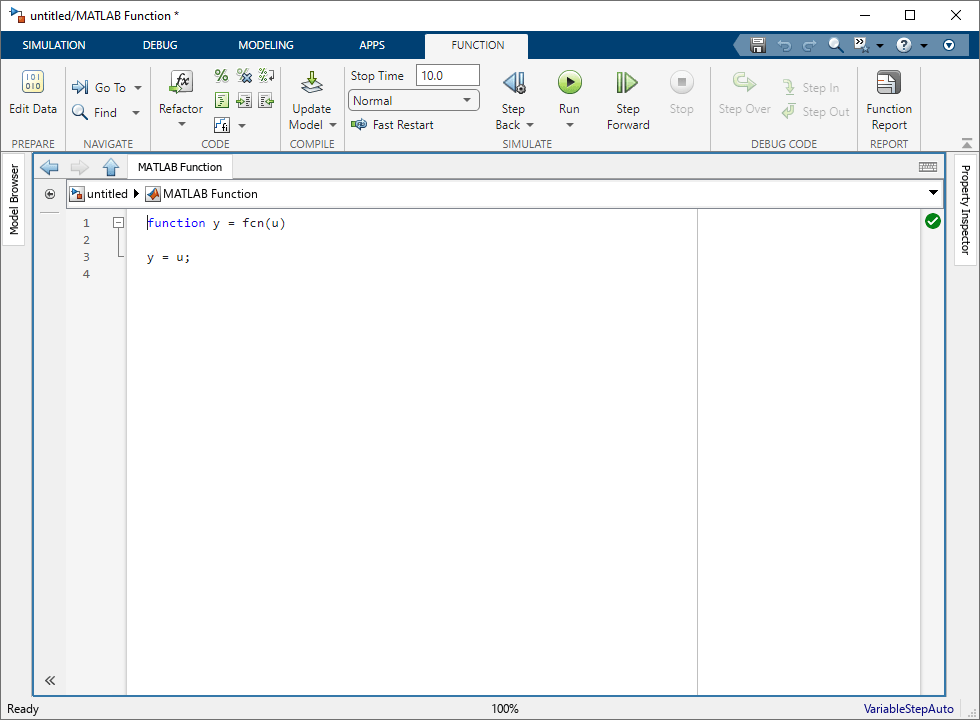
In the Function tab, click Edit Data.

In the Symbols pane, select the variable.
In the Property Inspector, in the Properties tab, select the data type from the Type property.
To specify the data type by using the Model Explorer:
Open the Model Explorer. In the Modeling tab, in the Design section, click Model Explorer.
In the Model Hierarchy pane select the MATLAB Function block.
Click the variable you want to modify.
Select the data type from the Type property. In the Model Explorer, you can also filter the data type options. In the General tab, click the Show data type assistant button
 to display the Data Type Assistant properties. Then,
choose an option from the Mode property.
to display the Data Type Assistant properties. Then,
choose an option from the Mode property.
You can specify these data types based on these groups:
| Data Type Group | Description |
|---|---|
| Inherited Data Types | The variable inherits the data type. |
| Built-In Data Types | Select from a list of built-in data types. |
| Fixed-Point Data Types | Specify the fixed-point data type and the variable properties. |
| Enumerated Data Types | Specify an enumeration as the data type. |
| Structure Data Types | Specify a structure as the data type. |
| Expressions That Define Data Types | Enter an expression that evaluates to a data type. |
Inherited Data Types
MATLAB Function block variables can inherit their data types, including
fixed point types, from their connected signals. To set a variable to inherit its data type,
set the Type property to Inherit: Same as
Simulink.
The inherited data depends on the Scope property:
If Scope is
Input, the data type is inherited from the input signal on the designated port.If Scope is
Output, the data type is inherited from the output signal on the designated port.If Scope is
Parameter, the data type is inherited from the associated parameter, which can be defined in the Simulink® masked subsystem or the MATLAB® workspace.
An argument can also inherit complexity from the signal connected to it. To inherit complexity, set the Complexity property to Inherited.
After you build the model, the CompiledType column of the Model Explorer gives the actual type inherited from Simulink. If the expected type matches the inferred type, inheritance is successful.
Built-In Data Types
MATLAB Function blocks support several built-in data types. To set a variable to a type built-in data type, set the Type property to one of these options:
| Data Type | Description |
|---|---|
| 64-bit double-precision floating point |
| 32-bit single-precision floating point |
| A half-precision data type occupies 16 bits of memory, but its floating-point representation enables it to handle wider dynamic ranges than integer or fixed-point data types of the same size. See The Half-Precision Data Type in Simulink (Fixed-Point Designer). |
| 64-bit signed integer |
| 32-bit signed integer |
| 16-bit signed integer |
| 8-bit signed integer |
| 64-bit unsigned integer |
| 32-bit unsigned integer |
| 16-bit unsigned integer |
| 8-bit unsigned integer |
| Boolean |
| String scalar |
In the Model Explorer, when you expand the Data Type Assistant and set
Mode to Built in, then you can set
Type to these built-in data types.
Fixed-Point Data Types
To represent variables as fixed-point numbers in MATLAB Function blocks,
you must have Fixed-Point Designer™. To set a variable to a fixed-point data type, set the
Type property to fixdt(1,16,0) or
fixdt(1,16,2^0,0)
After setting the Type property, you can set these fixed-point properties in the Model Explorer:
Signedness
Select whether you want the fixed-point variable to be
Signed or Unsigned. Signed
variables can represent positive and negative quantities. Unsigned variables represents
positive values only. The default is Signed.
Word length
Specify the size, in bits, of the word that will hold the quantized integer. Large word sizes represent large quantities with greater precision than small word sizes. Word length can be any integer between 0 and 65,535 bits. The default is 16.
Scaling
Specify the method for scaling your fixed-point variable to avoid overflow conditions and minimize quantization issues. You can select these scaling modes:
| Scaling Mode | Description |
|---|---|
Binary point (default) | The Data Type Assistant displays the Fraction Length property, which specifies the binary point location. Binary points can be positive or negative integers. A positive integer moves the binary point left of the rightmost bit by that amount. For example, an entry of 2 sets the binary point in front of the second bit from the right. A negative integer moves the binary point further right of the rightmost bit by that amount, as in this example:
The default is |
Slope and bias | The Data Type Assistant displays the Slope and Bias parameters:
You can enter slope and bias as expressions that contain parameters defined in the MATLAB workspace. |
Note
Use binary-point scaling whenever possible to simplify the implementation of fixed-point numbers in generated code. Operations with fixed-point numbers that use binary-point scaling are performed with simple bit shifts and eliminate the expensive code implementations required for separate slope and bias values.
Data type override
Specify whether the data type override setting is Inherit or
Off. For more information, see Data Type Override with MATLAB Function Block (Fixed-Point Designer).
Calculate Best-Precision Scaling
Have Simulink automatically calculate best-precision values for both Binary
point and Slope and bias scaling, based on the
Minimum and Maximum properties you
specify.
To automatically calculate best precision scaling values:
Specify the Minimum or Maximum properties.
Click Calculate Best-Precision Scaling.
Simulink calculates the scaling values, then displays them in either the Fraction length, or the Slope and Bias fields.
Note
The Minimum and Maximum properties do not
apply to variables with the Scope property set to
Constant or Parameter. The
software cannot calculate best-precision scaling for these kinds of variables.
Fixed-point details
Displays information about the fixed-point variable that is defined in the Data Type Assistant:
MinimumandMaximumshow the same values that you specify in the Minimum and Maximum properties.Representable minimum,Representable maximum, andPrecisionshow the minimum value, maximum value, and precision that the fixed-point variable can represent.
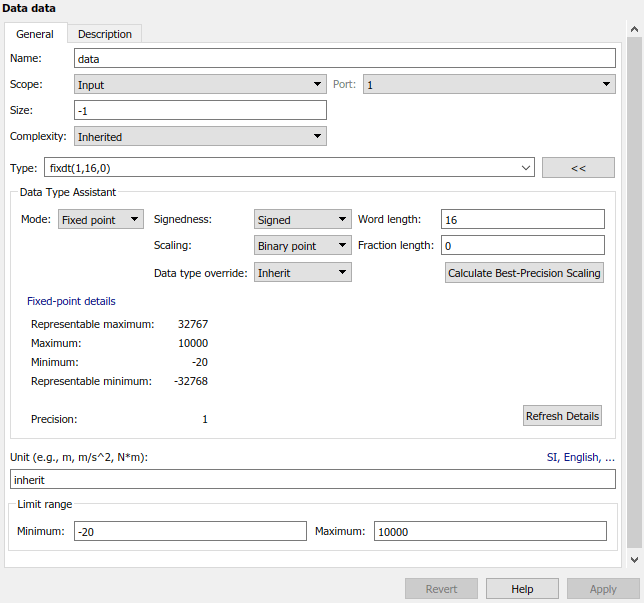
If the value of a field cannot be determined without first compiling the model, the
Fixed-point details subpane shows the value as
Unknown. The values displayed by the Fixed-point
details subpane do not automatically update if you change the values that
define the fixed-point variable. To update the values shown in the Fixed-point
details subpane, click Refresh Details.
Clicking Refresh Details does not modify the variable. It changes only the display. To apply the displayed values, click Apply or OK.
The Fixed-point details subpane indicates issues resulting from the fixed-point variable specification. For example, this figure shows two issues.
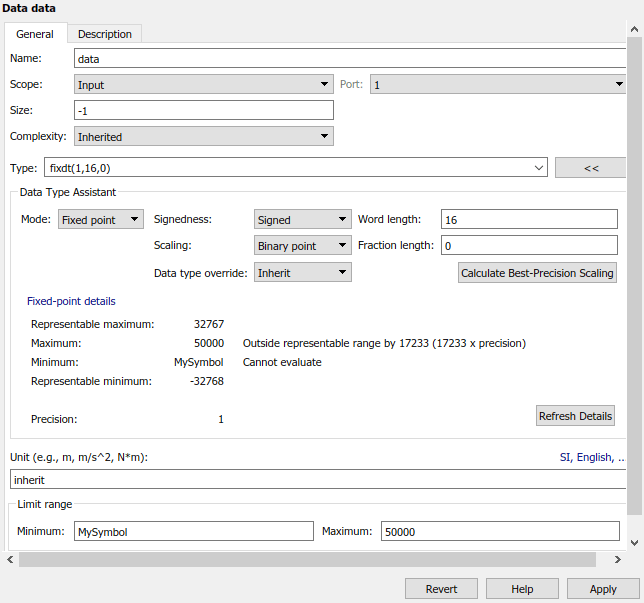
The row labeled Maximum indicates that the value specified by the
Maximum property is not representable by the
fixed-point variable. To correct the issue, make one of these modifications so the
fixed-point data type can represent the maximum value:
Decrease the value in the Maximum property.
Increase Word length.
Decrease Fraction length.
The row labeled Minimum shows the message Cannot
evaluate because evaluating the expression MySymbol,
specified by the Minimum property, does not return a numeric value.
When an expression does not evaluate successfully, the Fixed-point
details subpane shows the unevaluated expression (truncating to 10 characters
as needed) in place of the unavailable value. To correct this issue, define
MySymbol in the base workspace to provide a numeric value.
If you click Refresh Details, the issue indicator and
description are removed and the value of MySymbol appears in place of
the unevaluated text.
Enumerated Data Types
To set a variable data type to an enumeration, set the Type
property to Enum: <class name>. Replace <class
name> with the name of a Simulink.IntEnumType object that
you define in the base workspace. These enumerations must support code generation. For more
information, see Code Generation for Enumerations.
Structure Data Types
To set a variable data type to a structure, set the Type property
to Bus: <object name>. Replace <class
name> with the name of a Simulink.Bus object that defines
the properties of a MATLAB structure. You must define the bus object in the base workspace. For more
information, see Create Structures in MATLAB Function Blocks.
Note
You can click the Edit button to
create or modify Simulink.Bus objects by using the Simulink Type Editor.
Expressions That Define Data Types
You can specify the types of MATLAB Function block variables as expressions by using the Model Explorer or the Property Inspector.
To use the Property Inspector, double-click the Type property, clear the contents, and enter an expression.
To use the Model Explorer, set the Mode property to
Expression. In the Type property, replace
<data type expression> with an expression that evaluates
to a data type.
You can use these kinds of expressions:
Alias type from the MATLAB workspace, as described in
Simulink.AliasType.fixdtfunction to create aSimulink.NumericTypeobject describing a fixed-point or floating-point data type.type(Stateflow) operator, to base the type on previously defined data.
For example, suppose you want to designate the workspace variable
myDataType as an alias for a single data type to use
as an expression in the Type property of an MATLAB
Function block input variable. Create an instance of the
Simulink.AliasType class and set its BaseType property
by entering these commands:
myDataType = Simulink.AliasType;
myDataType.BaseType = "single";
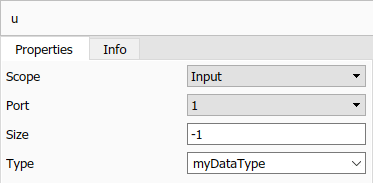
In the Property Inspector, enter the data type alias name,
myDataType, as the value in the Type
property.
Note
MATLAB Function blocks do not support code generation if one of the variables uses an alias type and is variable size. This limitation does not apply to input or output variables. For more information on defining variable-size variables and generating code with them, see Declare Variable-Size MATLAB Function Block Variables and Generate Code for Variable-Size Arrays (MATLAB Coder).
Programmatically Change Variable Data Types
You can change MATLAB Function block variable data types programmatically
by retrieving the Stateflow.EMChart object of the
block. For more information, see Configure MATLAB Function Blocks Programmatically.

