Start Polyspace Access
R2026bAfter you complete the configuration of the User Manager, Issue Tracker, and Polyspace Access apps, save your settings, return to the Cluster Dashboard, and click Restart Apps.
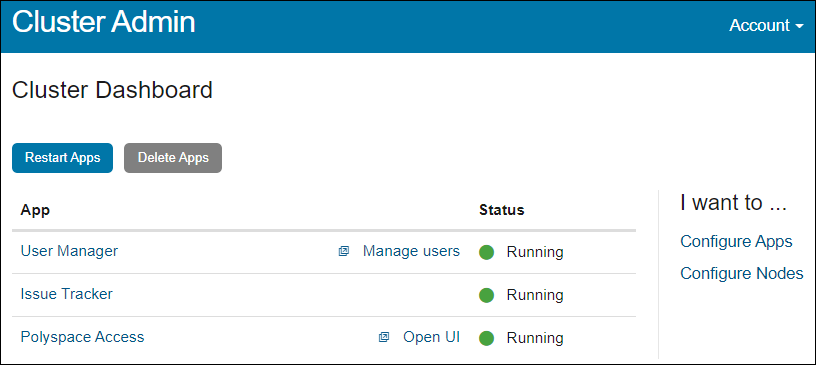
When an app starts, the indicator in the Status column turns green. The Polyspace Access Web Server service might take a few moments to start.
If one or more of the apps start and stop after a short time, click the app in the Cluster Dashboard, and then click Show Logs.

To identify the cause of the service stoppage, use the output log. If you need additional assistance, see Contact Technical Support About Polyspace Access Issues.
Configure Polyspace Access to Restart Automatically
Update the Docker restart policy to configure Polyspace® Access™ for automatic restarts after an unexpected system shutdown or a reboot.
To update the Debian® restart policy, in Linux®, use this command:
docker update --restart always \
admin \
gateway \
polyspace-access-web-server-0-main \
polyspace-access-etl-0-main \
polyspace-access-db-0-main \
polyspace-access-download-0-main \
issuetracker-server-0-main \
issuetracker-ui-0-main \
usermanager-server-0-main \
usermanager-ui-0-main \
usermanager-db-0-main \
polyspace-access \
issuetracker \
usermanager \
To prevent a restart loop, the restart policy applies only to containers that have started successfully. For more details, see the Docker documentation.
Note
If you run Polyspace
Access version R2021b or earlier, the docker container names might be
different. To view the names of currently running containers, use command
docker ps --format '{{.Names}}'.
Open the Polyspace Access Web Interface
To open the Polyspace Access interface, click Open UI in the Cluster Dashboard.
Copy the URL from the address bar, for instance https://access-machine.company.com:9443/metrics/index.html and share it with the Polyspace Access users. The URL allows users to open the Polyspace
Access interface from any machine connected to the server that hosts Polyspace
Access.
Once you complete the installation, close the Cluster Admin interface and stop the admin-docker-agent binary at the command line by pressing Ctrl+C. If you stop the binary before closing the interface, the app status is listed as Unknown state.

