Configure Virtual Vehicle Scenario and Test
Use the Scenario and Test pane to configure your virtual vehicle test plan. The available options depend on the virtual vehicle Powertrain architecture and Model template parameter settings..
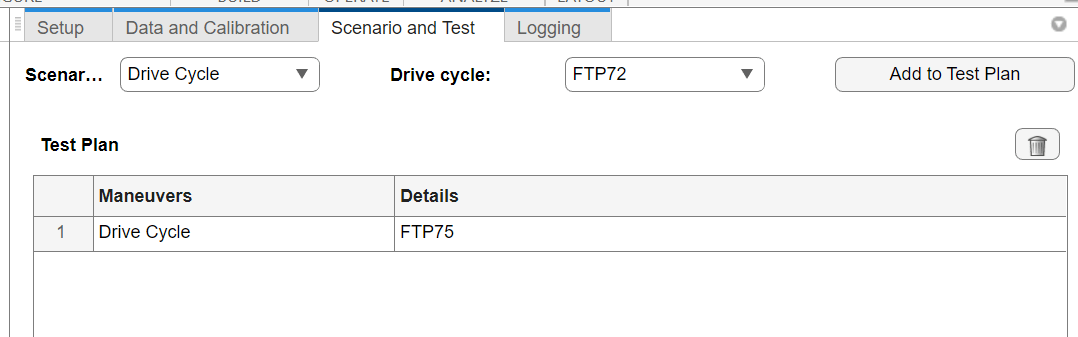
If you
set Scenario to Drive Cycle, you can select:
Standard drive cycles from industry agencies and institutions. The default selection is the
FTP75drive cycle. Certain drive cycles include gear shift schedules, for example,JC08andCUEDC. For additional drive cycles, see Install Drive Cycle and Maneuver Data.Wide open throttle (WOT) parameters, including nominal reference speed and simulation time.
To choose one or more existing drive cycles, click the Scenario and Test tab and follow these steps:
From Scenario, select
Drive Cycle.From Drive Cycle, select a drive cycle.
Click Add to Test Plan.
If you select Combined longitudinal and lateral dynamics (not
applicable in this example), you can also choose from several vehicle dynamics tests under
Scenario. Additionally, you can set 3D Scene
Selection to 3D Scene to run your virtual vehicle
in the Unreal Engine® 3D simulation environment. For hardware requirements, see Unreal Engine Simulation Environment Requirements and Limitations.
Each scenario in the test plan has a default Driver model assigned. The available options depend on the Vehicle dynamics parameter setting.
For this example:
Use the default
FTP75drive cycle.Set Driver to
Longitudinal Driver.

