Coverage Filtering
R2026bIf your coverage results include unsatisfied coverage outcomes, and these unsatisfied outcomes are acceptable, you can filter those outcomes so that they do not distract from the parts of the coverage report that you want to focus on. You can create and apply coverage filters before or after you run the simulation.
When to Use Coverage Filtering
Large models may contain design elements that intentionally do not record 100% coverage. For example, your model may contain dead logic due to defensive coding practices. Models can also include design elements that must record 100% coverage, but do not achieve 100% coverage. You can temporarily or permanently filter these elements from coverage recording to focus on the elements you want to test.
Tip
If you have a model with dead logic and you have a Simulink® Design Verifier™ license, you can use Simulink Design Verifier to automate the identification and creation of filter rules for dead logic. For more information, see Use Simulink Design Verifier to Generate Filter Rules for Dead Logic.
Types of Coverage Filter Rules
You can create two types of filter rules:
Exclusion rules exclude certain model elements from the coverage report.
Justification rules justify certain model elements or coverage outcomes so that they do not appear as unsatisfied in the coverage report.
Excluded elements do not contribute to coverage reports. When you exclude a model element, the coverage report does not display coverage results for those elements. Justified objects do contribute to coverage reports. When you justify a coverage outcome, the coverage report highlights the outcome in light blue in the Coverage Summary of the coverage report and displays the rationale for the missing coverage. The coverage report considers these justified outcomes as satisfied when calculating coverage percentages.
You create coverage filter rules from the coverage report. You may create coverage filter rules before or after simulation. You save coverage filter rules in a coverage filter file. For more information about how to create coverage filters, see Creating and Using Coverage Filters.
In the Details section of the coverage report, justified objects show their coverage outcomes as ((covered outcomes + justified outcomes)/possible decisions).
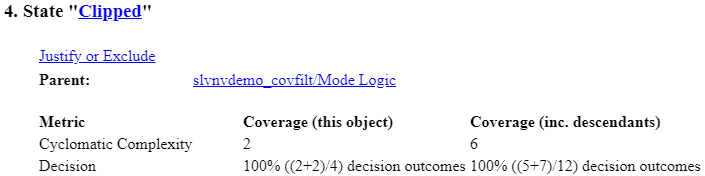
For more information about filtering model elements, see Create, Edit, and View Coverage Filter Rules and Creating and Using Coverage Filters.
Model Elements that Support Coverage Filtering
You can create coverage filter rules for:
Simulink blocks that receive coverage, including MATLAB Function blocks.
Subsystems and their contents. The coverage report does not display coverage results for the excluded subsystem or its descendants.
Individual library-linked blocks or charts.
All reference blocks linked to a library.
Stateflow® charts, subcharts, states, transitions, and events.
For a model in software-in-the-loop mode, you can exclude code files, including files manually integrated into the model by an S-Function or C Caller block. You can also justify code coverage outcomes. For more information, see View and Filter Code Coverage Results Using the Code Pane.
If you filter a Model block, Simulink
Coverage™ filters out only the block
execution coverage for the Model block itself, and does not filter
out the contents of the referenced model. If you want to ignore the contents of a
referenced model, set the Scope of coverage analysis
model configuration parameter to Referenced Models and
use the Select Models dialog box to
select only the models for which you want to analyze coverage.
For a complete list of model objects that receive coverage, see Model Objects That Receive Coverage.
See Also
Coverage filter filename | slcoverage.Filter | slcoverage.FilterRule | slcoverage.BlockSelector | slcoverage.CodeSelector | slcoverage.MetricSelector | slcoverage.Selector | slcoverage.SFcnSelector

