Simulink.sdi.view
R2026bOpen the Simulation Data Inspector
Description
Simulink.sdi.view opens the Simulation
Data Inspector. You can write a script to plot your data and customize
the Simulation Data Inspector properties and then use
Simulink.sdi.view to see the results.
Simulink.sdi.view( opens the
Simulation Data Inspector to the Inspect pane or the
Compare pane.pane)
Examples
You can open the Simulation Data Inspector programmatically to visualize, inspect, and analyze your data.
Simulink.sdi.view
Create a run, add data to it, and then view the data in the active tab of the Simulation Data Inspector.
Create Data for Run
Create two timeseries objects to contain data for a sine signal and a cosine signal. Give each timeseries object a descriptive name.
time = linspace(0,20,101);

sine_vals = sin(2*pi/5*time);
sine_ts = timeseries(sine_vals,time);
sine_ts.Name = "Sine, T=5";

cos_vals = cos(2*pi/8*time);
cos_ts = timeseries(cos_vals,time);
cos_ts.Name = "Cosine, T=8";
Create Run and Add Data
To open the Simulation Data Inspector, use Simulink.sdi.view.
Simulink.sdi.view
To import data into the Simulation Data Inspector from the workspace, create a Simulink.sdi.Run object using Simulink.sdi.Run.create. Add metadata information using the Name and Description properties of the Run object.
sinusoidsRun = Simulink.sdi.Run.create;
sinusoidsRun.Name = "Sinusoids";
sinusoidsRun.Description = "Sine and cosine signals with different frequencies";
Add the data you created in the workspace to the empty run.
add(sinusoidsRun,"vars",sine_ts,cos_ts);0.091530s wall, 0.156250s user + 0.031250s system = 0.187500s CPU (204.9%)
Plot Data in Simulation Data Inspector
To access the Simulink.sdi.Signal object corresponding to each signal, use getSignalByIndex. You can use the Simulink.sdi.Signal object properties to specify the line style and color for the signal and plot the signal in the Simulation Data Inspector. For example, specify the LineColor and LineDashed properties for each signal.
sine_sig = getSignalByIndex(sinusoidsRun,1);
sine_sig.LineColor = [0 0 1];
sine_sig.LineDashed = "-.";

cos_sig = sinusoidsRun.getSignalByIndex(2);
cos_sig.LineColor = [1 0 0];
cos_sig.LineDashed = "--";
To configure a 2-by-1 subplot layout in the active tab of the Simulation Data Inspector plotting area, use Simulink.sdi.setSubPlotLayout. To plot the sine signal on the upper subplot and the cosine signal on the lower subplot, use plotOnSubPlot.
Simulink.sdi.setSubPlotLayout(2,1);

plotOnSubPlot(sine_sig,1,1,true);
plotOnSubPlot(cos_sig,2,1,true);
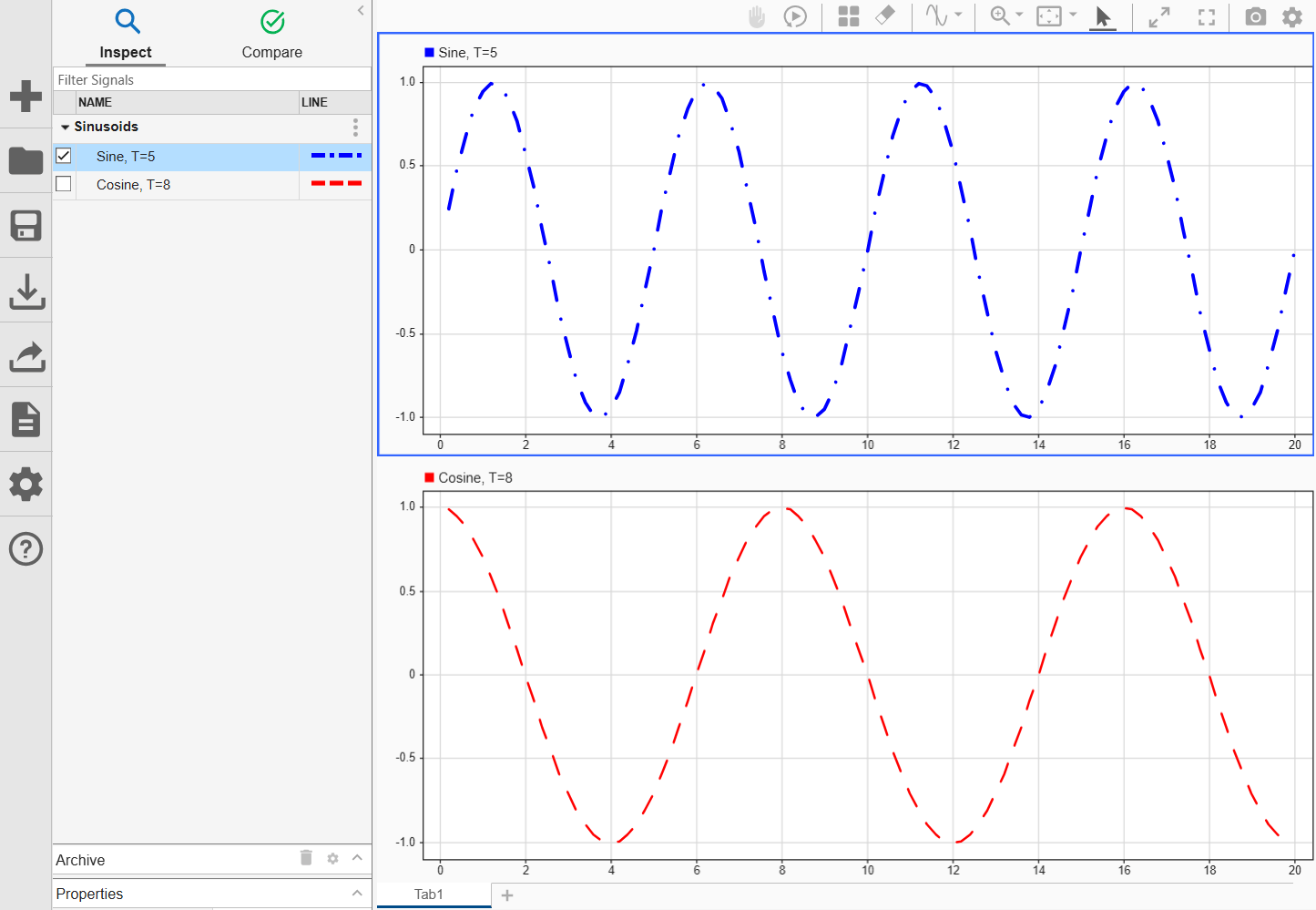
Inspect Data Using Cursors
To access the value of a signal at a specific time, you can add a cursor to the plot. For example, the Sine signal appears to have a local maximum at about 6 seconds. Add one cursor to the plot and observe the signal value at 6 seconds.
Simulink.sdi.setNumCursors(1)
Simulink.sdi.setCursorPositions("left",6)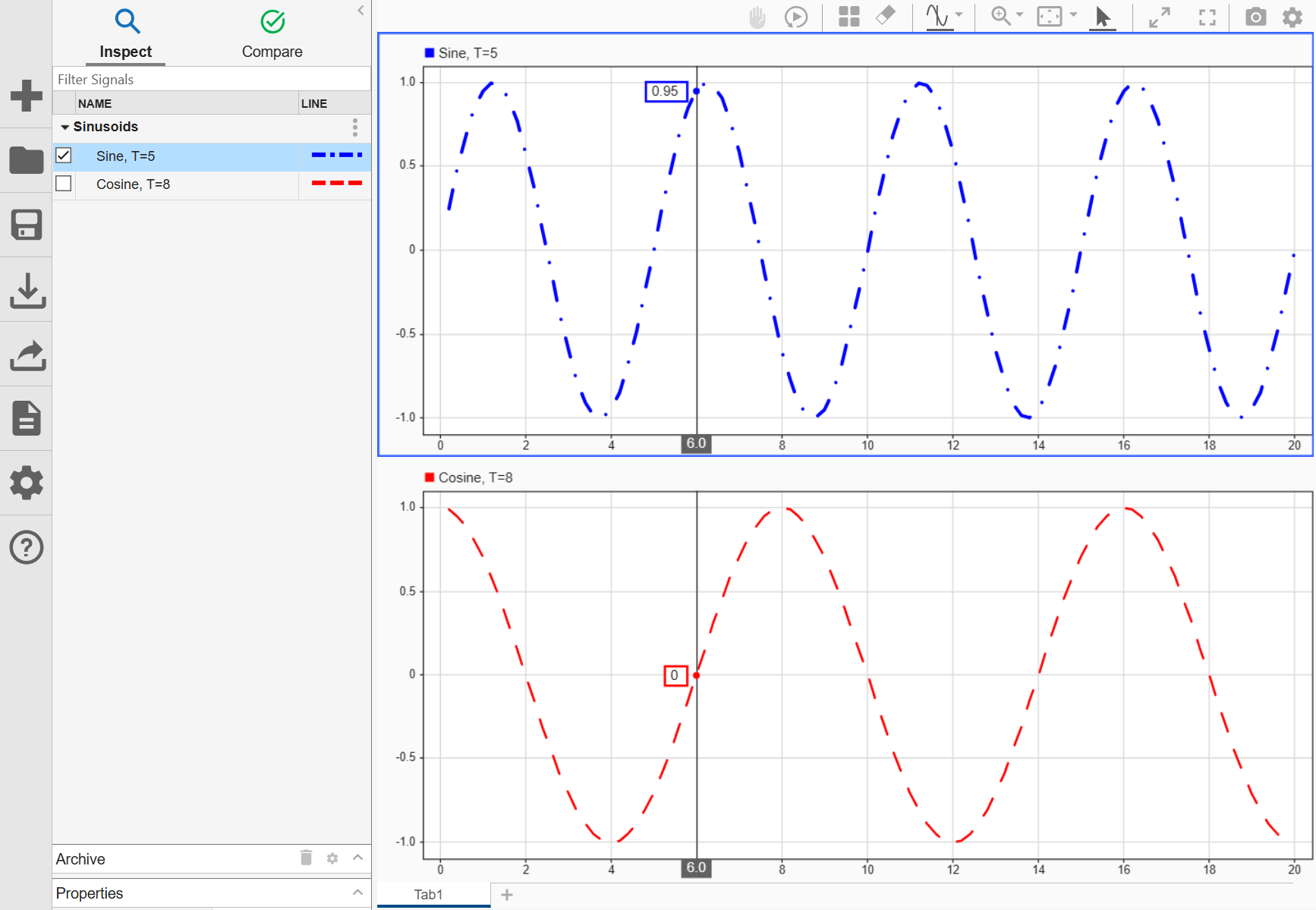
To measure the time difference between two points or extract descriptive statistics within the defined interval, add two cursors.
Simulink.sdi.setNumCursors(2)
Simulink.sdi.setCursorPositions("left",5,"right",7)
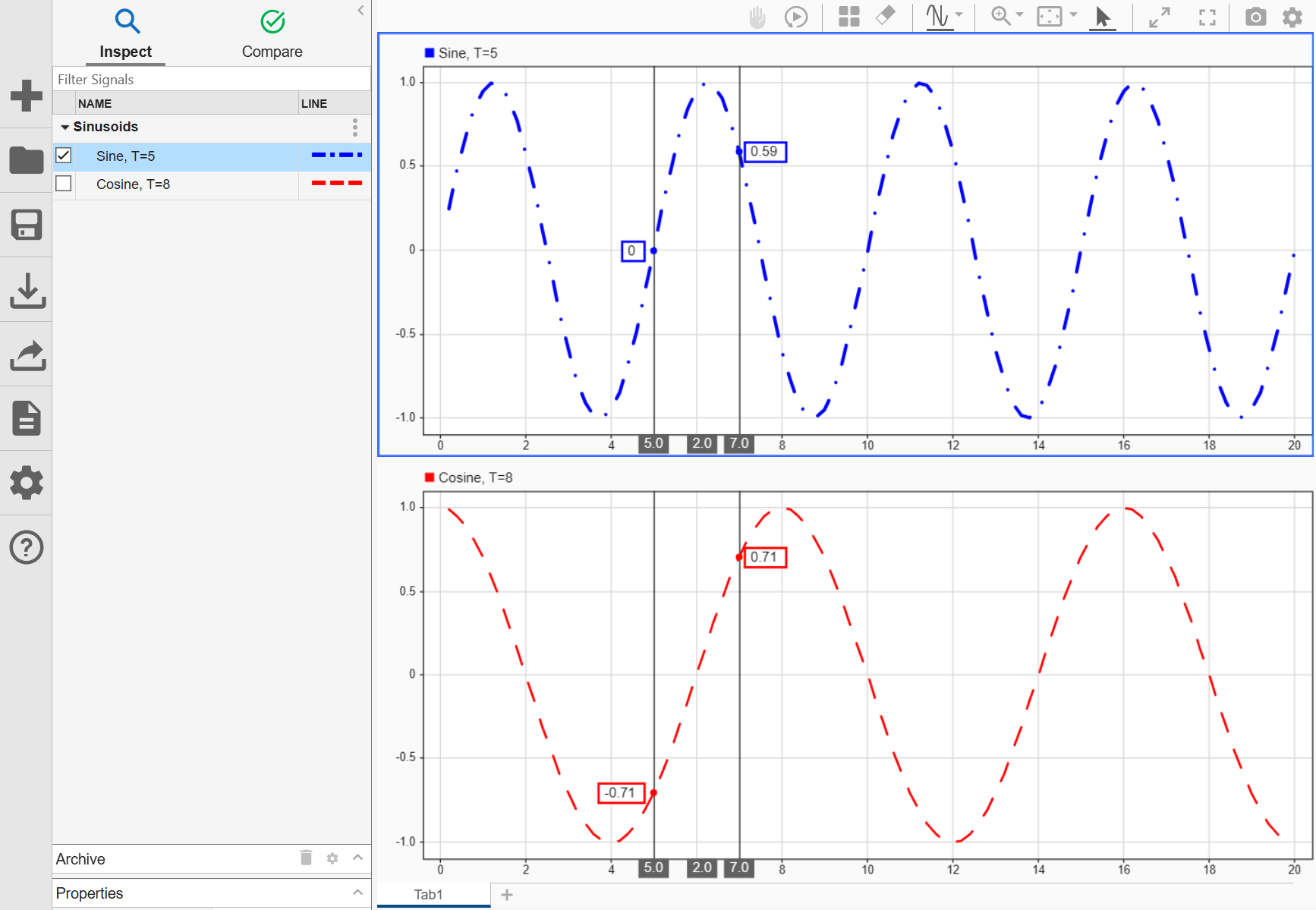
Determine the local maximum sample value in the Sine signal between the cursors using the max function.
[t1,t2] = Simulink.sdi.getCursorPositions;
localMax = max(sine_sig,t1,t2)
localMax =
0.9980
Close Simulation Data Inspector and Save Data
When you finish inspecting the plotted signal data, you can close the Simulation Data Inspector and save the session to an MLDATX file.
Simulink.sdi.close("sinusoids.mldatx")Input Arguments
Alternatives
You can open the Simulation Data Inspector from the Simulink® Editor toolbar with the Simulation Data Inspector
button  .
.
Version History
Introduced in R2011b

