Set Up Variables and Constants
R2026bIntroducing the Variable Dictionary View
The Variable Dictionary is a store for all the variables, constants, and formulae in your session.
To view or edit the items in the Variable Dictionary, click the button, shown, in the Data Objects pane.

Selecting the Variable Dictionary view displays the variables, constants, and formulae in the current project.
Following is an example of the Variable Dictionary view.
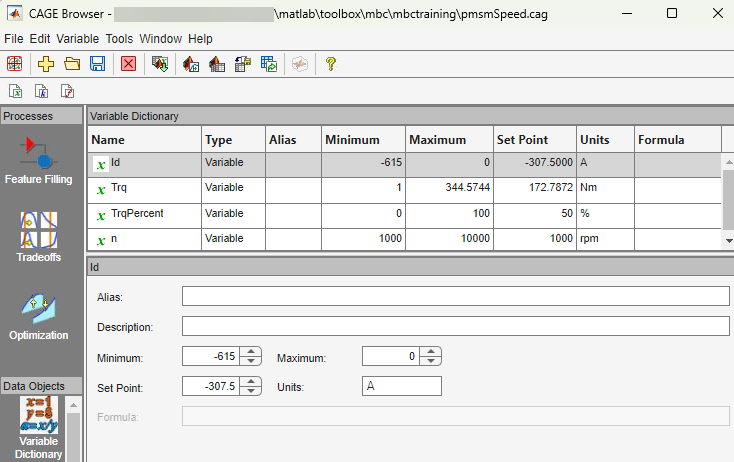
The upper pane shows a list of all the current variables, constants, and formulas. The lower pane displays edit boxes so you can specify the settings of the selected variable, constant, or formula.
Different Variable Dictionary Items
Variables — standard items that feed into models, strategies and tables, and define ranges for these items
Constant — used for inputs that you do not want to change
Formulae — used when you want a variable item to depend on another
Importing and Exporting a Variable Dictionary
A variable dictionary contains all the variable items for your calibrations. You can set up your variable dictionary once, and use it in many calibrations.
If you import a model, it has variables associated with it, in which case you might not have to import a variable dictionary.
Importing a Variable Dictionary
To import a dictionary of variables from an .xml
file,
Select File > Import > Variable Dictionary.
Select the correct dictionary file.
Exporting a Variable Dictionary
After setting up a variable dictionary, you can save the dictionary for use in many different calibrations.
To export a dictionary of variables to an .xml file,
Select File > Export > Variable Dictionary.
Select a suitable name for the dictionary file.
Using the Variable Menu
The Variable menu in the variable dictionary enables you to alter variable items. These choices are also available in the right-click context menu on the list view.
Change item to:
Alias
Changes the selected item to be an alias of another item in the current project. For example, if you have two variables,
engine_speedandn, you can changento be an alias ofengine_speed, with its maximum and minimum values.Formula
Changes a variable or constant into a formula. You have to define the right side of the formula, and you can select the check box to calculate the range.
Constant
Changes a variable or formula into a constant. The value of the constant is the set point of the old item.
Variable
Changes a constant or formula into a variable. The range is from 0 to twice the constant's value (negative values have a maximum of 0).
Using Aliases
The variable dictionary enables you to use the same set of variables, constants, and formulas with many different models and calibrations.
Why Use Aliases?
It is possible that in one model or strategy the engine speed has been defined
as N, and in another it has been defined as
rpm. The alias function enables you to automatically link
inputs with various names to a single CAGE variable when you import models and
strategies.
Creating an Alias
For example, in a variable dictionary there are two variables:
N, with a range of500to6500rpm, with a range of2500to3500
To set rpm to be an alias of N,
Highlight the variable
rpm.Select Variable > Change item to > Alias.
In the dialog box, choose
Nfrom the list.
This eliminates the variable rpm from your variable
dictionary, and every model and calibration that refers to
rpm now refers to N instead.
Note
If N is made an alias of rpm in the
preceding example, the range of N is restricted to the
range of rpm, 2500 to
3500.
You can also add aliases to existing items by entering a list of names in the Alias edit box.

