Import Models and Calibration Items
R2026bYou can import Model Browser models from any project file or directly from the Model Browser when it is open.
You can use the CAGE Import Tool to select items to import from any Model-Based Calibration Toolbox™ project file produced in CAGE or the Model Browser
(.mat or .cag). Importing existing items can
simplify setting up new projects and making changes to existing projects, for example,
using new models in an existing optimization and calibration.
You can replace suitable items in your current CAGE project with imported items. You
can also rerun optimizations and feature fills that use the replaced models to update
the lookup tables. If an item is replaceable in the Import Models dialog box, the
Replace option becomes available.
Import Models to CAGE from Model Browser
To import new models to CAGE from the Model Browser:
In the Model Browser, open a project.
From the Model Browser home page or alternatively from the test plan view of a project, click Generate Calibration. If not already open, CAGE opens with the Import Models dialog box.
Click OK to create new models from the list.
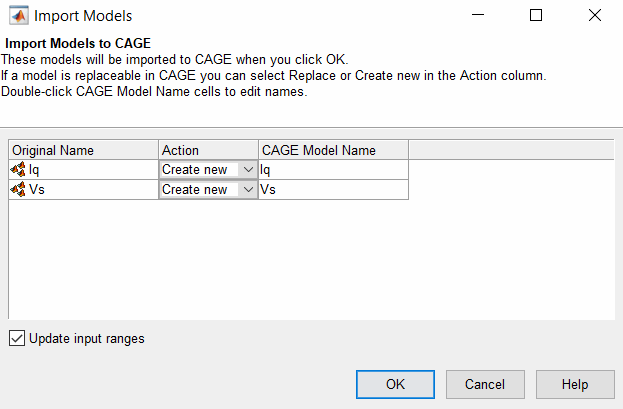
To replace models in CAGE from the Model Browser:
In the Model Browser, open a project.
In CAGE, open the corresponding CAGE project.
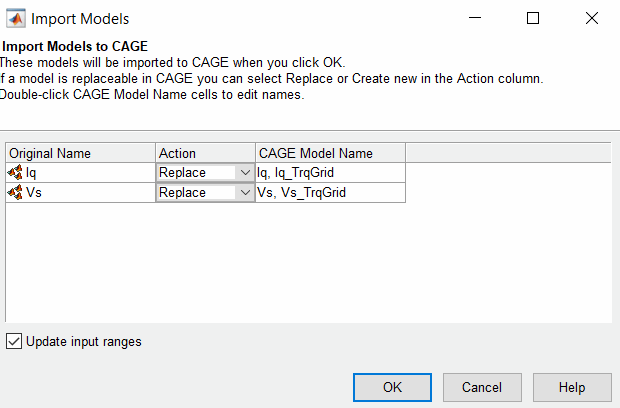
From the Model Browser home page or from the test plan view of a project, click Generate Calibration. The Import Models dialog box opens.
Click OK to replace the models from the list.
If you are replacing models, a Model Browser models (but not a CAGE model) must have exactly the same input name as the CAGE model you want to replace. Update constraint bounds if limits change before you replace models.
Click Start to rerun optimizations and feature fills to update the lookup tables.

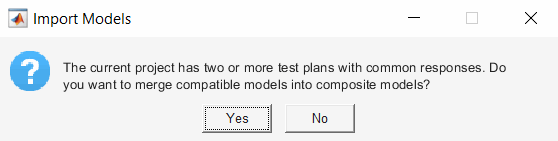
If a project has two or more test plans, merge compatible models into composite models by clicking Yes in the Import Models dialog box. For more information, see What Are Composite Models?
Using the CAGE Import Tool
To use the CAGE Import Tool:
On the CAGE home page, click File > Import From Project.
If it is not already open, the Model Browser opens. Use the Model browser to open a project.
You can also import regression and classification model objects created with the Statistics and Machine Learning Toolbox™ from the base workspace.
On the CAGE home page, click File > Import > Regression Model, or click File > Import > Classification Model.
The CAGE Import Tool opens.
You can choose a project file or import directly from the Model Browser if it is open.
If the Model Browser is open, the list is automatically populated with a list of available items in the open project.
To import from a file, click Import from project file.
A file browser dialog box opens. Locate the desired file and click Open.
The CAGE Import Tool displays the available items. Select the items you want to import. Press Ctrl+A to select all items, or press Ctrl+click or Shift+click to select multiple items in the list.
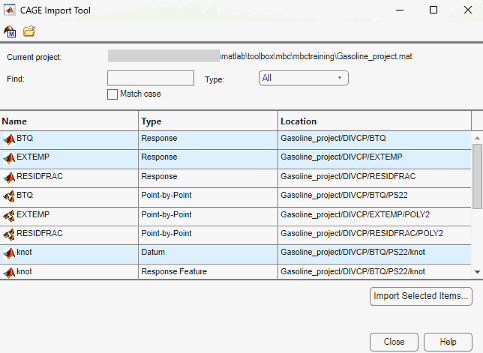
You can use the Find and Type controls to filter the item list:
If you are importing from a Model Browser project, from the Type list, you can select
Response,Point-by-point,DatumorResponse Featureto display a single model type only.If you are importing from a CAGE project, from the CAGE items in the Type list, you can select
Variable,Model,Normalizer,Table,Feature,Optimization,Dataset, orTradeoff. For models, the Subtype column displays whether a model item is an MBC model, function model, or feature model.In the Find box, enter text to find particular item names. You can also select Match case to match the case of your search terms.
Click Import Selected Items.
The CAGE Browser opens and displays the imported models.
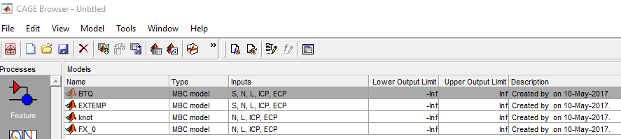
When you have finished importing items, in the CAGE Import Tool, click Close.
You can replace models, variables, normalizers, lookup tables, and features. You cannot replace optimizations, datasets or tradeoffs. You cannot replace lookup tables used in tradeoffs with lookup tables of a different size.
The PEV calculation is not supported for point-by-point models using neural network models, or with greater than 500 parameters, or greater than or equal to 8 inputs.

