Set Up and Configure Arduino Hardware
R2026bOnce you have installed the MATLAB® Support Package for Arduino® Hardware, as described in Install the Support Package, you can configure the host
computer to communicate with the Arduino board via USB, Bluetooth®, or Wi-Fi®. If you are using ESP32-DevKitV1,
ESP32-DevKitC, NanoESP32,
ESP32-S3-DevKitM boards, or ESP32-S3-DevKitC,
see Set Up and Configure ESP32 Hardware.
Note
You can directly use MATLAB Support Package for Arduino Hardware in MATLAB Online™ without installing the support package. For more information see, Get Started with MATLAB Online for Arduino.
Prepare Arduino Board for Setup
Before configuring your Arduino hardware for communication, set up the hardware with these steps.
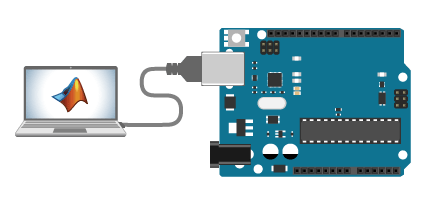
Connect the Arduino board to the host computer using a USB cable. You must start the setup with a USB connection even if you plan to communicate with the Arduino board using Bluetooth or Wi-Fi.
In MATLAB, open Hardware Setup window by entering
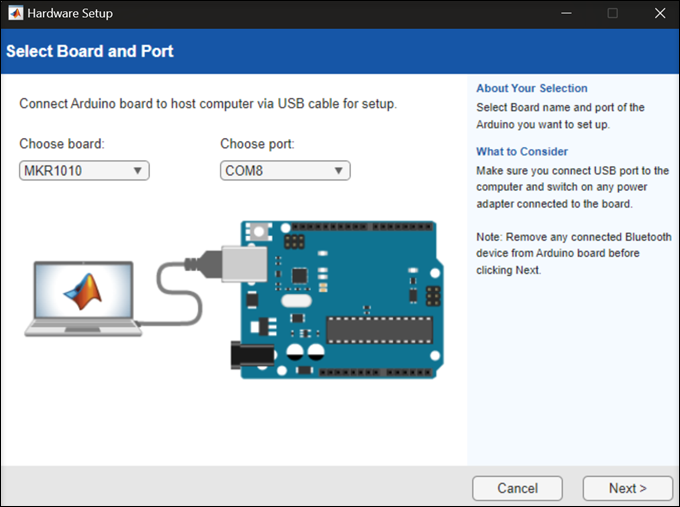
arduinosetupat the command prompt.Select the board type and the port number from the Choose board and Choose port lists. Then, click Next.
To configure your hardware for communication, choose your connection type. The Choose Connection Type pane lists only the connection types supported for the board you selected in the previous step. Follow the steps in the section relevant to your connection type:
Connection over USB
Before you configure your Arduino hardware for communication, complete the steps described in Prepare Arduino Board for Setup.
To configure your Arduino hardware to communicate via USB:
Specify connection type
USBand click Next.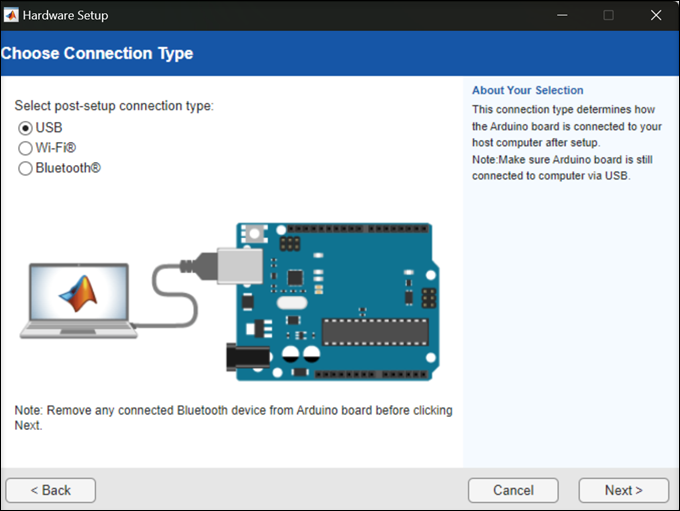
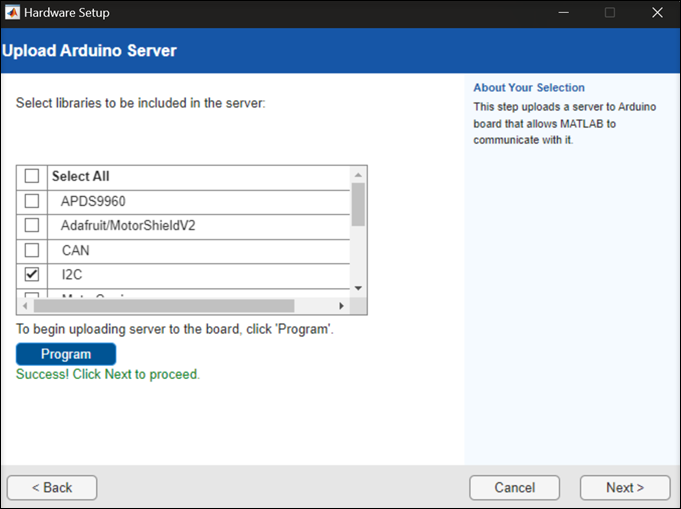
Select the libraries to include in your Arduino server. Click Program to begin uploading the server to your Arduino board.
Note
If you are using MATLAB Online on ChromeOS, a notification with the options Connect to Linux and Connect to Android appears during program upload. Select Connect to Linux to successfully upload the program to the board. This applies to all boards supported on ChromeOS. For more information, see Set Up MATLAB Support Package for Arduino with MATLAB Online on ChromeOS.
After the upload is successful, click Next to proceed.
To test the connection between your host computer and the Arduino board, click Test connection.
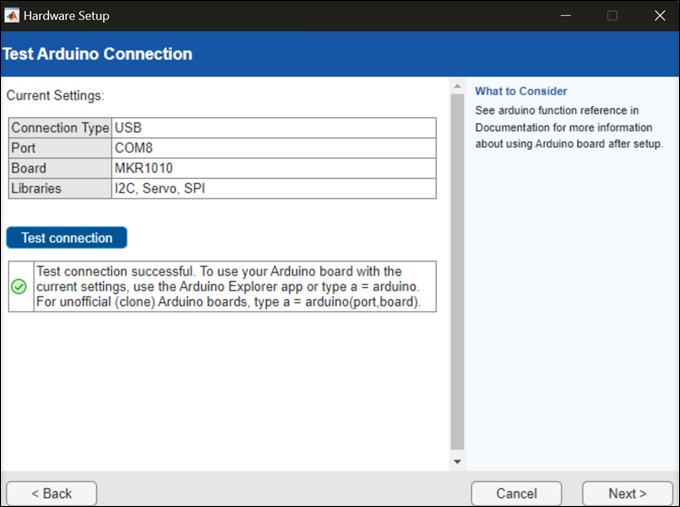
After the connection test is successful, click Next to proceed.
Click Finish to complete the hardware setup. To connect to your Arduino board, see Connect to Arduino Hardware.
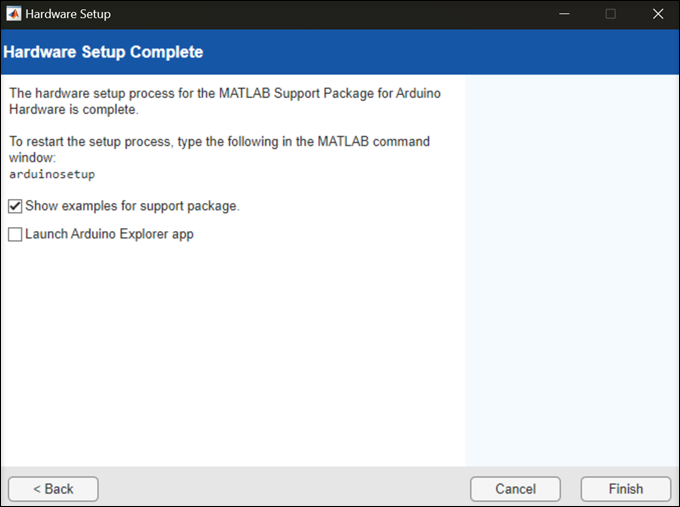
Connection over Bluetooth
Before you configure your Arduino hardware for communication, complete the steps described in Prepare Arduino Board for Setup, and disconnect the USB.
If you are using a Windows® desktop computer, connect a Bluetooth dongle to your computer. You should use a dongle supporting Bluetooth 4.0 or higher to connect to the MKR1010,
UnoR4WiFi, Nano33 IoT, Nano 33
BLE, or, Nano 33 BLE Sense boards over Bluetooth.
To configure your Arduino hardware to communicate via Bluetooth:
Specify connection type as
Bluetoothand click Next.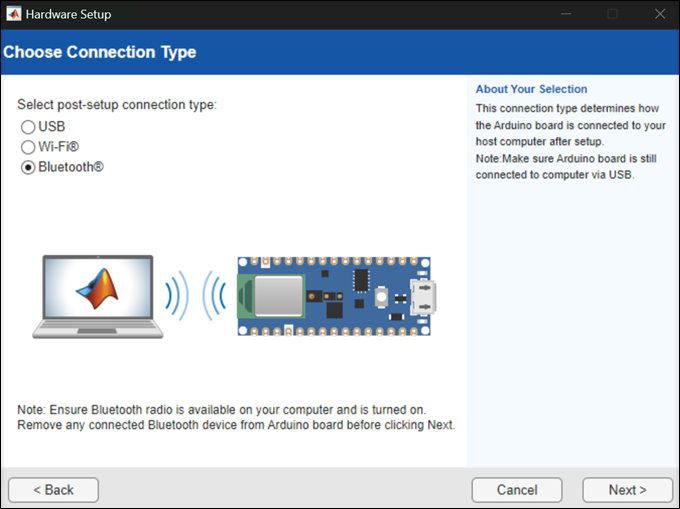
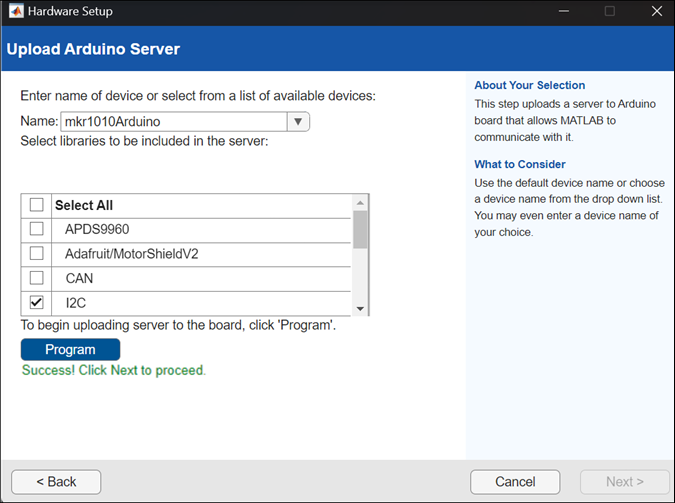
Select the libraries to include in your Arduino server. Click Program to begin uploading the server to your Arduino board.
If you are using
MKR1010,UnoR4WiFi,Nano 33 IoT,Nano 33 BLE, or theNano 33 BLE Senseboard, on the Upload Arduino Server screen:Use the Name field to assign a new name to your Arduino hardware or choose a device name from the list.
Select the libraries that you want to upload to your Arduino hardware.
Click Program to complete uploading libraries to the Arduino device and retrieve the Bluetooth Device address from the Arduino board.
If you are using the
Uno,Due,Mega2560,Leonardo,Micro, or theNano3board, select the Bluetooth device that you want to use to communicate with the Arduino board.If you are using the
HC-05orHC-06boards and you have not configured the device using thearduinosetupinterface, click No to first configure your Bluetooth device.If you are using the
Uno,Due,Mega2560,Leonardo,Micro, or theNano3board, to configure your Bluetooth device, follow the on-screen links in the Hardware Setup window to pair your Bluetooth Classic device and to get your Bluetooth serial port or address.After the upload is successful, click Next to proceed.
To test the connection between your host computer and the Arduino board, click Test connection.
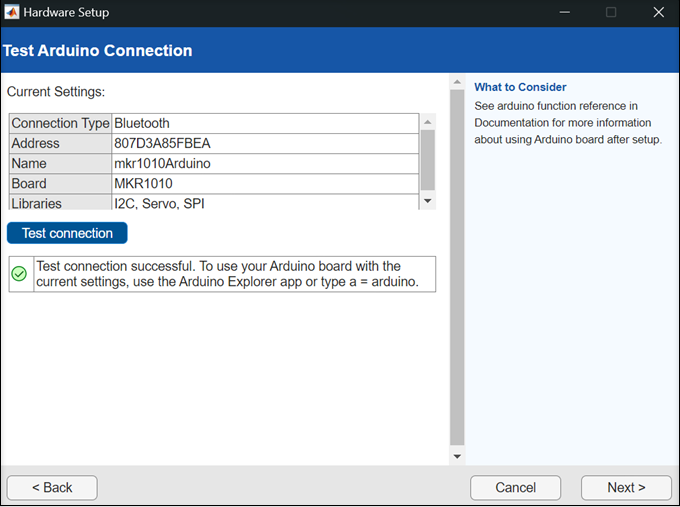
After the connection test is successful, click Next to proceed.
Click Finish to complete the hardware setup.
Connection over Wi-Fi
Before you configure your Arduino hardware for communication, complete the steps described in Prepare Arduino Board for Setup, and disconnect the USB.
To configure your Arduino hardware to communicate via Wi-Fi:
Specify connection type as
Wi-Fi.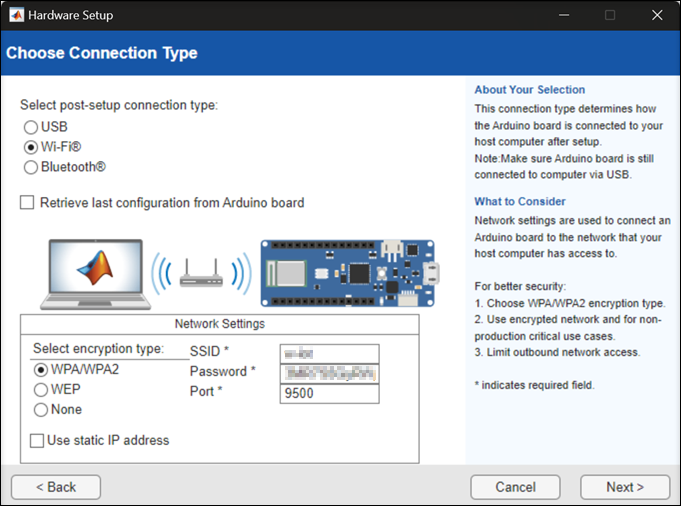
Choose the encryption type of your Wi-Fi network, and enter the necessary credentials.
If you have previously configured your Arduino board in Hardware Setup to use Wi-Fi retrieve the credentials from your previous configuration by selecting Retrieve last configuration from Arduino board.
If you select Use static IP address , make sure that you use an available static IP address and that your router allows the usage of static IP. Ensure that the
Subnet Maskis255.255.255.0and theDefault Gatewayis the IP address of the network gateway.
Select the libraries that you want to include in your Arduino board. Click Program to begin uploading the server to your Arduino board.
Note
If you are using MATLAB Online on ChromeOS, a notification with the options Connect to Linux and Connect to Android appears during program upload. Select Connect to Linux to successfully upload the program to the board. This applies to all boards supported on ChromeOS. For more information, see Set Up MATLAB Support Package for Arduino with MATLAB Online on ChromeOS.
After the upload is successful, click Next to proceed.
To test the connection between the host computer and the Arduino board, click Test connection.
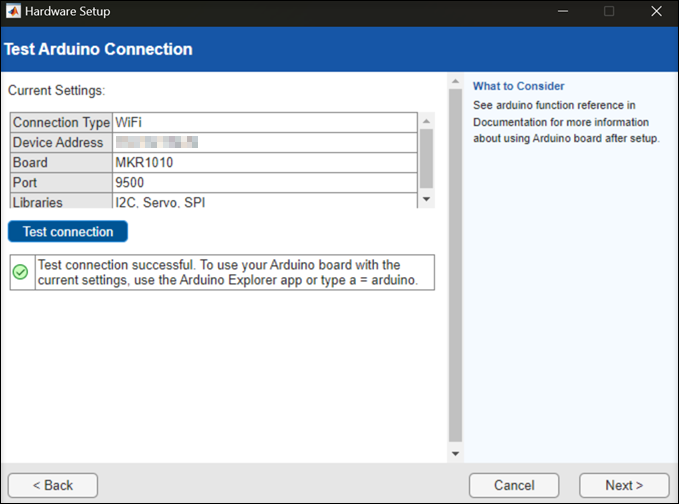
After the connection test is successful, click Next to proceed.
Click Finish to complete the hardware setup.

