CursorMeasurementsConfiguration
Measure signal values using vertical waveform cursors that track along the signal
Since R2022a
Description
Use the CursorMeasurementsConfiguration object to enable waveform
cursors. You can control the cursor settings from the toolstrip of the scope or from the
command line.
To display vertical cursors on each signal and to modify the cursor settings in the scope UI, click the Measurements tab and enable Data Cursors. Each cursor tracks a vertical line along the signal. The scope displays the difference between x- and y-values of the signal at the two cursors in the box between the cursors. The cursors appear only when the scope has at least one signal in its display. You can use the mouse to move the vertical cursors left and right.
Time Scope Toolstrip

Creation
Description
cursormeas = CursorMeasurementsConfiguration() creates a cursor
measurements configuration object.
Properties
All properties are tunable.
Common Properties
x-coordinates of the cursors, specified as a two-element vector of real numbers.
Scope Window Use
On the Measurements tab, select Data Cursors and then click Data Cursors to specify the two elements in X location properties.
Data Types: double
Position cursors on the signal data points, specified as true or
false.
Scope Window Use
On the Measurements tab, select Data Cursors and then click Data Cursors to select Snap to data.
(timescope object only) On
the Measurements tab, select
Data Cursors and then click
Data Cursors >
Cursor Settings to select
Snap to data.
Data Types: logical
Lock spacing between cursors, specified as true or
false. Set this property to true to
lock the frequency difference between the cursors.
Scope Window Use
On the Measurements tab, select Data Cursors and then click Data Cursors to select Lock cursor spacing.
(timescope object only) On the Measurements
tab, select Data Cursors and then click Data
Cursors > Cursor Settings to select
Lock cursor spacing.
Data Types: logical
Enable cursor measurements, specified as true or false. Set this property to true to enable cursor measurements.
Scope Window Use
On the Measurements tab, select Data Cursors.
Data Types: logical
timescope Object Only
Since R2026a
Option to link cursors to waveform, specified as one of these:
true— The cursors are associated with the waveform. You specify theXLocationvalues only and the scope populates theYLocationproperty with the corresponding values of the waveform.false— The cursors are associated with the screen. You can customize theXLocationandYLocationproperty values.
Data Types: logical
Since R2026a
y-coordinates of the data cursors, specified as a vector of
length equal to the number of cursors. To enable this property, set
LinkToWaveform to false.
Scope Window Use
On the Measurements tab, select Data Cursors and then click Data Cursors to specify the vector in the Value property.
Data Types: double
Since R2026a
Option to show horizontal cursors, specified as true or
false.
To enable this property, set LinkToWaveform to
false.
Scope Window Use
On the Measurements tab, select Data Cursors and then click Data Cursors > Cursor Settings to select the Horizontal property.
Data Types: logical
Since R2026a
Option to show vertical cursors, specified as true or
false.
To enable this property, set LinkToWaveform to
false.
Scope Window Use
On the Measurements tab, select Data Cursors and then click Data Cursors > Cursor Settings to select the Vertical property.
Data Types: logical
Since R2026a
Option to inherit cursor channels from data, specified as one of these:
true— The scope inherits cursor channels from theMeasurementChannelproperty of thetimescopeobject.false— Specify the cursor channels using theCursorChannelproperty.
Scope Window Use
On the Measurements tab, select Data Cursors and then click Data Cursors to select the Inherit Measurement Channel property.
Data Types: logical
Since R2026a
Cursor channels, specified as a vector of length equal to the
XLocation vector.
To enable this property, set InheritMeasurementChannel to
false.
Scope Window Use
On the Measurements tab, select Data Cursors and then click Data Cursors to specify the Cursor Channels property.
Data Types: double
Since R2026a
Option to show cursor measurements panel, specified as true or
false. Set this property to true to show the
cursor measurements panel.
Scope Window Use
On the Measurements tab, select Data Cursors and then click Data Cursors > Cursor Settings to select Show Panel.
Data Types: logical
Since R2026a
Option to show cursor measurement readout, specified as true or
false. Set this property to true to show the
cursor measurement readout.
Scope Window Use
On the Measurements tab, select Data Cursors and then click Data Cursors > Cursor Settings to select Show Measurement.
Data Types: logical
Examples
Create a sine wave and view it in the Time Scope. Enable data cursors programmatically.
The timescope object requires one of these products:
DSP System Toolbox™
Navigation Toolbox™
Sensor Fusion and Tracking Toolbox™
Initialization
Create the input sine wave using the sin function. Create a timescope MATLAB® object to display the signal. Set the TimeSpan property to 1 second.
f = 100; fs = 1000; swv = sin(2.*pi.*f.*(0:1/fs:1-1/fs)).'; scope = timescope(SampleRate=fs,... TimeSpanSource="property",... TimeSpan=1);
Enable Data Cursors
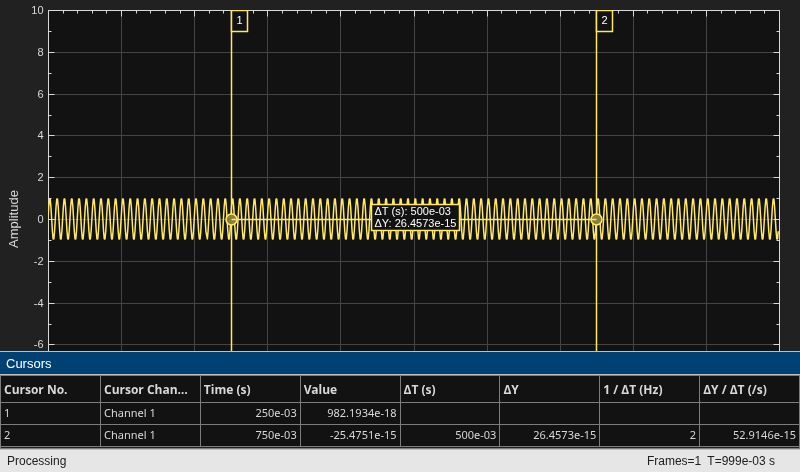
Enable data cursors in the scope programmatically by setting the Enabled property of the CursorMeasurementsConfiguration object to true.
scope.CursorMeasurements.Enabled = true; scope(swv);
Specify Multiple Data Cursors
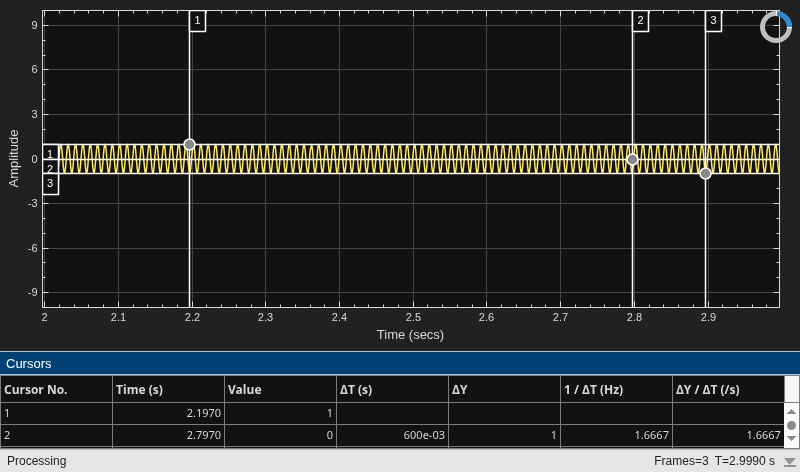
Specify XLocation to [0.2 0.8 0.9]. The scope shows waveform cursors at these locations.
scope.CursorMeasurements.XLocation = [0.2 0.8 0.9]
scope =
timescope handle with properties:
SampleRate: 1000
TimeSpanSource: 'property'
TimeSpan: 1
TimeSpanOverrunAction: 'scroll'
AxesScaling: 'onceatstop'
Show all properties
scope(swv)
If you specify LinkToWaveform as false, the scope shows screen cursors based on the XLocation and YLocation values you specify.
scope.CursorMeasurements.LinkToWaveform = false; scope.CursorMeasurements.YLocation = [1 0 -1]; scope(swv)
Version History
Introduced in R2022aYou can now specify multiple data cursors in the timescope object using
the XLocation property of the
CursorMeasurementsConfiguration object. Data cursors include both screen
cursors and waveform cursors.
Starting in R2022b, the CursorMeasurementsConfiguration object has a
new LockSpacing property. Use this property to lock the spacing between
waveform cursors in the scope window.
In the Measurements tab of the scope UI window, these data cursor settings are new:
Lock cursor spacing –– This setting corresponds to the
LockSpacingproperty in theCursorMeasurementsConfigurationobject.X location –– These fields are enabled and correspond to the
XLocationproperty in theCursorMeasurementsConfigurationobject.
MATLAB Command
You clicked a link that corresponds to this MATLAB command:
Run the command by entering it in the MATLAB Command Window. Web browsers do not support MATLAB commands.
Select a Web Site
Choose a web site to get translated content where available and see local events and offers. Based on your location, we recommend that you select: .
You can also select a web site from the following list
How to Get Best Site Performance
Select the China site (in Chinese or English) for best site performance. Other MathWorks country sites are not optimized for visits from your location.
Americas
- América Latina (Español)
- Canada (English)
- United States (English)
Europe
- Belgium (English)
- Denmark (English)
- Deutschland (Deutsch)
- España (Español)
- Finland (English)
- France (Français)
- Ireland (English)
- Italia (Italiano)
- Luxembourg (English)
- Netherlands (English)
- Norway (English)
- Österreich (Deutsch)
- Portugal (English)
- Sweden (English)
- Switzerland
- United Kingdom (English)