Install and Configure GStreamer to Send Video Streams
R2026bThis topic shows you how to install and configure GStreamer for use with the Video Send block on Windows® or macOS.
Download GStreamer Installer
Download the installer for a stable GStreamer 1.x release for your platform:
Run GStreamer Installer
Run the installer. At the Select Components step, select
Custom installation, then select the Runtime component in each of these sections:
Base system dependencies
GStreamer 1.0 codecs
GStreamer 1.0 core
GStreamer 1.0 plugins for network protocols
Note
If you install GStreamer to a nondefault location in macOS (that is, not
/Library/Frameworks/GStreamer.framework), you must update the
DYLD_LIBRARY_PATH variable by running this command in the macOS
terminal, where <path to gstreamer> is the file path to
GStreamer.framework:
export DYLD_LIBRARY_PATH=<path to gstreamer>/lib/folder
Verify GStreamer Installation
In the Windows Command Prompt or macOS terminal, run this command:
gst-launch-1.0 --version
If GStreamer is installed correctly, the command outputs the installed GStreamer version.
Verify Plugin Installation
To verify that the plugins required by the Video Send block are installed, in a Windows Command Prompt or macOS terminal, run each of these commands:
gst-inspect-1.0 app
gst-inspect-1.0 rtp
gst-inspect-1.0 rtpmanager
gst-inspect-1.0 videoconvertscale
gst-inspect-1.0 coreelements
gst-inspect-1.0 coretracers
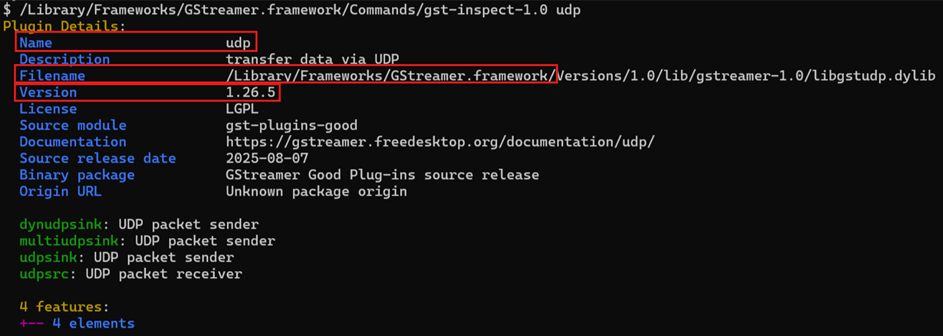
gst-inspect-1.0 udp
gst-inspect-1.0 jpeg
gst-inspect-1.0 vpx
For each command, verify that the output shows the plugin name and version. If you
install GStreamer in macOS, also verify that the Filename entry starts with
/Library/Frameworks/GStreamer.framework.
Verify MATLAB Connection to GStreamer
To verify that GStreamer and its plugins have been installed correctly, run the Stream Camera Image Using Video Send Block example.

