Library Browser
R2026bFind and add blocks to model
Description
The Library Browser displays a tree view of the Simulink® libraries on your system. Use the Library Browser to add blocks and annotations to your model. To browse the items that you can add to your model, expand the libraries in the tree. To search for a library item with key words or phrases, use the search box at the top of the Library Browser. To add an item to your model, drag it into your model, or right-click it and select the option to add it to your model.
By default, the Library Browser is docked as a panel in the Simulink window so that the Library Browser window stays to one side of the model and does not cover areas in the model canvas where you want to add items. When you have multiple Simulink windows open, you can open a Library Browser in each one.
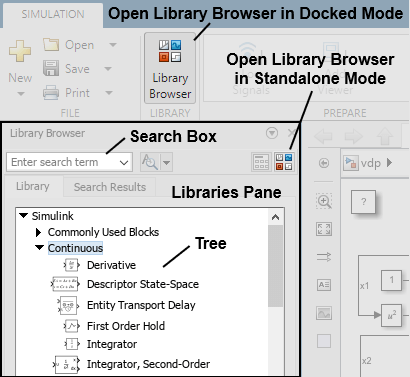
You can use the Library Browser in docked mode or in standalone mode.
A Library Browser that is not docked is in standalone mode.
Use standalone mode to:
Add the same items to many Simulink windows.
View the Library Browser in full-screen mode.
Open, close, hide, or position the Library Browser programmatically.
Browse the libraries without opening a Simulink model.
To open a Library Browser in standalone mode, on the Library Browser in docked mode, click
the Launch standalone library browser button  .
.
For information on standalone mode, see Library Browser in Standalone Mode.

Open the Library Browser
In the Simulink Toolstrip, on the Simulation tab, click Library Browser. The Library Browser opens in docked mode.
In the Simulink Editor, right-click the linked library block and select Go to Library > View in Library Browser to open the Library Browser in standalone mode. This option is available for all libraries that are added to the Library Browser.
Note
If you have multiple Simulink windows open, you can open a Library Browser in each one by clicking Library Browser in the toolstrip of the respective window.
To open or close the Library Browser programmatically, open the Library Browser in standalone mode. The
slLibraryBrowserfunction does not act on the Library Browser in docked mode.
Examples
You can use these keyboard shortcuts to interact with the Library Browser in docked mode.
| Task | Shortcut |
|---|---|
| Open Library Browser in docked mode | Select the Simulink window, then press Ctrl+Shift+L |
| Find a block | Ctrl+F or F3 |
| Open Search Results tab and move to page you visited before current page | Alt+left arrow |
| Open Search Results tab and move to page you visited after current page | Alt+right arrow |
| Insert selected block in model that Library Browser is docked to | Ctrl+I |
| Refresh libraries | F5 |
Note
When you use the keyboard shortcuts on a Mac:
Press command (⌘) instead of Ctrl.
Press option instead of Alt.
To navigate the Library Browser in docked mode, expand the hierarchy of libraries in the tree on the libraries pane.
You can have multiple libraries expanded at once.
When you expand a library, the library contents appear in the tree underneath the library name.
Library contents can be any combination of blocks, annotations, and sublibraries.
To search for a library item using key words or phrases, use the search box at the top of the Library Browser.
In the search box, type the search term or select it from the list of recent search terms.

To search for an annotation, type any of the text from the annotation or its description.
To use regular expressions, case-sensitive search, or whole-word search, click the Search for subsystems, blocks, and annotations button and select the search options you want to use.
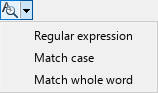
Press Enter to start the search. The Search Results tab displays the search results, grouped by library.
If there are more than 100 search results, the results take up multiple pages in the blocks pane. To navigate to the previous or next page of results, use the arrows in the upper left corner of the Library Browser window.

To see where the search string matches, pause on a block.
To return to browsing the library tree, click the Library tab.
As an example, search for the customizable Knob block.
In the search box at the top of the Library Browser, enter the keyword
knob.Press Enter. The Search Results tab opens and shows two Knob blocks.
Pause over the two blocks to find out which is the customizable Knob block. When you pause over the customizable Knob block, this text appears:
simulink_hmi_customizable_blocks/Knob.
To see a description of the functionality of a library item, pause on the item.
To open the help documentation for an item, right-click the item icon and select Help for the item.
To preview the parameters of a library block before you add it to your model,
right-click the block icon, and then click the Block Parameters button
 . The Block Parameters dialog box opens.
Note
You cannot set values for any of the parameters when you open the Block Parameters dialog box from the Library Browser. To set values, add the block to your model and then double-click the block in the canvas.
As an example, open the Block Parameters dialog box of the Circular Gauge block.
In the Library Browser tree, expand the Simulink library.
In the Simulink library, expand the Dashboard sublibrary.
In the Dashboard sublibrary, expand the Customizable Blocks sublibrary.
In the Customizable Blocks sublibrary, right-click the Circular Gauge block icon, and then click the Block Parameters button
. In the Block Parameters dialog box, you can see which
parameters you can set. For example, you can customize the maximum, minimum, and
tick interval on the scale of the Circular Gauge block.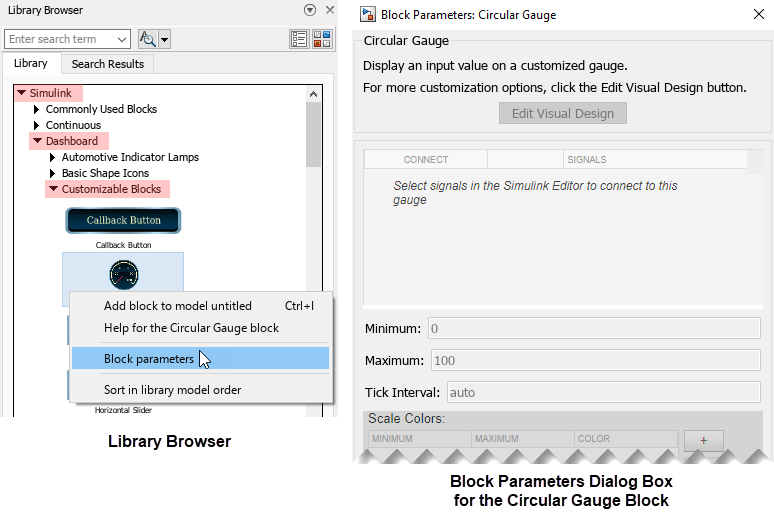
To add blocks and annotations from the Library Browser to an open model, drag the block or annotation from the Library Browser to the Simulink canvas.
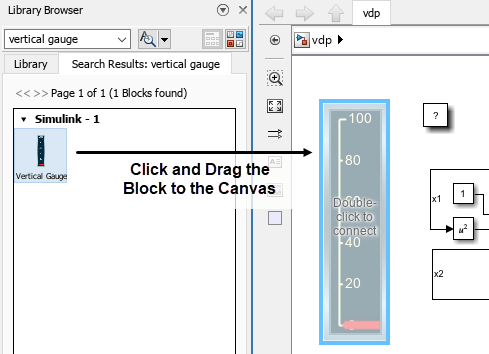
As an example, add a customizable Vertical Gauge block to an open model.
In the search box at the top of the Library Browser, enter
vertical gauge.Press Enter. The Search Results tab opens and shows the Vertical Gauge block.
Click and drag the Vertical Gauge block to the canvas.
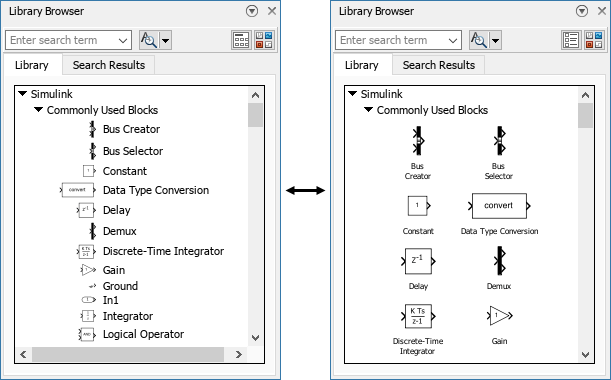
When you resize the Library Browser, the library contents flow to match the width of the window.
Use the layout button to switch between viewing the blocks in a single column  or in a responsive layout that adapts the number of
columns to the browser width
or in a responsive layout that adapts the number of
columns to the browser width  .
.
You can also programmatically customize the appearance of the Library Browser.
Set the sort priority to change the order of the libraries in the tree.
Hide libraries.
Deactivate libraries.
Expand or collapse libraries in the tree.
For more information, see Customize Library Browser Appearance.
The libraries and library contents are first sorted by sort priority and then by sorting order.
Libraries appear in ascending order of sort priority. By default, the Simulink library has a sort priority of -1, and all other libraries have a sort priority of 0. For more information about sort priority, see Customize Library Browser Appearance.
By default, the sorting order is alphabetical. Sublibraries appear first, then subsystems, then blocks, and then annotations.
You can change the sorting order of library items to model order, which is the order set by the library developer. Typically, model order sorts the contents according to functionality and groups related blocks together.
Note
In docked mode, you can only change the sorting order of the library items. For libraries and sublibraries, the sorting order is always alphabetical.
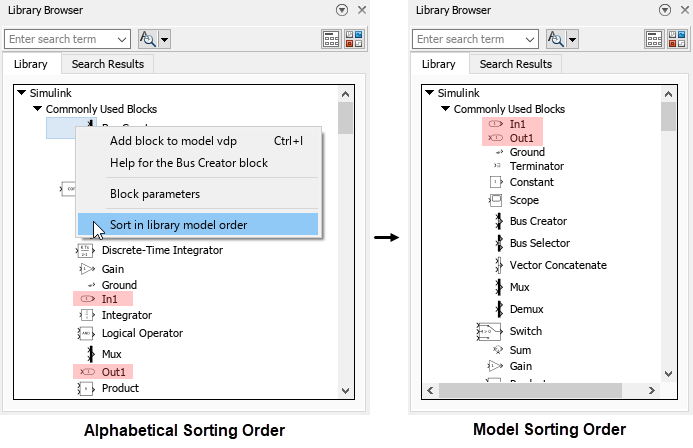
To switch from alphabetical order to model order in docked mode, right-click the item icon in the tree and select Sort in library model order. This setting is preserved from session to session.
To return to the alphabetical order, right-click the item icon in the tree and select Sort in alphabetical order.
Some libraries do not follow the sorting order. For example, in the Simulink library, the Quick Insert library appears as the last item regardless of the sorting option you choose.
As an example, sort the contents of the Commonly Used Blocks sublibrary in model order.
In the Library Browser tree, expand the Simulink library.
In the Simulink library, expand the Commonly Used Blocks sublibrary.
In the Commonly Used Blocks sublibrary, right-click the icon of any item, for example the Bus Creator block icon, and select Sort in library model order. The order of the library changes to model order. In model order, related blocks are grouped together. For example, the In1 and Out1 blocks are far apart when the Commonly Used Blocks sublibrary is in alphabetical order but follow each other when the sublibrary is in model order.
In docked mode, the default position of the Library Browser is on the left side of the Simulink window.
You can position the Library Browser on the left side, the right side, or the bottom of a Simulink window.
To move the Library Browser to a different position, click and drag the top of the Library Browser window to the left, right, or bottom of the Simulink window. Release the Library Browser over the blue area that appears.

To minimize the Library Browser in docked mode, click the
Minimize button arrow  at the top right of the Library Browser window and select
Minimize.
at the top right of the Library Browser window and select
Minimize.
To temporarily expand the Library Browser when it is minimized, at the left edge of the Simulink window, click the Library Browser tab. The Library Browser expands. If you click the canvas, the Library Browser minimizes again.
To restore the expanded view, click the Restore button arrow  at the top right of the Library Browser window and select
Restore. The Library Browser no longer minimizes when you
click the canvas.
at the top right of the Library Browser window and select
Restore. The Library Browser no longer minimizes when you
click the canvas.
As an example, minimize the Library Browser, temporarily expand the Library Browser to add a Constant block to the model, and then minimize the Library Browser again.
To minimize the Library Browser, click the Minimize button arrow
at the top right of the Library Browser window and
select Minimize. The Library Browser window
disappears.To temporarily expand the Library Browser, at the left edge of the Simulink window, click the Library Browser tab. The Library Browser window reappears.

In the tree, expand the Simulink library and the Commonly Used Blocks sublibrary.
From the Commonly Used Blocks sublibrary, click and drag the Constant block to the canvas.
To minimize the Library Browser, click anywhere in the canvas.
You can create your own libraries and, optionally, have them appear in the Library Browser.
For more information, see Create Custom Library.
For an example of how to create a custom block library and a custom block sublibrary, see Add Libraries to Library Browser and Quick Insert.
Refresh your Library Browser if you:
Modify existing libraries or resave them in
.slxfile format.Move or delete your library files.
Add a library.
Change your Library Browser customizations. See Customize Library Browser Appearance.
To refresh the libraries displayed in the Library Browser after you have added, deleted, resaved, or modified the contents of libraries, right-click in the libraries pane and select Refresh Library Browser. The Library Browser updates to display any libraries or blocks added to or deleted from the MATLAB® path since the Library Browser was last opened or refreshed.
To refresh the libraries displayed in the Library Browser after you have changed your Library Browser customizations, enter this command in the MATLAB Command Window:
sl_refresh_customizations
For an example of how to refresh the Library Browser after adding a new library, see Customize Library Browser Appearance.
Limitations
These functions do not act on a docked Library Browser:
You cannot use the LibraryBrowser.LBStandalone object to act on a
docked Library Browser.
To use these functions and the LibraryBrowser.LBStandalone object, open the
Library Browser in Standalone Mode.

