Link C/C++ Sources and Tests to Requirements in IBM DOORS Software
R2026bYou can link C/C++ tests in the Polyspace Platform user interface to test requirements authored in a requirements management tool such as IBM® DOORS® or IBM DOORS Next Generation (NG). This topic shows how to set up requirements linking to the IBM DOORS software.
Set Up Requirements Linking
IBM DOORS
Perform an initial setup to allow communication between your Polyspace® Test™ and DOORS software installation.
Note that the integration between Polyspace Test and IBM DOORS software only works on Windows® platforms.
If the DOORS software is running, close the application. Likewise, if the Polyspace Platform user interface is open, close the interface.
Copy the following files from
<polyspaceroot>\toolbox\shared\reqmgt\dxlto the<doorsInstallDir>\lib\dxl\addinsfolder.addins.idx addins.hlp
Here:
<polyspaceroot>is the Polyspace installation folder, for instance,C:\Program Files\Polyspace\R2026b.<doorsInstallDir>is the IBM DOORS software installation folder.
If you have already modified these files in your DOORS software installation, instead of replacing them, you merge the contents of the existing files with the new ones.
Copy the following files from
<polyspaceroot>\toolbox\shared\reqmgt\dxlto the<doorsInstallDir>\lib\dxl\addins\dmifolder.dmi.hlp dmi.idx dmi.inc runsim.dxl selblk.dxl sellnk.dxl
Replace any existing versions of these files.
Open the file
<doorsInstallDir>\lib\dxl\startup.dxl. In the user-defined files section, add the followingincludestatement:#include <addins/dmi/dmi.inc>
If you upgrade from Version 7.1 to a later version of the DOORS software, perform these additional steps:
In your DOORS installation folder, navigate to the
...\lib\dxl\startupFilessubfolder.In a text editor, open the
copiedFromDoors7.dxlfile.Add
//before this line to comment it out:#include <addins/dmi/dmi.inc>
Save and close the file.
Start the DOORS software and the Polyspace Platform user interface.
At this point, you should be able to link from a test authored in the Polyspace Platform user interface to requirements in IBM DOORS software.
IBM DOORS Next Generation
Since IBM DOORS Next Generation has a web server-based interface, to set up requirements linking, you must provide the details of the web server in the Polyspace Platform user interface.
On the Polyspace Platform toolstrip, select Settings to open the Polyspace Platform Settings.
On the Testing and Profiling tab, select the DNG Server Configuration button next to Requirement Linking.
In the DNG Server Login Configuration Window, enter the DOORS Next server address, port number, and service root as they appear in the web browser when accessing DOORS Next. Enter your username and password, or enter the name of a custom authentication callback function. For more information on the callback function, see
setCustomLoginProvider(Requirements Toolbox).
Link to Requirements
In the Polyspace Platform user interface, after you add files to a project and parse the source code, you add links to requirements from source files or tests. To add links to a requirement:
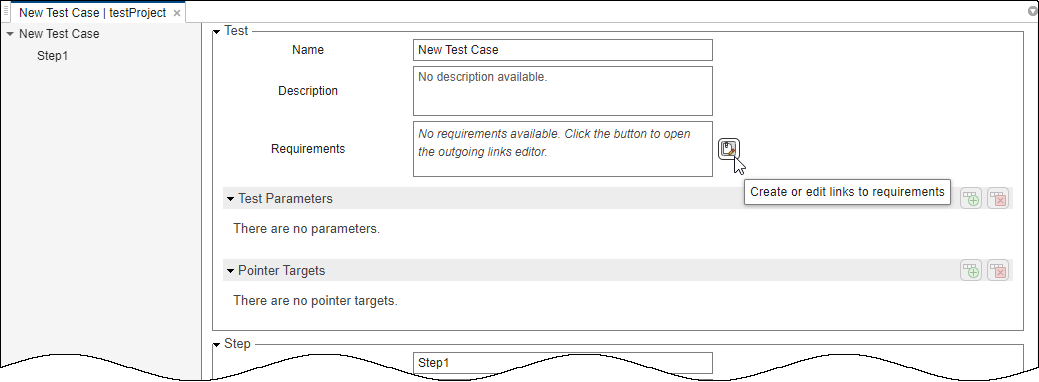
Click the
 button next to a linkable element in a Polyspace Platform project:
In a C/C++ source file, the button appears to the left of each function definition.
In a graphical test case, the button appears next to the Requirements field in the test case header or a test step.
In a C/C++ xUnit test, the button appears on the left of these test creation macros:
PST_SIMPLE_TESTandPST_SIMPLE_TEST_BODY(simple tests)PST_TESTandPST_TEST_BODY(tests that are part of a suite)
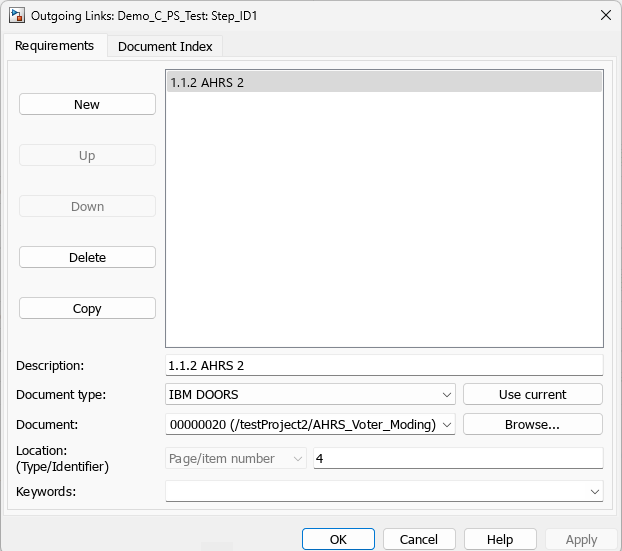
In the Outgoing Links dialog box, click New. Link to a requirements document in the DOORS interface as follows:
From the Document type dropdown, select
IBM DOORSorIBM DOORS Next.Open the requirements document in the IBM DOORS or IBM DOORS Next interface and select a requirement. Click Use current in the Outgoing Links dialog box to link to the currently selected requirement. You should see the Description and Document fields automatically populated with information from the requirements.
Click OK. You see a requirement link next to the linkable element in the project.

