Import and Export Calibrations
R2026bFormats
You can import and export calibrations in these formats.
| Type | Description | File Extension |
|---|---|---|
"INCA CSV file" | Calibration data saved in a CSV file format compatible with ETAS® Integrated Calibration and Application (INCA) tool software. | .csv |
"ATI Vision MAT file" | Calibration data saved in a MATLAB® file format compatible with ATI Vision software. | .mat |
"INCA DCM file" | Calibration data saved in a data conservation (DCM) file format compatible with ETAS Integrated Calibration and Application (INCA) tool software. | .dcm |
"Simulink Data" | Calibration data saved to a model workspace or Simulink® data dictionary. The Simulink Data type is determined by the extension used in the filename. Note You can only export calibration data to Simulink Data files. Calibration data cannot be imported from Simulink Data files.
| .slx, .sldd |
"Simple CSV file" | Calibration data saved in a simple CSV file format. | .csv |
"Simple MATLAB file" | Calibration data saved in a simple MATLAB file format. | .mat |
"Matrix MAT file" | Calibration data saved as a matrix in a MATLAB file format. Note You can only export calibration data to Matrix MAT files. Calibration data cannot be imported from Matrix MAT files.
| .mat |
Structure MAT file" | Calibration data saved as a structure in a MATLAB file format. | .mat |
Note
Exporting calibrations overwrites existing files except for Simulink model files or Simulink data dictionary files. Parameters are added to the workspace for model files or updated for data dictionary files.
Import Calibrations
Select a table.
Select File > Import > Calibration.
If importing a file, a file browser dialog box opens.
Select the type of file you want from the Files of type drop-down list, or leave the default
All files (*.*)and CAGE will try to load the file based on the file extension.Browse to the file and click Open to import.
Export Calibrations
To export your calibration data:
Select File > Export > Calibration > Selected Item or All Items, or use the toolbar button to export all calibration items.
The Export Calibration Data dialog box appears, for example:
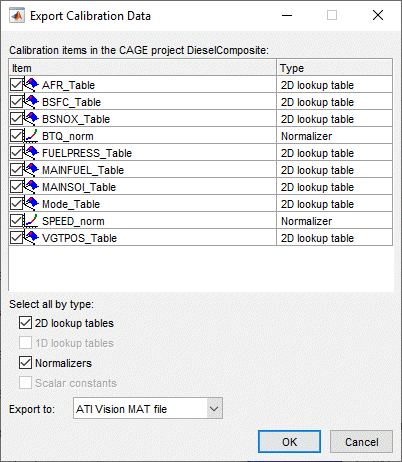
Select the check boxes of the calibration items you want to export.
You can select all items of a single type by using the check boxes under the list — for example select the 2D lookup tables check box to select the check boxes of all 2D lookup tables in the list.
If you chose to export All Items, all tables, normalizers, curves and constants in the project are available in the list of calibration items.
If you chose to export Selected Item, the list items depend on which tree node you have selected. For a table node, the list contains the table and its normalizers. For a Feature or Tradeoff node, the list includes the whole feature or tradeoff (all tables, normalizers, curves and constants). For an optimization node, the list contains any tables filled from the optimization results.
Use the Export to parameter to specify the format. Click OK.
If you select
Simulink Data, CAGE prompts you to open a Simulink model.If you select
Matrix MAT file, the table data format is compatible with Simulink lookup tables.CAGE automatically exports the calibration data after an optimization.

