Connect to GitHub or GitLab from MATLAB
R2026bYou can manage GitHub® and GitLab® connections directly from the MATLAB® Connections panel. When adding a connection to your GitHub or GitLab account in the Connections panel, you can:
Manage GitHub or GitLab authentication.
Use one authentication workflow for operations, including clone, fetch, push, and share.
Use multiple GitHub and GitLab accounts and link them to specific repositories.
Store authentication tokens securely in the MATLAB Vault.
Add Connection to GitHub or GitLab
To add a new connection to GitHub or GitLab, follow these steps.
Open the Connections panel. On the Home tab, in the Environment section, click Connections.
In the Available Connections section, click the Add button next to the connection you want to add.
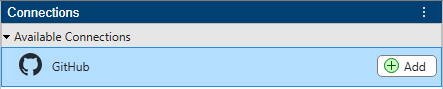
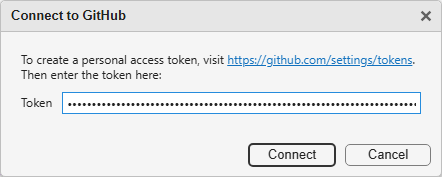
When you choose GitHub or GitLab, enter your personal access token and click Connect.
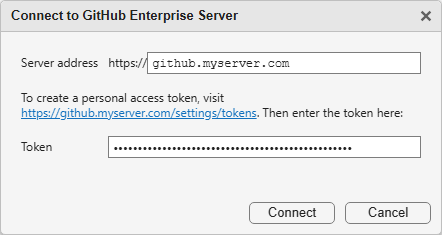
If you choose GitHub Enterprise Server or GitLab Self-Managed, specify the server address and your personal access token and click Connect.
View Information and Manage Connections to GitHub or GitLab
In the Connections panel, you can manage connections and view information about the authenticated account.
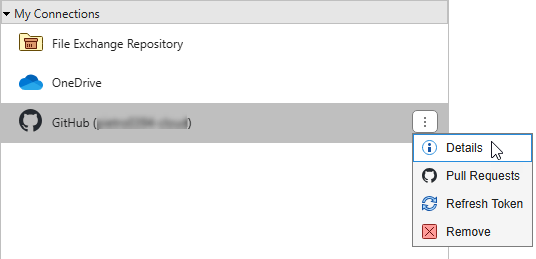
To view your authenticated account information, including the expiration date of the access token and the current GitHub or GitLab API usage and rate limits, in the My Connections section, right-click the connection and select Details.
To refresh an expired token of an existing connection to your GitHub or GitLab account, in the My Connections section, right-click the connection and select Refresh Token.
To remove the connection to your GitHub or GitLab account, in the My Connections section, right-click the connection and select Remove.
Clone Git Repository After Adding Connection
After you add a GitHub connection in the MATLAB Connections panel, you can quickly clone a remote repository using that account.
On the Home tab, in the Files section, select New > Git Clone.
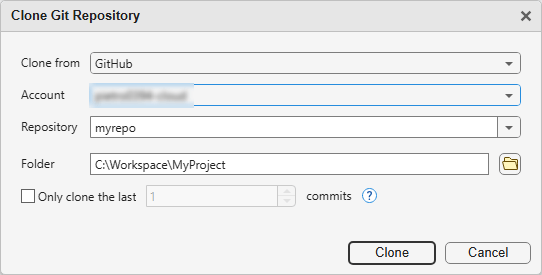
In the Clone Git Repository dialog box, specify:
Clone from — Select the source hosting service (for example, GitHub).
Account — Select the authenticated account to access the remote repository. MATLAB automatically populates this field with the account you configured in the Connections panel. If you have multiple accounts, you can select a different one.
Repository — Enter or select the name of the repository to clone.
Folder — Specify the location of the folder where you want to clone the repository. The folder must be empty.
Click Clone.
By default, MATLAB performs a full clone of the repository. To create a shallow clone from a specific number of commits, select the Only clone the last number commits checkbox. Then, specify the number of commits you want to include in your clone.

