Simulate 3D Scenarios
R2026bWhen you simulate a scenario using the 3D Scenarios add-on, the scenario moves actors along their trajectories, recalculates analyses, and updates visuals in the viewer. The scenario tracks progress using two properties:
SimulationTimestores the current simulation time.SimulationStatusindicates whether the simulation is in setup, running, or complete.
Simulating a scenario enables you to observe the motion of actors and to collect analysis data over time.
Run a Simulation
Run a simulation by calling the advance function
in a while loop. Each call to advance moves the
scenario forward by one time step.
This code shows a typical simulation loop. Set up a scenario by adding actors,
trajectories, and analysis. Inside the while loop, you can query
analysis results, record data, and update visuals.
scnro = scenario;

% Add actors, trajectories, and analyses.

while advance(scnro)
    % Query analyses, record data, and update visuals.
end
During each iteration of the while loop, the scenario performs these
operations in order:
Calculate the next time step and update the
SimulationTimeproperty.Move all actors with trajectories to their next positions.
If viewers are open, recalculate the analyses with visible visuals.
If viewers are open, update the visuals associated with actors and analyses.
If the scenario meets a stop condition, update the
SimulationStatusproperty to"complete".
The advance function returns true while the simulation is running and
false when the simulation is complete.
Track Simulation Status
During simulation, a scenario transitions through three states. The current state determines which parts of the scenario you can edit.
| State | Value of SimulationStatus
| Description |
|---|---|---|
| Setup |
"notstarted"
| The simulation has not started. The scenario, visuals, and analyses are editable. |
| Running |
"running"
| The simulation is advancing through time steps. Only the visuals are editable. |
| Complete |
"complete"
| The simulation is complete. Only the visuals are editable. |
The scenario begins in the setup state. The first call to the
advance function transitions the scenario to the running state.
Subsequent calls to advance step through the simulation until the
scenario reaches the complete state.
Specify Time Steps
When you create an actor from a trajectory, the scenario stores a FixedTrajectoryBehavior object in the Behavior property
of the actor. The TimeStep property of the
FixedTrajectoryBehavior object specifies the maximum time between
updates for the actor. The default value of TimeStep is 0.1
seconds.
This code shows how to specify the time step of an actor act.
act = actor(scnro,traj);
act.Behavior.TimeStep = 0.2;
The scenario uses the TimeStep property of each trajectory behavior
to calculate the values of SimulationTime. The
advance function moves SimulationTime to the
next time at which any actor is due to update.
Stop the Simulation
The simulation completes when one of these events occurs:
All actors finish their trajectories.
The
SimulationTimeproperty reaches the value specified by theStopTimeproperty.
The default stop time is Inf, where the simulation runs until all
trajectories are complete.
Restart the Simulation
Return a scenario to the setup state by using the restart
function. The restart function sets the
SimulationTime property of the scenario to 0 and
returns all actors to their initial positions.
This code restarts the scenario scnro.
restart(scnro)
After restarting, you can edit the scenario and run the simulation again.
Example: Record Actor Positions During Simulation
Simulate two cars traveling along trajectories and record their positions at each time step.
Create a scenario and open a viewer.
scnro = scenario;
v = viewer(scnro);
Set up the scenario by creating two cars that follow trajectories. Specify a different time step for each car.
wpts1 = pointtable([42.3046 42.30476],[-71.3224 -71.3199]);
traj1 = groundTrajectory(wpts1);
c1 = car(scnro,traj1);
c1.Behavior.TimeStep = 0.4;

wpts2 = pointtable([42.30488 42.30469],[-71.31987 -71.32244]);
traj2 = groundTrajectory(wpts2);
c2 = car(scnro,traj2);
c2.Behavior.TimeStep = 0.5;
Initialize variables that store the positions of each car. Then, run the simulation. During each iteration, record the positions of the cars. The simulation advances the cars until both cars have finished their trajectories.
c1pos = table.empty;
c2pos = table.empty;
while advance(scnro)
    c1pos = [c1pos; position(c1)]; %#ok<AGROW>
    c2pos = [c2pos; position(c2)]; %#ok<AGROW>
end
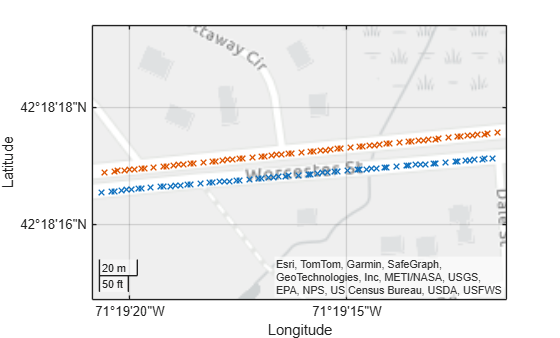
Display the recorded positions on a 2D map. The map shows the interpolated positions of each car along its trajectory. Because the actors have different time steps, the time interval between data points varies.
geoplot(c1pos,"x")
hold on
geoplot(c2pos,"x")
See Also
scenario | advance | restart | groundTrajectory | airTrajectory

