Refine Segmentation Mask Using Active Contours in Image Segmenter
R2026bThis example shows how to refine an image segmentation mask by using active contours in the Image Segmenter app. Active contours (also called snakes) is an automatic, iterative method that grows or shrinks the segmentation mask to fill the borders of the region in the image.
The accuracy of this initial segmentation mask can impact the final result. You can also use the Include Texture Features option with active contours.
Create or Load an Initial Segmentation Mask
Open the Image Segmenter app and load an image to be segmented.
I = dicomread("knee1");
knee = mat2gray(I);
imageSegmenter(knee)
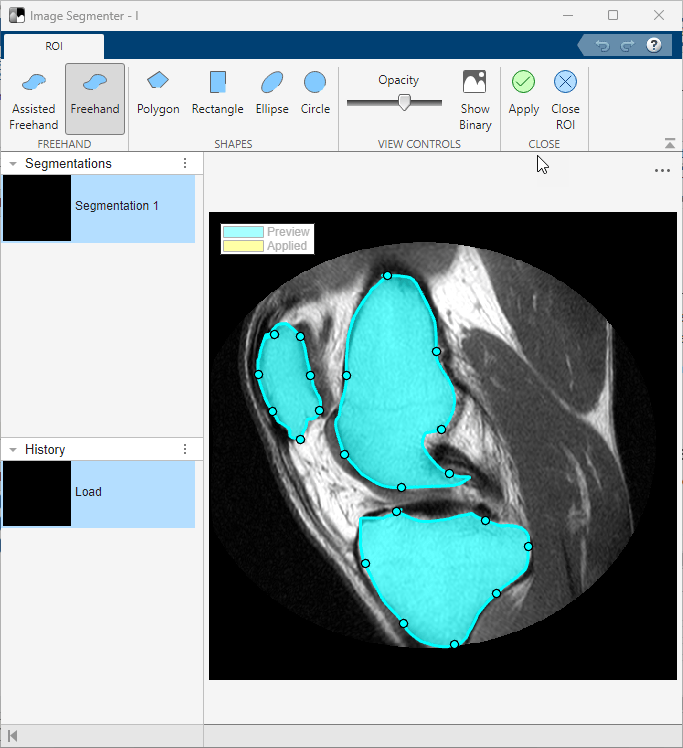
To segment an image using active contours, you must first create a rough estimate of the segmentation or load an existing binary mask image. For this example, use the ROI tools to create the initial segmentation mask. For more information about this segmentation technique, see Segment Image by Drawing Regions. When you are done drawing the regions, click Apply and then click Close ROI to return to the Segmentation tab.
Use Active Contours to Refine Segmentation Mask
On the Segmentation tab, in the Refine Mask section of the toolstrip and click the Active Contours. The Image Segmenter app opens the Active Contours tab.
To use active contours, click Evolve. The app starts performing iterations to grow or shrink the segmentation mask to fill the objects to their borders. Initially, use the default active contours method (Region-based) and the default number of iterations (100). Image Segmenter displays the progress of the processing in the lower right corner. Looking at the results, you can see that this approach worked well for two of the three objects but the segmentation bled into the background for one of the objects. The object boundary is not as well-defined in this area.
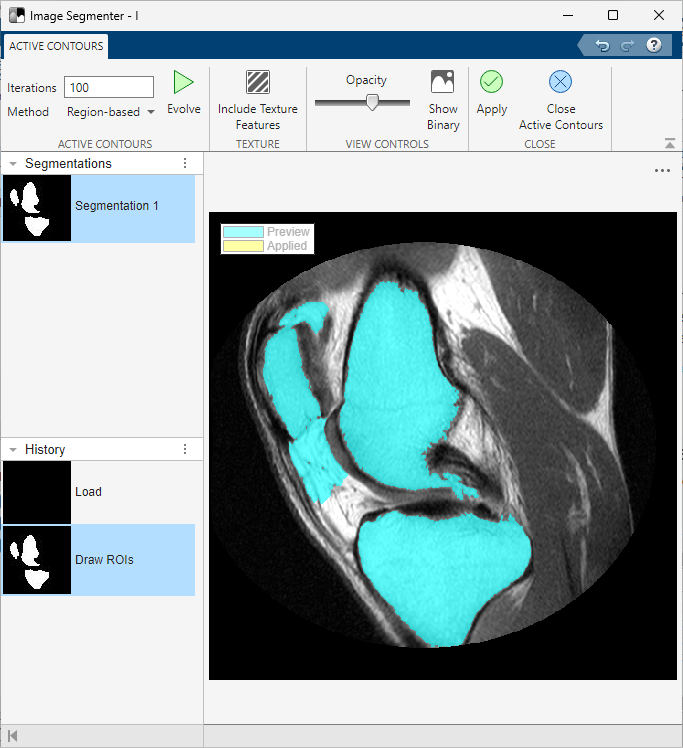
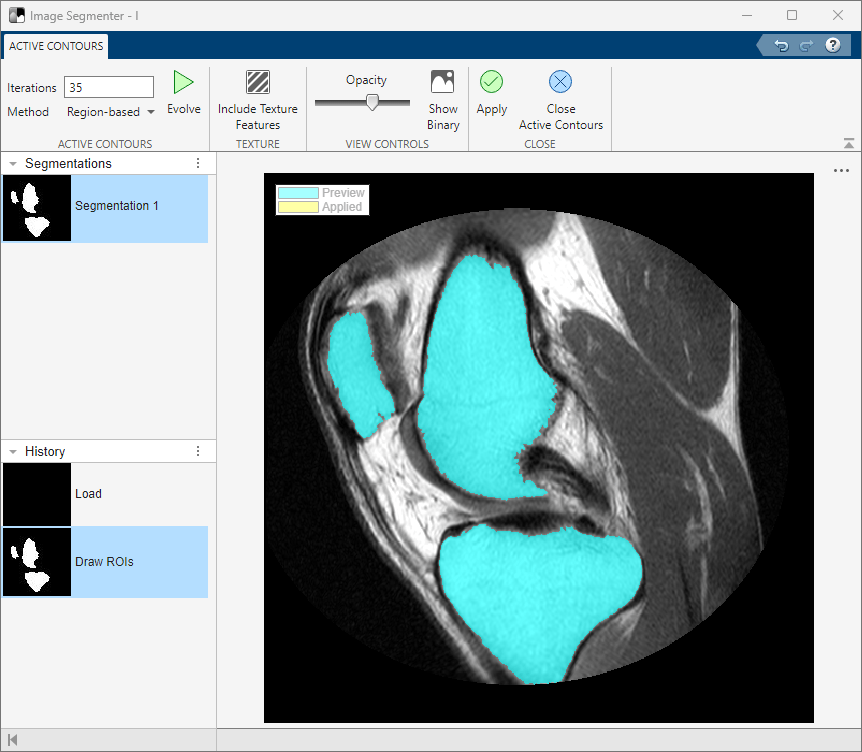
One way to get a better segmentation is to repeat active contours, reducing the number of iterations. Change the number of iterations in the iterations box, specifying 35, and click Evolve again. This time, the segmentation does not bleed into the background.
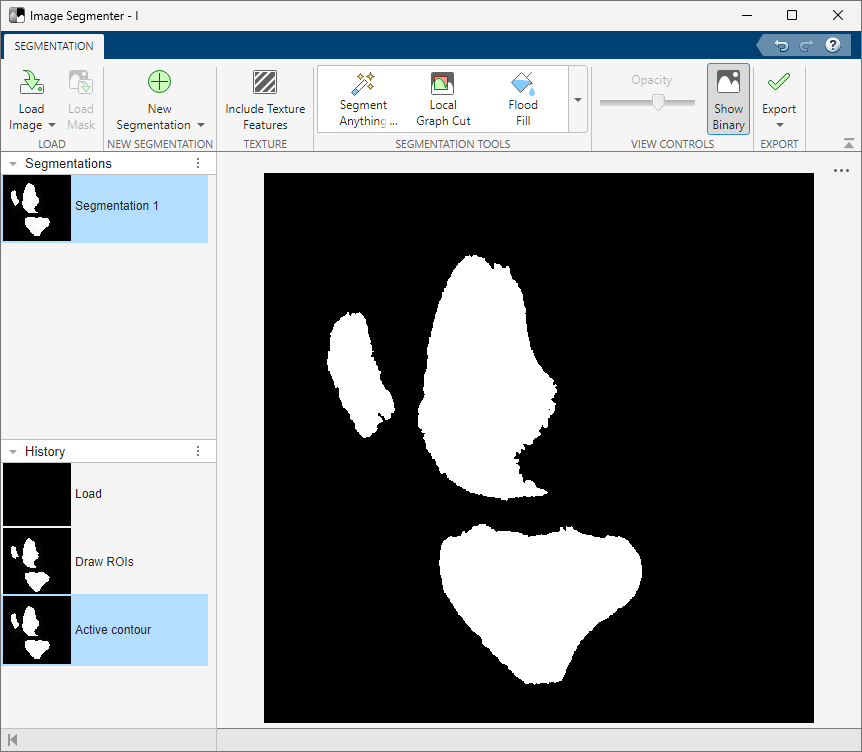
To save the segmentation, click Apply. To return to the Segmentation tab, click Close Active Contours. To view the mask image, click Show Binary on the Segmentation tab.
See Also
Image Segmenter | activecontour

