Segment Image Using Auto Cluster in Image Segmenter
R2026bThis example shows how to use the Auto Cluster option in the Image Segmenter app to segment an image. The Auto Cluster option is an automatic segmentation technique that you can use to segment an image into foreground and background elements. The Auto Cluster option does not require initialization.
Load Image into the Image Segmenter App
Read an image into the workspace.
coins = imread('coins.png');From the MATLAB® Toolstrip, open the Image Segmenter app. On the Apps tab, in the Image Processing and Computer Vision section, click Image Segmenter  .
.
On the app toolstrip, click Load Image, and then select Load Image from Workspace. In the Import from Workspace dialog box, select the image you read into the workspace. Image Segmenter displays the image you selected.
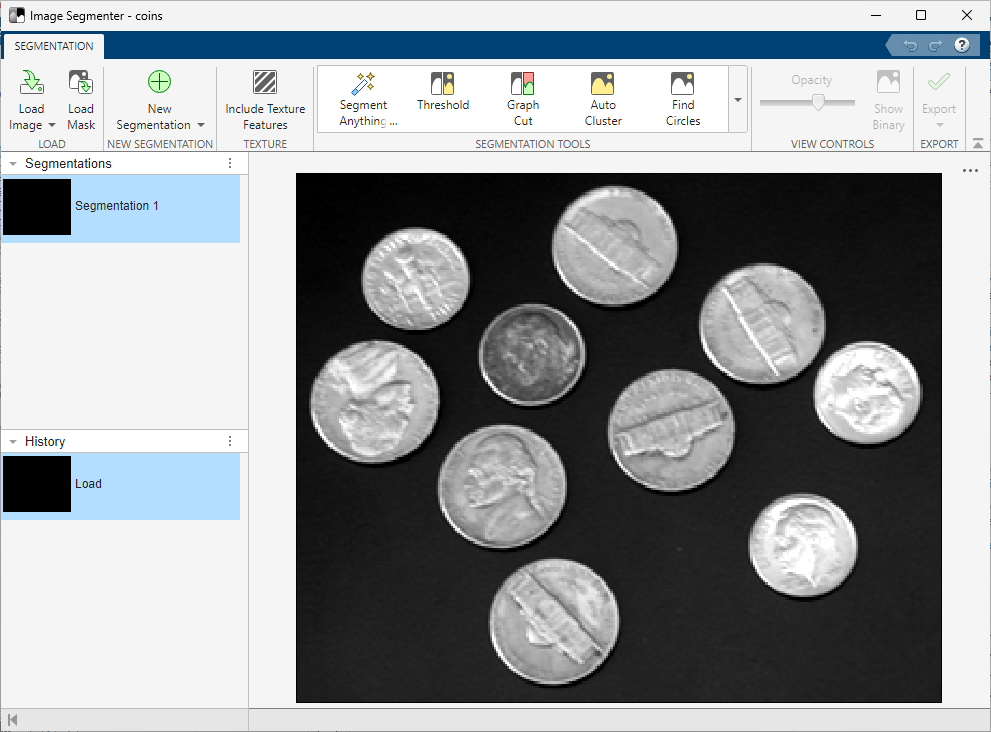
You can also open the app using the imageSegmenter command, specifying the image:
imageSegmenter(coins);
Use Auto Cluster to Segment Image
On the Image Segmenter toolstrip, expand the Create Mask section and choose Auto Cluster.
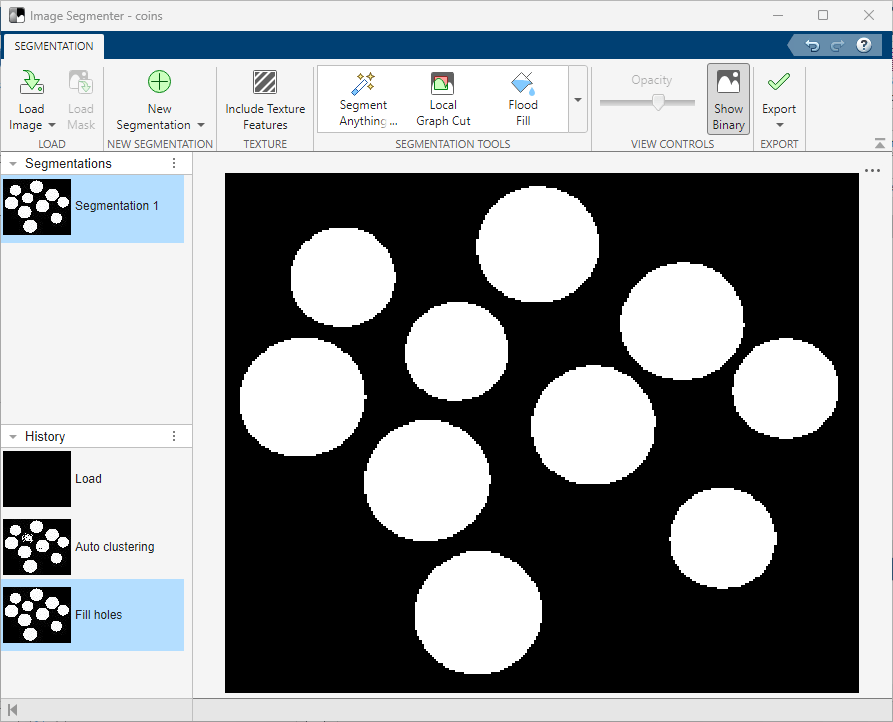
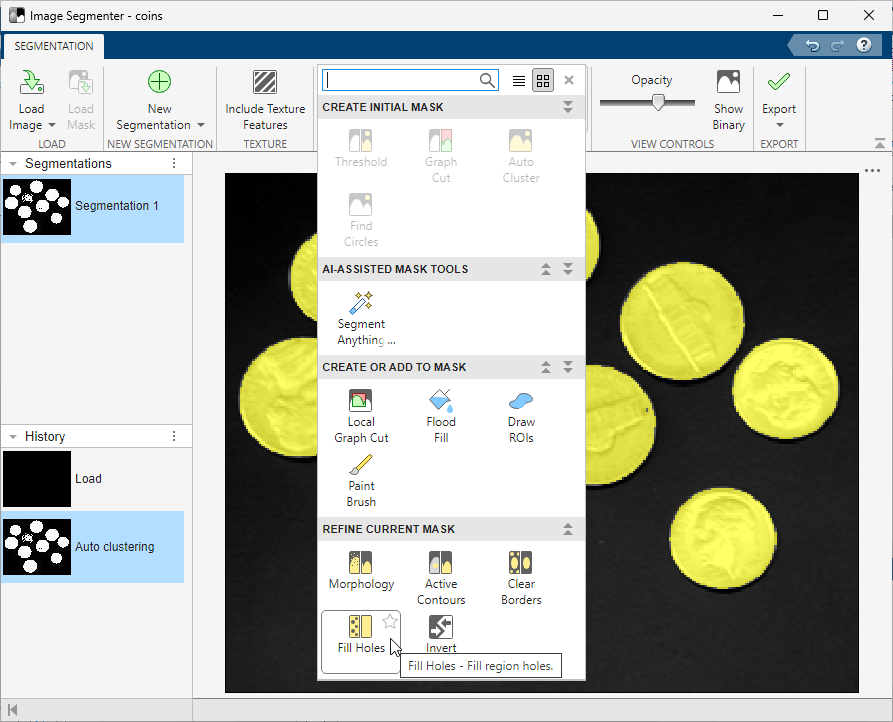
Image Segmenter automatically segments the image, displaying the result. The Auto Cluster option has correctly segmented all the circles. However, some of the circles have holes.
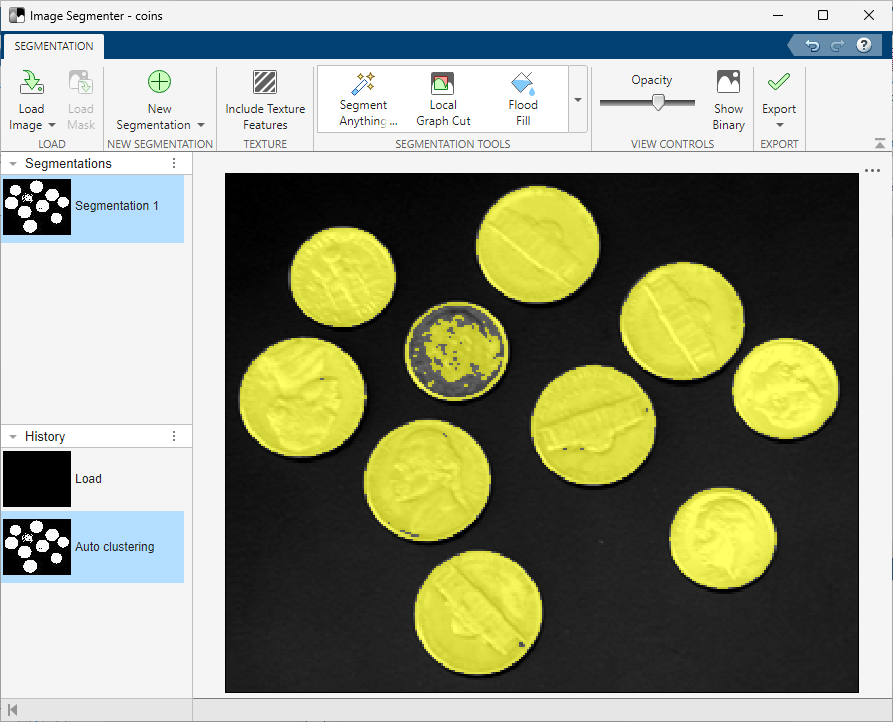
Clean up the holes in the segmented image using the Fill Holes option in the Refine Mask toolstrip group.
Save the Mask Image to the Workspace
When you are satisfied with the segmentation, click Show Binary to view the mask image. To save the binary mask, use the Export option. You can also obtain the code used for the segmentation.