Hardware Setup for Embedded Coder Support Package for ARM Cortex-M Processors
R2026bHardware boards and devices supported by MathWorks® require additional configuration and setup procedure to connect to MATLAB® and Simulink®. Each support package provides a hardware setup process that guides you through registering, configuring, and connecting to your hardware board.
Launch Hardware Setup
Follow these steps to launch the hardware setup:
On the MATLAB Home tab, in the Environment section, click Add-Ons>Manage Add-Ons.
In the Add-Ons panel window, find the Embedded Coder® Support Package for ARM® Cortex®-M Processors, and click Setup.
Download and Install Third-Party Tools
To work with Embedded Coder Support Package for ARM Cortex-M Processors, you require third-party tools. This step installs Cortex microcontroller software interface standard (CMSIS), CMSIS-DSP, and CMSIS-NN libraries.
To install the third-party tools, click Install on the Hardware Setup screen.
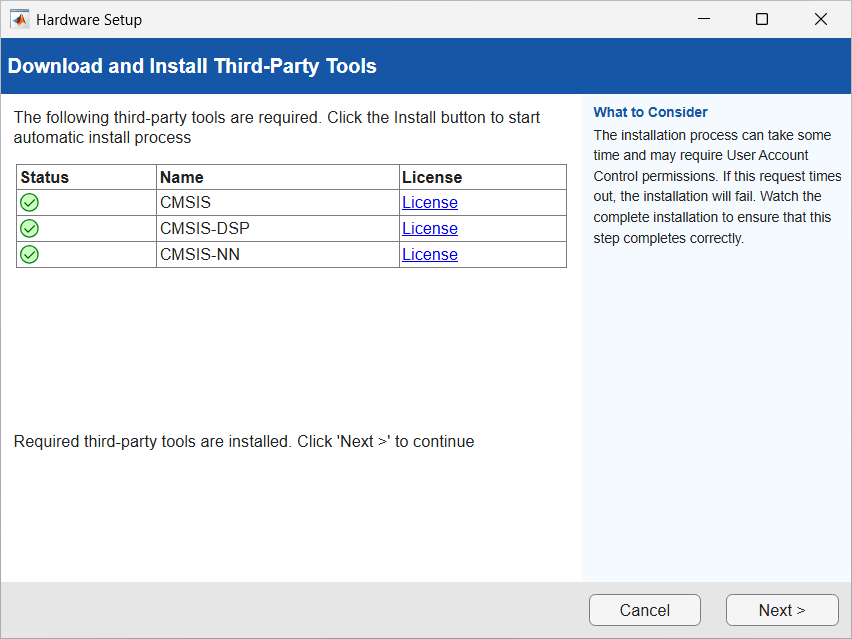
The green check mark indicates that the corresponding third-party tool is successfully installed and available for use by the support package. You can view the license agreement for each third-party tool by clicking the License link.
To update the installed third-party tools, see Set up CMSIS and CMSIS-DSP.
Click Next to install the third-party tools.
If your PC is not connected to the internet during hardware setup and the CMSIS, CMSIS-DSP, and CMSIS-NN packages are available in a local folder, specify the path to that folder in the Hardware Setup screen, as shown in the following image.
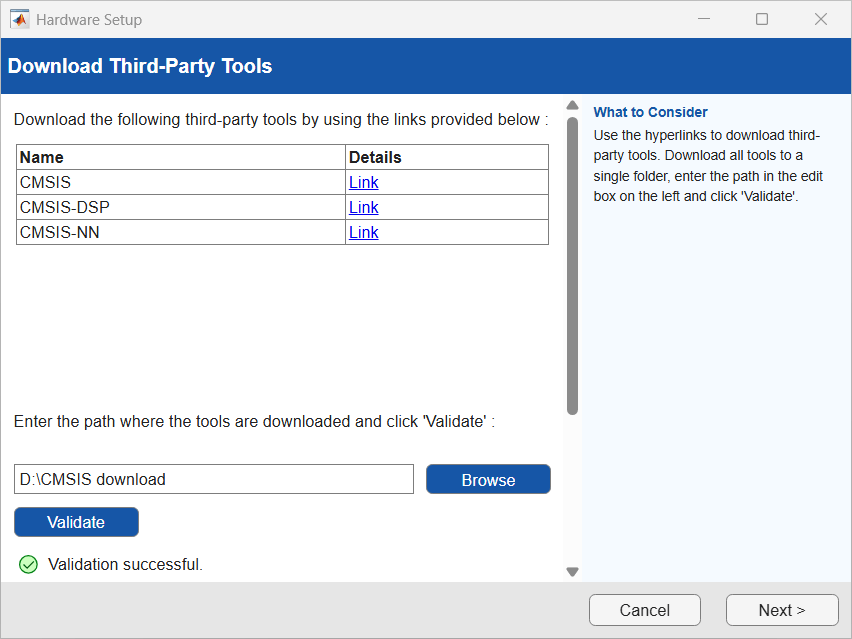
Click Validate. Once the validation is successful, click Next.
To install the CMSIS and CMSIS-DSP tools, click Install.
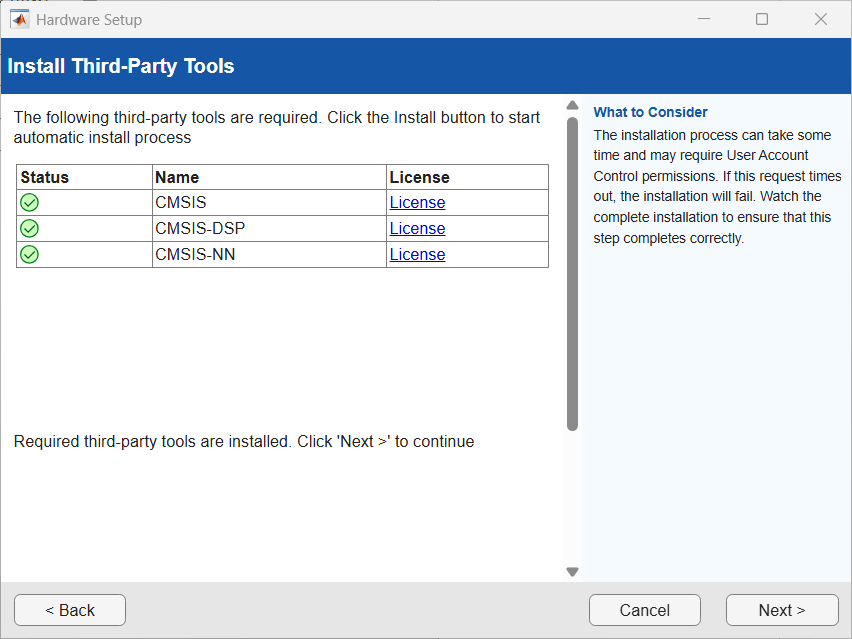
Once the tools are installed, click Next.
Click Finish to complete the hardware setup.
See Also
Install Embedded Coder Support Package for ARM Cortex-M Processors

